This guide walks through creating a Raw File integration - a simpler, credential free integration type that connects a CSV product catalog file (uploaded or fetched via remote URL) instead of authenticating against a third-party platform API. It covers the Configuration step, the multi-step File setup wizard (source, format, field mapping), and the Websites & Stores / Pull Products flow.
Step 1: Navigate to Create Integration
- Home → Integrations → Create
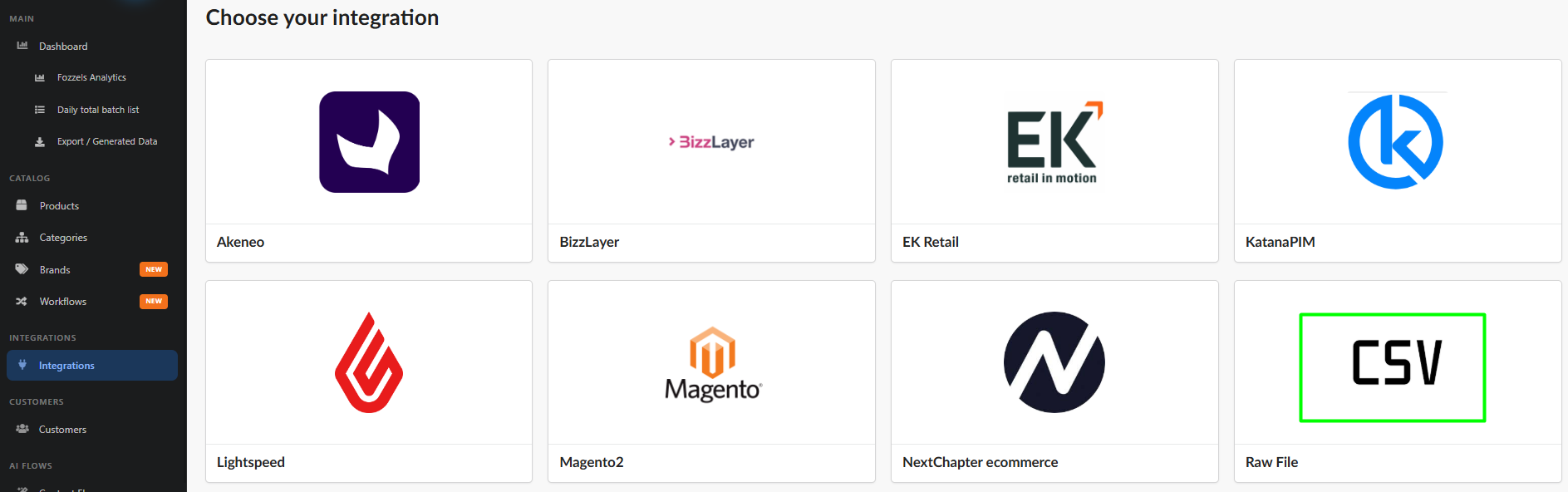
- On the "Choose your integration" screen, select the Raw File platform (CSV icon).
This opens the Create New Integration form, structured the same way as other integration types: 1. Configuration → 2. Websites & Stores → 3. Attributes.
Step 2: Configuration
Fields:
| Field | Description | Example |
|---|---|---|
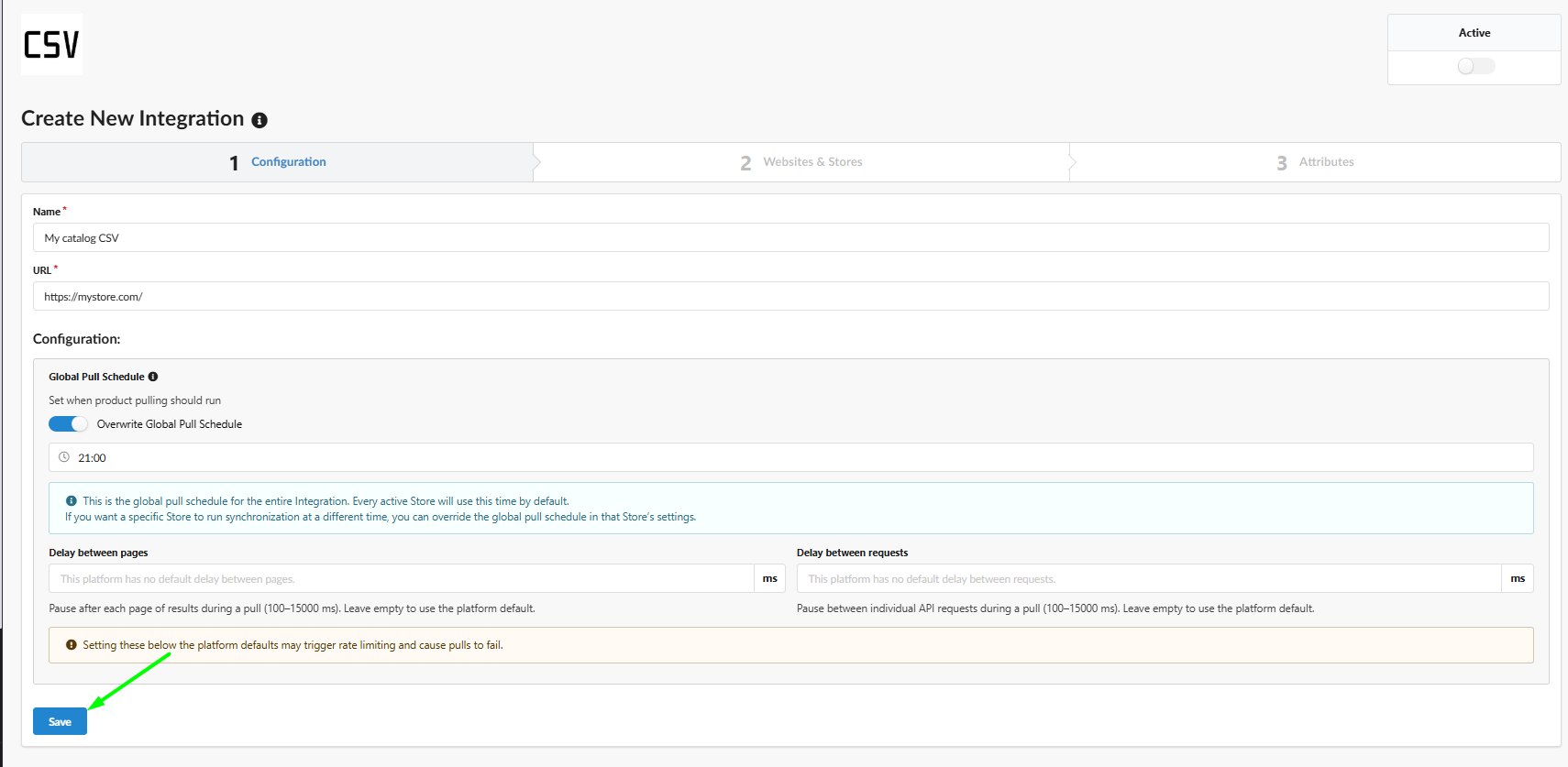
| Name* | Integration name - used to identify it in the integrations list | My catalog CSV |
| URL* | Your website or brand/company address. Note: this is not a direct link to the file itself - it's a general base URL/identifier for the source | https://mystore.com/ |
ℹ️ Key difference vs. platform-based integrations (e.g., Salesforce): Raw File requires no authentication credentials — no Short Code, Organization ID, Client ID, or Client Secret. It's a URL-identified, file-based connection rather than an OAuth-authenticated API connection.
Active toggle: unlike some other integration types, the Active toggle is available directly on this Configuration screen (top right), before the integration is even saved.
Global Pull Schedule
Same mechanism as other integrations: the Overwrite Global Pull Schedule toggle lets you set a custom time for this integration; if left off, the platform default is used.
⚠️ Time is in UTC, not local time. This matters if the pull is meant to run during off-peak hours for a specific store's region - a time that seems like "night" locally may not be night in UTC. If multiple stores across time zones are involved, consider overriding the schedule per Store rather than relying solely on the Global setting.
Delay Between Pages / Delay Between Requests
Same fields and behavior as other integrations: optional, range 100–15000 ms, left empty to use platform defaults.
? Recommendation: leave these empty on initial setup. Run pulls with default settings first; only add delay values if rate-limiting errors occur.
Click Save.

Step 3: Known Limitation - Returning to Configuration
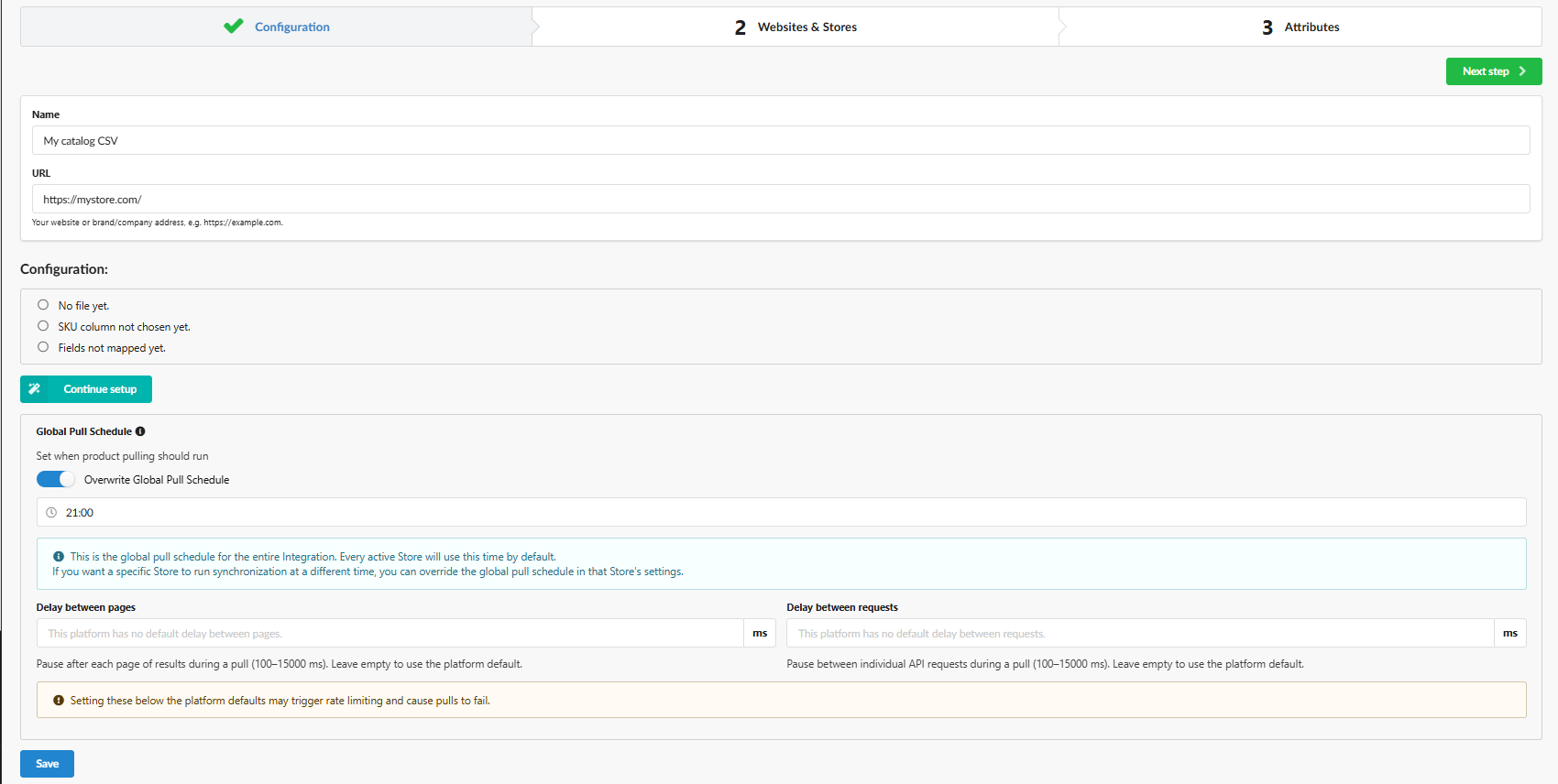
⚠️ Known issue (temporary): after clicking Save, the system navigates to Websites & Stores as expected - but for Raw File integrations, you currently need to click Previous step to go back to Configuration before the file setup can be completed. This is a known limitation planned to be fixed in a future release; until then, this extra round-trip is required.
Upon returning to Configuration, a new setup checklist appears (not shown on the initial pass):
- No file yet.
- SKU column not chosen yet.
- Fields not mapped yet.
Below the checklist, click Continue setup to open the File setup modal.
Step 4: File Setup Wizard
The File setup modal has its own internal 3-step wizard, tracked independently from the main integration wizard:
| Sub-step | Purpose |
|---|---|
| 1. Source & file | Choose where the file comes from and get it |
| 2. Format | Check how the file is read |
| 3. Field mapping | Match columns to product fields |
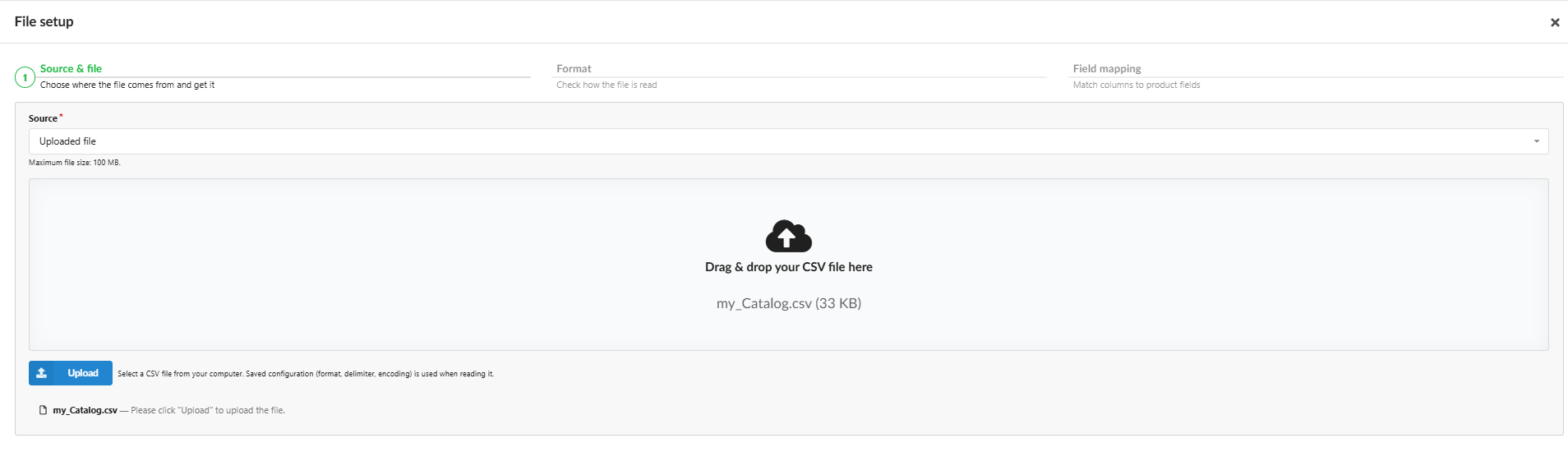
Sub-step 1: Source & file
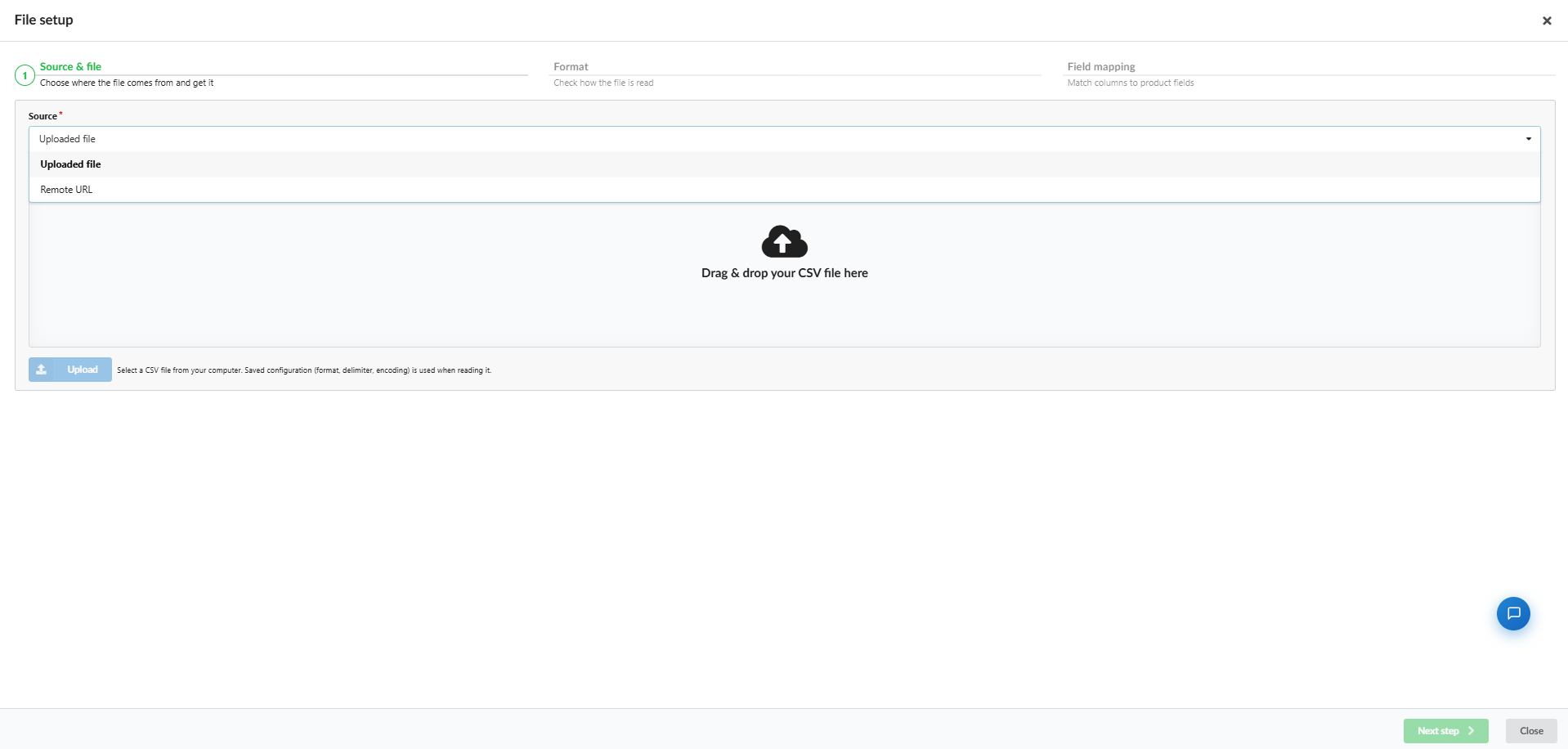
Source* - dropdown with two options:
- Uploaded file - upload a CSV file directly from your computer
- Remote URL - fetch the CSV from a remote link (not yet fully documented - behavior to be confirmed in a future pass)
For Uploaded file:
- Maximum file size: 100 MB
- Drag & drop the file into the drop zone, or click Upload to browse
- Once selected, the file appears in the drop zone (e.g.,
my_Catalog.csv (33 KB)) with a pending status: "Please click 'Upload' to upload the file." - selecting a file and uploading it are two distinct actions - ℹ️ "Select a CSV file from your computer. Saved configuration (format, delimiter, encoding) is used when reading it." - implying format settings persist across re-uploads for the same integration
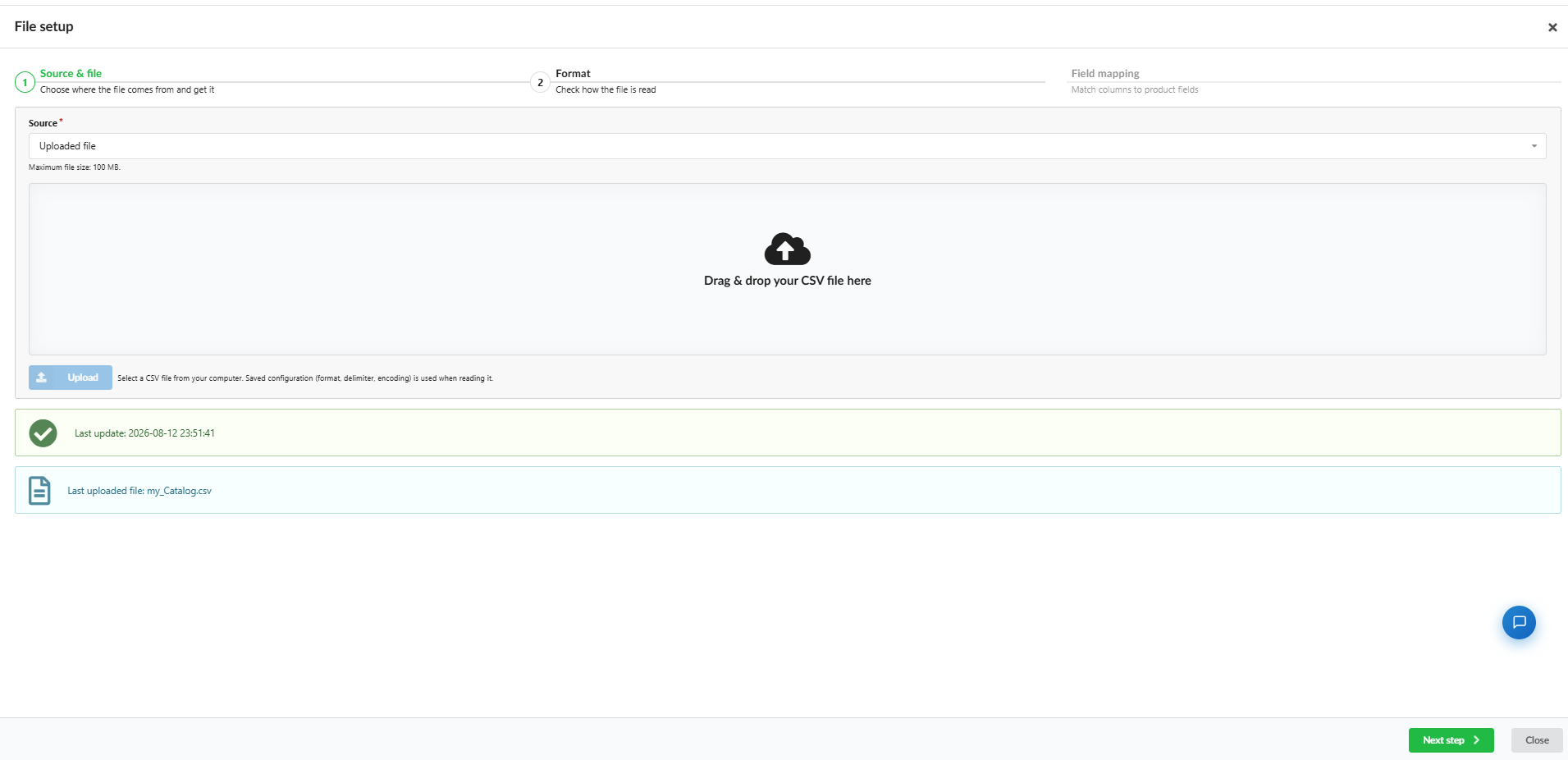
- After clicking Upload, confirmation appears:
- ✅ "Last update: [timestamp]" (e.g.,
2026-08-12 23:51:41) - ? "Last uploaded file: [filename]"
- ✅ "Last update: [timestamp]" (e.g.,
Click Next step to proceed to Format.
Sub-step 2: Format
Fields:
| Field | Description | Example |
|---|---|---|
| Format* | The file format | CSV |
| Delimiter* | Character separating columns | Semicolon (;) |
| Enclosure character | Character wrapping text fields (e.g., to escape delimiter characters within a value) | " |
| Encoding* | Character encoding | UTF-8 |
| SKU column* | Column that uniquely identifies each product, selected from a dropdown of all detected column headers | Productnummer |
ℹ️ "Header name of the column that uniquely identifies each product."
File preview: below the format fields, a live preview table shows the first rows of the file parsed with the current settings.
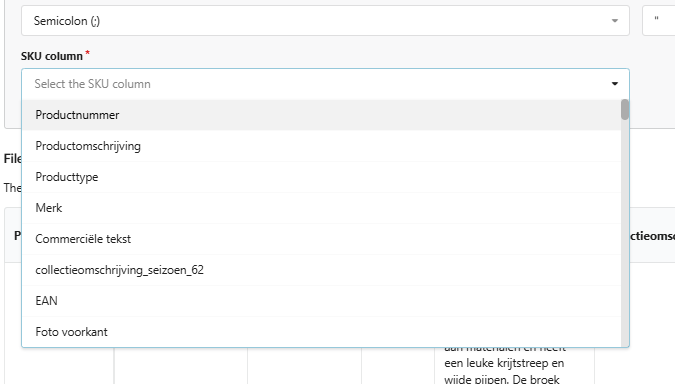
ℹ️ "The first rows parsed with the selected format options. Check that the columns are split correctly."
Use this preview to validate Delimiter/Enclosure/Encoding - garbled or merged columns indicate incorrect format settings. This preview is also a useful artifact to show a customer what their file will look like once processed, before field mapping.
Click Next step to proceed to Field mapping.
Sub-step 3: Field mapping
Maps each CSV column to a product attribute.
Filters/search:
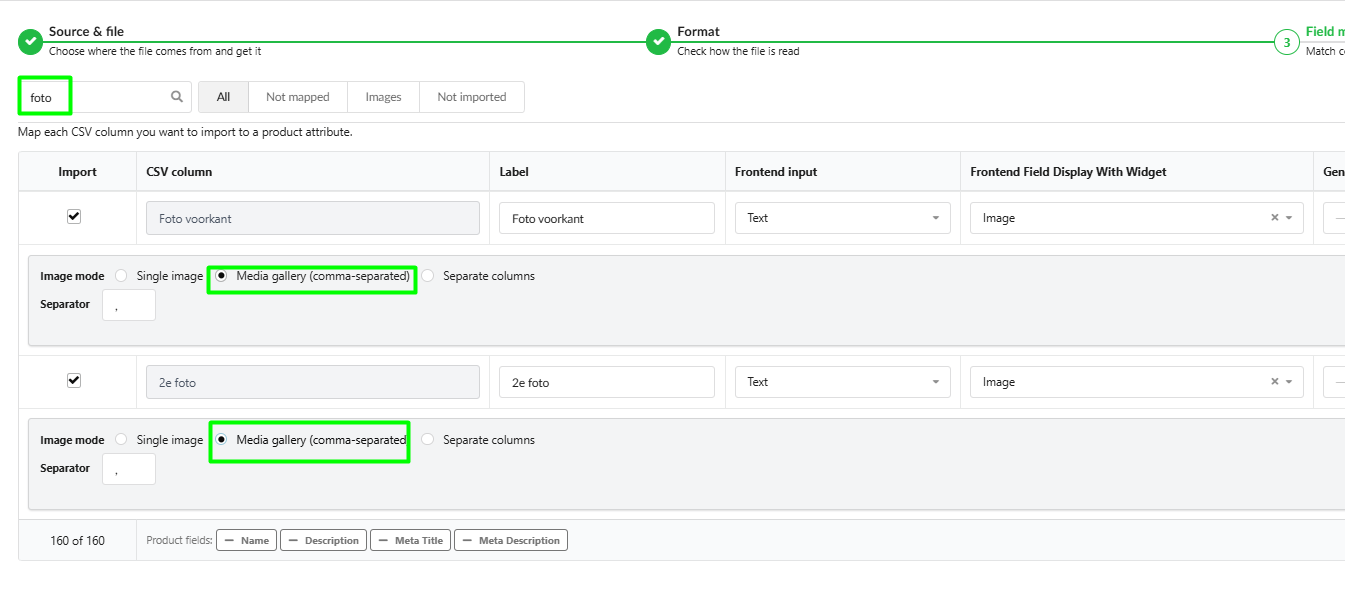
- Search columns... - free-text search across column names (e.g., searching
fotofilters to only image-related columns) - Tabs: All, Not mapped, Images, Not imported
Table columns:
| Column | Description |
|---|---|
| Import | Checkbox controlling whether this CSV column is imported at all. Unchecked = column is ignored entirely |
| CSV column | Original column header from the file (read-only reference) |
| Label | Editable display label for the column; defaults to the CSV column name |
| Frontend input | Input type for the field (e.g., Text) |
| Frontend Field Display With Widget | Optional widget override — set to Image for columns containing image URLs |
| Generic Mapping | Maps the column to a system/generic field. Options: Name, Description, Meta Title, Meta Description |
| Example values | Live sample values from the uploaded file, shown per column to confirm correct mapping |
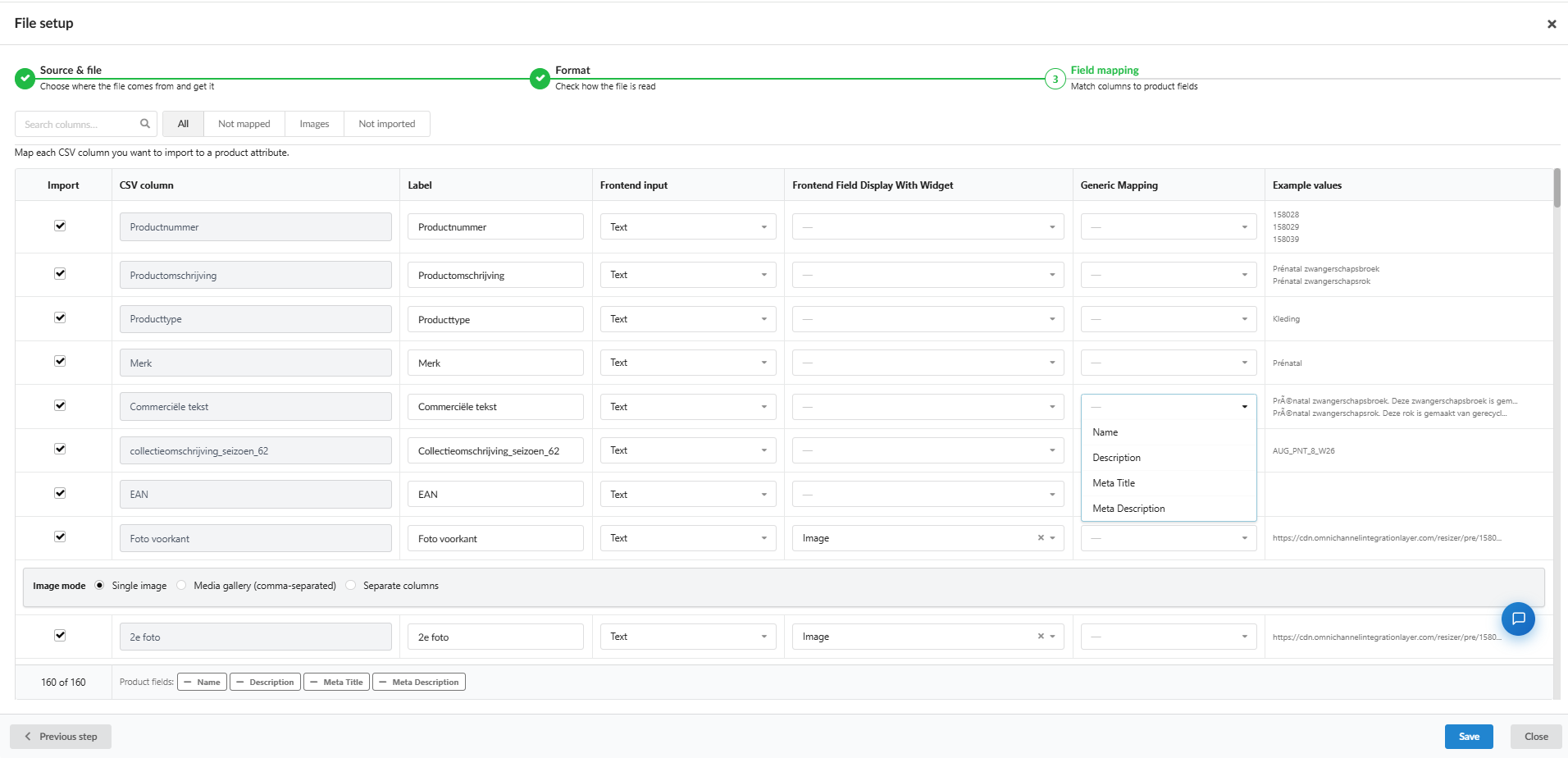
Image columns and Image mode:
Setting a column's Frontend Field Display With Widget to Image reveals an Image mode sub-panel with three options:
- Single image — the column holds exactly one image URL
- Media gallery (comma-separated) — the column holds multiple image URLs in a single cell, separated by a delimiter character (a Separator field appears, default
,) - Separate columns — each image lives in its own dedicated column (e.g.,
Foto voorkant,2e foto)
ℹ️ Important behavior: regardless of which Image mode is chosen per column, when multiple columns are each mapped with the Image widget, all of their images are combined into a single shared gallery on the product — this happens automatically, with no additional configuration needed to "merge" them.
Bottom bar:
- Counter showing total columns detected (e.g.,
160 of 160) - Product fields reference chips: Name, Description, Meta Title, Meta Description
⚠️ Must click Save: once mapping and image settings are configured, you must explicitly click Save to persist the field mapping. Closing the popup without saving discards the configuration.
After saving, close the File setup popup - this returns you to the main Websites & Stores step.
Step 5: Websites & Stores - Activation and Pull
Back on Step 2: Websites & Stores, the flow is structurally the same as other integration types, but conceptually different for Raw File:
ℹ️ Note: the UI keeps the same layout and labels as other integrations ("Websites & Stores," PULL WEBSITES AND STORES, Active toggle) for consistency - but for Raw File, this step represents a single uploaded file, not multiple actual stores/websites the way it does for platform-based integrations.
For Raw File, this table typically shows one default Website/Store pair (e.g., Default website, default (nl_NL) store) rather than a list pulled from an external platform.
Steps:
- Toggle Active to activate the integration.
- Click PULL WEBSITES AND STORES.
- Toggle the Website and Store to Active.
- Click Pull products to start importing.
Pull Progress - Raw File specifics
Once triggered, the Pull Progress expands into 2 sequential steps (not 4, unlike platform-based integrations that also pull categories):
- Product Attribute
- Product
ℹ️ Raw File only pulls Product Attribute and Product - a flat CSV file has no native concept of Category, unlike catalog-structured platforms.
Controls available during an active pull:
- ? Pause - pause the ongoing pull
- ? Stop - stop/cancel the ongoing pull
Each step also has:
- ? Refresh - re-run that specific step
- ? View logs — view the detailed log for that step
- ? View products (on the Product step) - jump directly into the catalog to see imported products

Step 6: Result in Catalog
Clicking ? View products opens Manage Products, scoped to the current integration/website/store context (shown as colored filter chips at the top, e.g., integration name, website, store/locale).
Wrap-up
Once the file is uploaded, formatted, and mapped, and the Website/Store is activated with products pulled, the Raw File integration is fully functional. Catalog management, attribute review, and downstream flows (aside from the content-export distinction above) follow the same general patterns as other integration types.
Was this article helpful?
That’s Great!
Thank you for your feedback
Sorry! We couldn't be helpful
Thank you for your feedback
Feedback sent
We appreciate your effort and will try to fix the article