This guide walks you through the complete process of connecting your Shopware 6 online store with Fozzels.
The integration consists of two parts:
Part 1: Create an Integration in Shopware 6
In this part, you will create an API integration inside your Shopware 6 administration panel. This generates the credentials that Fozzels needs to communicate with your store.
1. Introduction
Go to your Shopware 6 Administration panel. You can usually find it at your store URL.
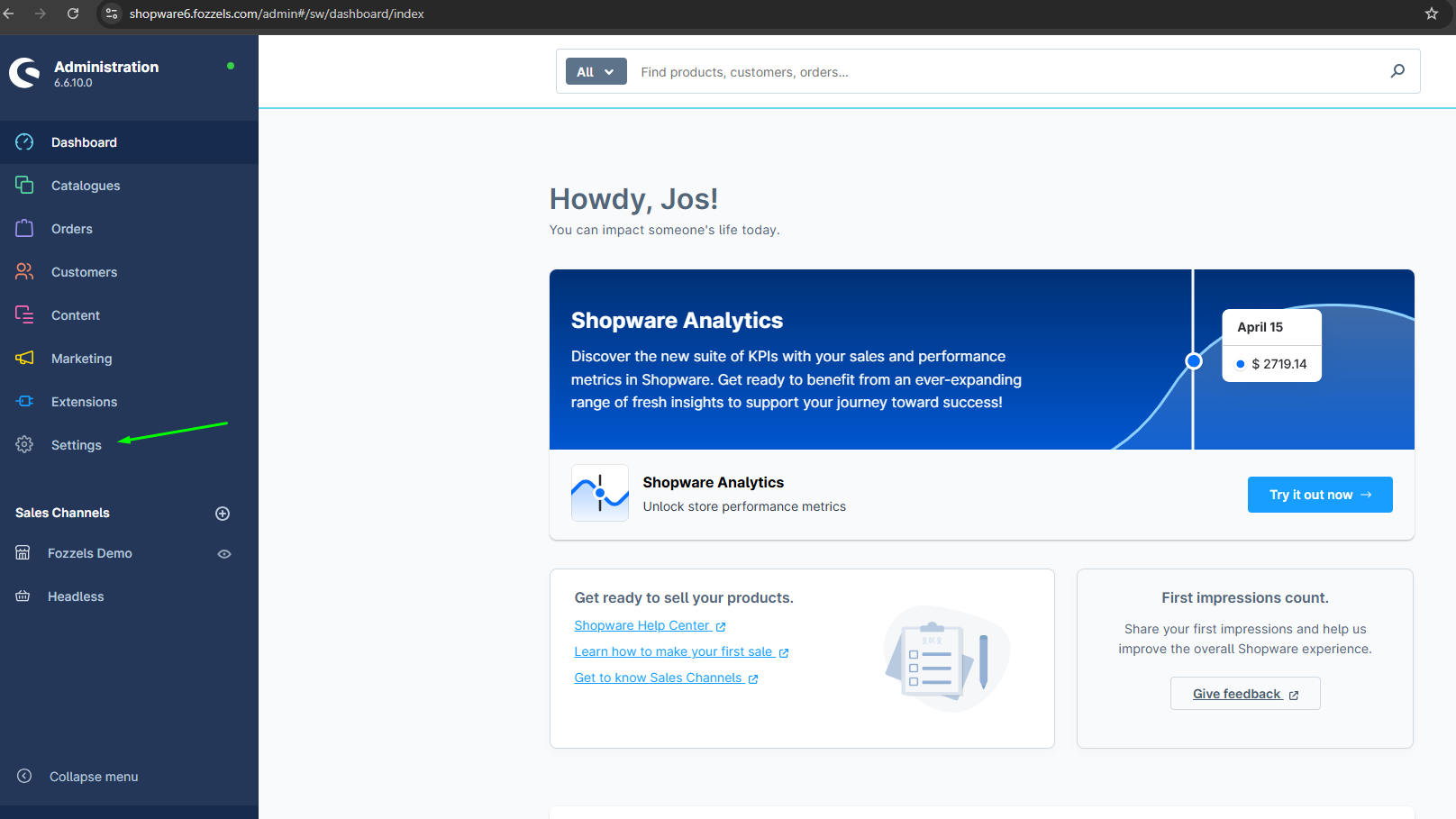
2. Click "Settings"
Click on "Settings".
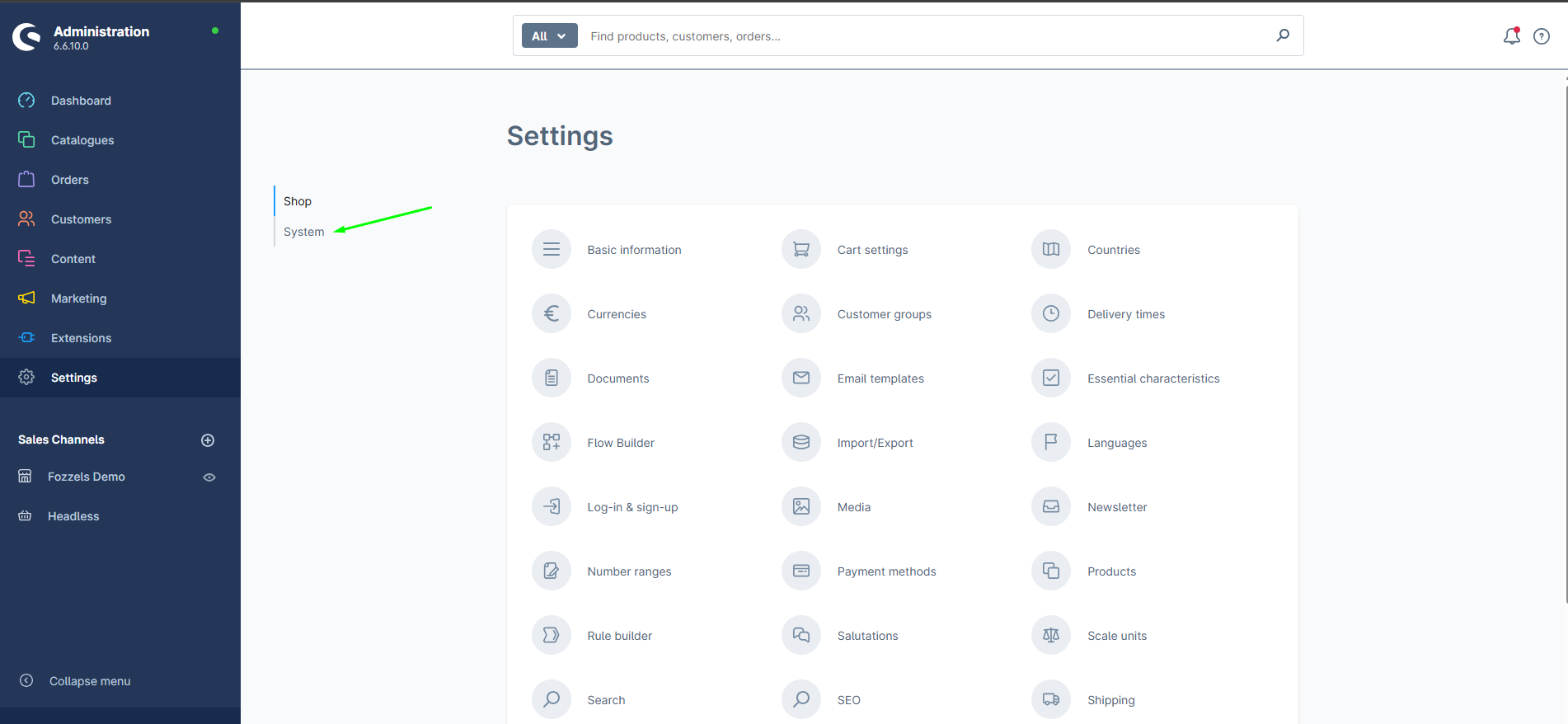
3. Click on "System"
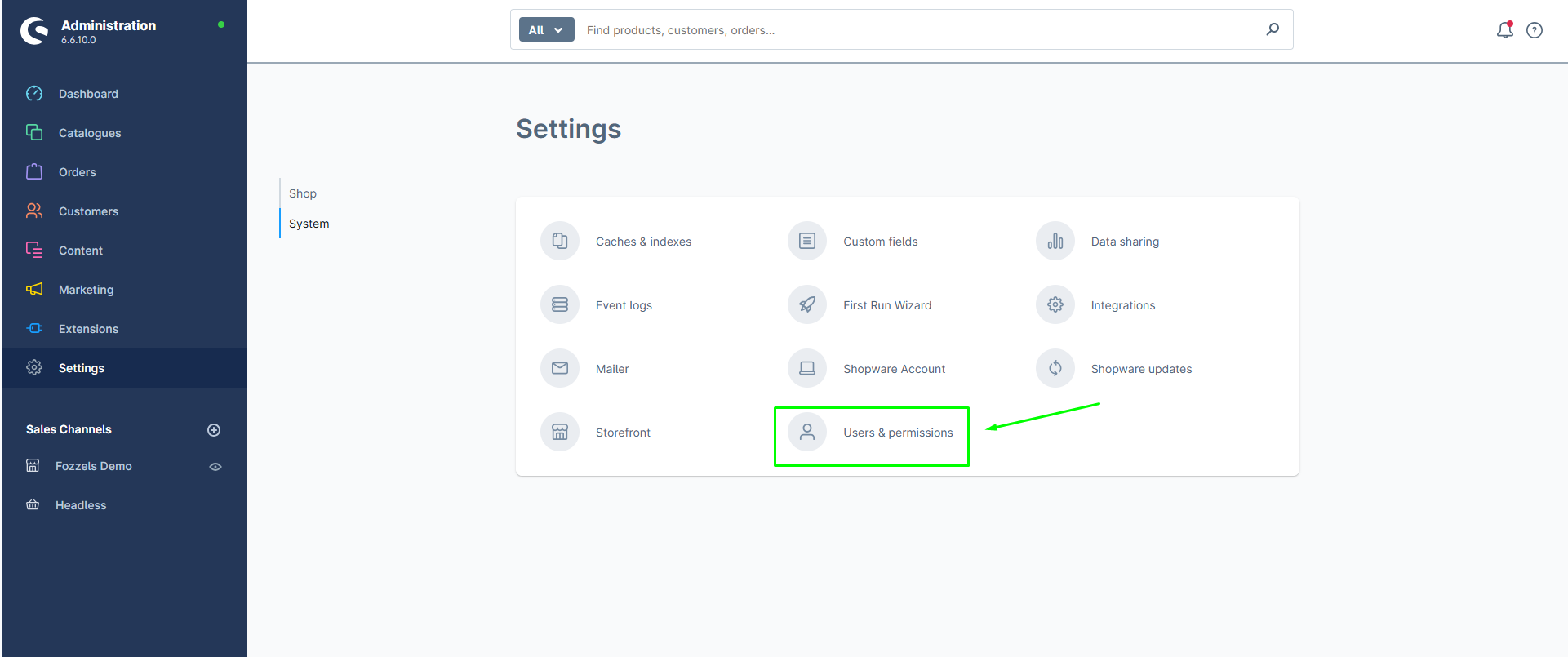
4. Click "Users & permissions"
5. Scroll down to "Roles" and click "Create role"
On the Users & permissions page, scroll down to the Roles section and click the "Create role" button.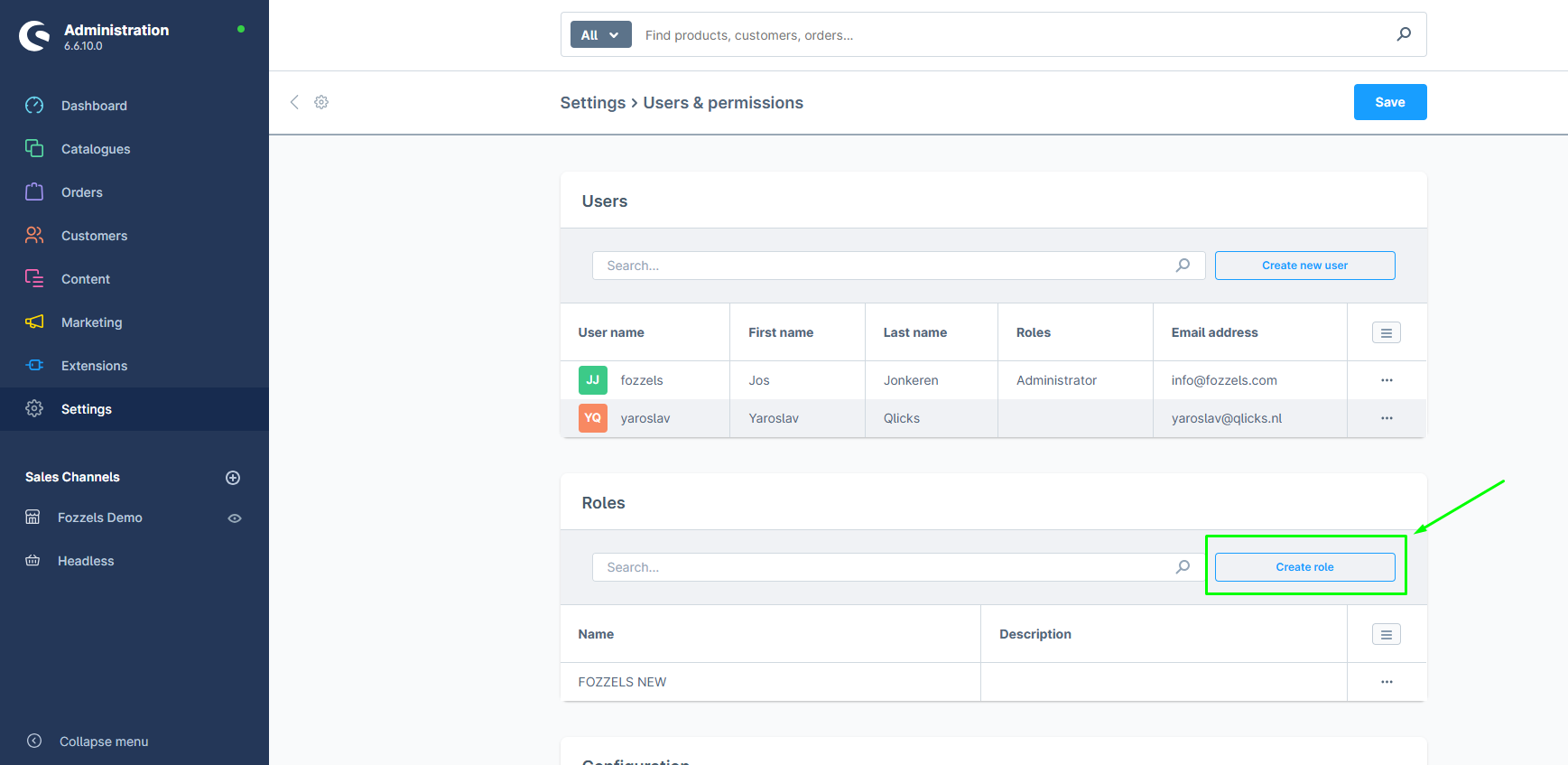
6. Fill in the role name
On the "General" tab, enter a name for the role.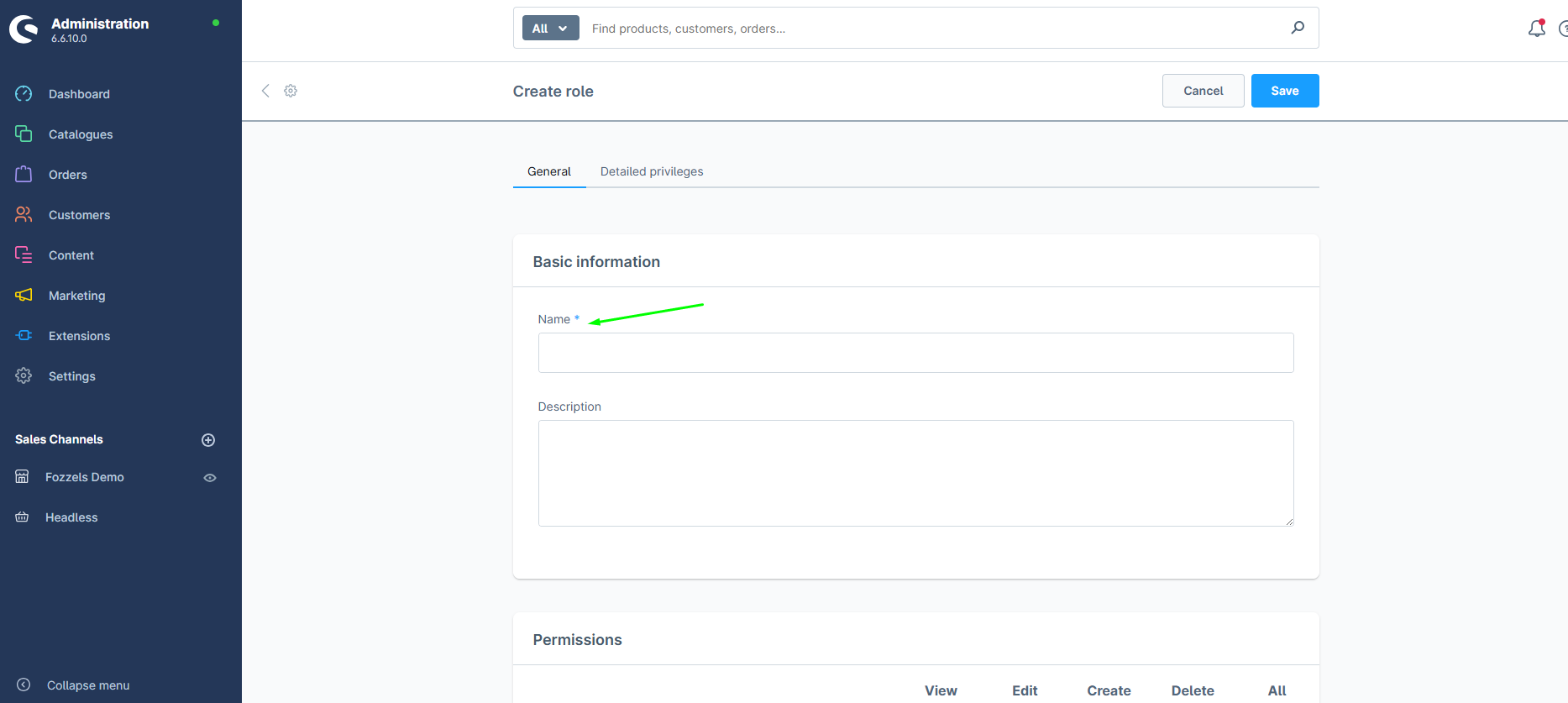
7. Click on the "Permissions"
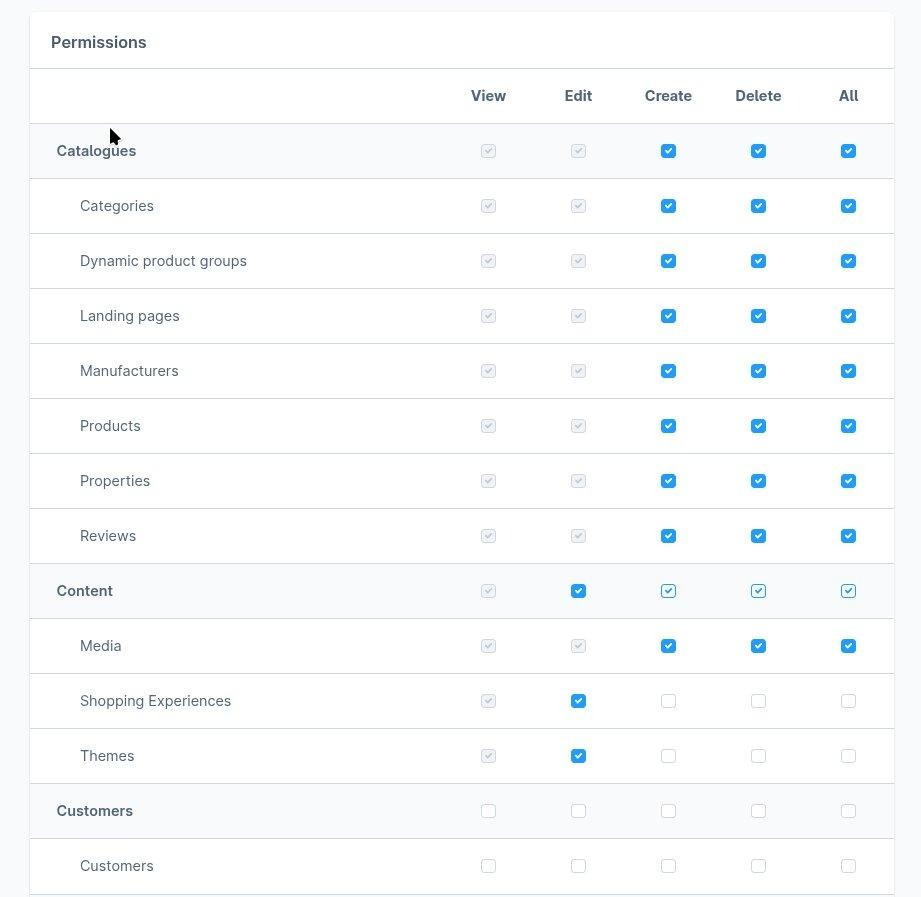
You will see the permissions table with all checkboxes unchecked. Enable the following permissions:
Catalogues (View, Edit, Create, Delete):
- Categories
- Dynamic product groups
- Landing pages
- Manufacturers
- Products
- Properties
- Reviews
Content:
- Media (View, Edit, Create, Delete)
- Shopping Experiences (View, Edit)
- Themes (View, Edit)
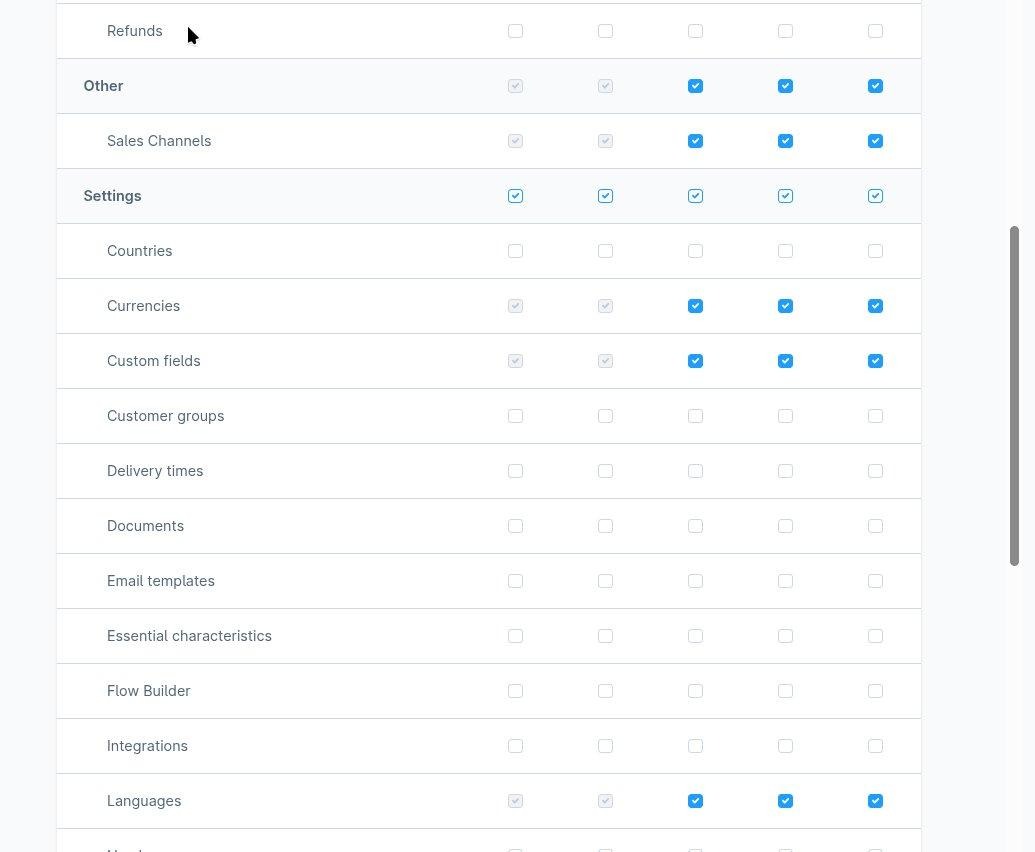
Other (View, Edit, Create, Delete):
- Sales Channels
Settings:
- Currencies (View, Edit, Create, Delete)
- Custom fields (View, Edit, Create, Delete)
- Languages (View, Edit, Create, Delete)
8. Save the role
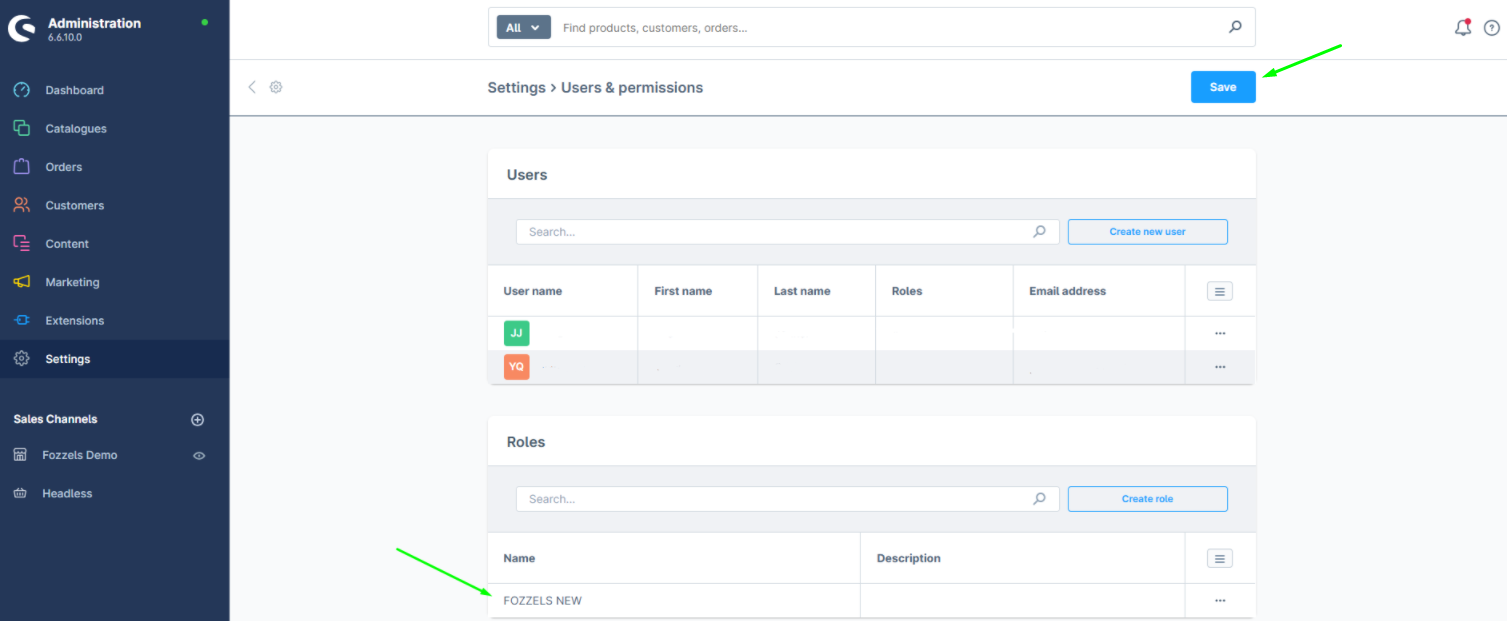
After setting all permissions, click "Save" to save the role.
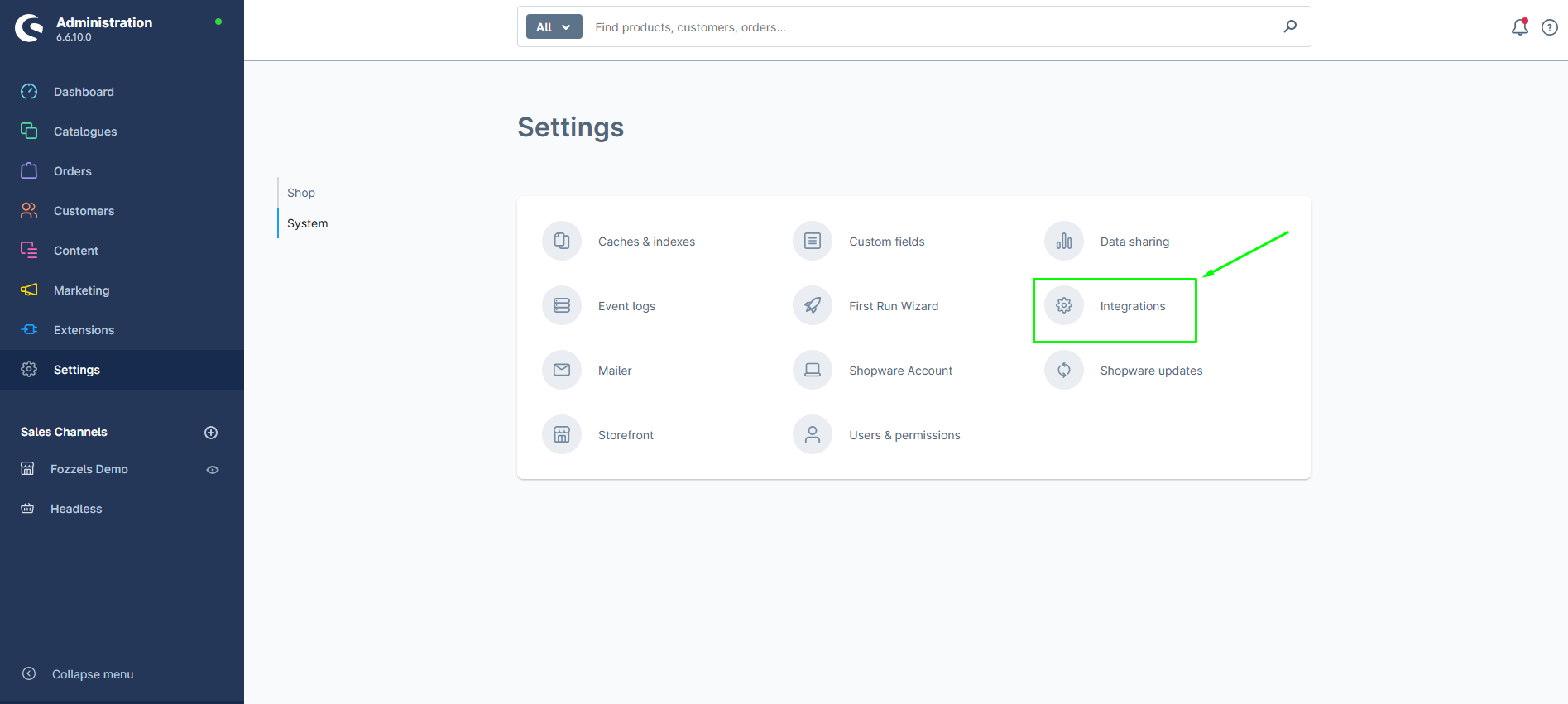
9. Go to System > Integrations
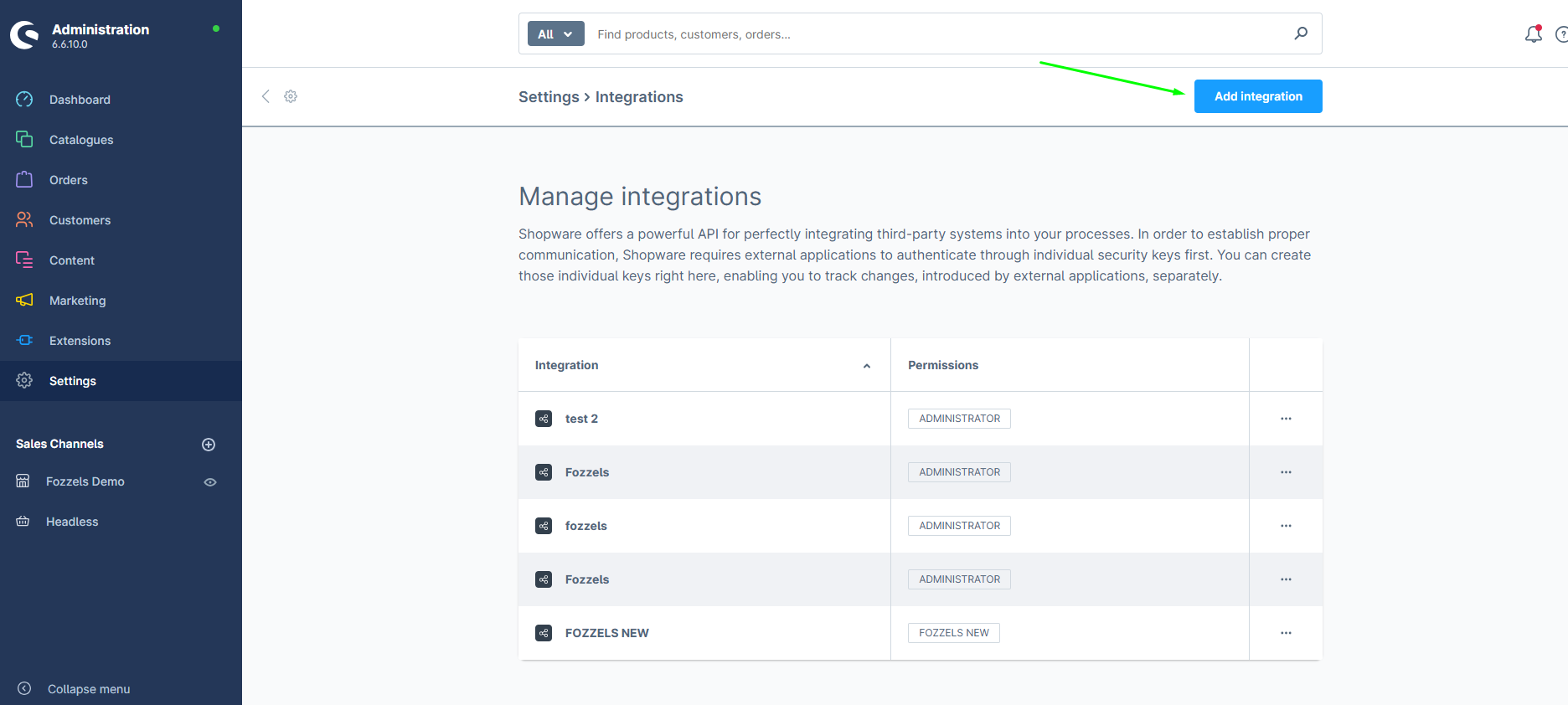
10. Click "Add integration"
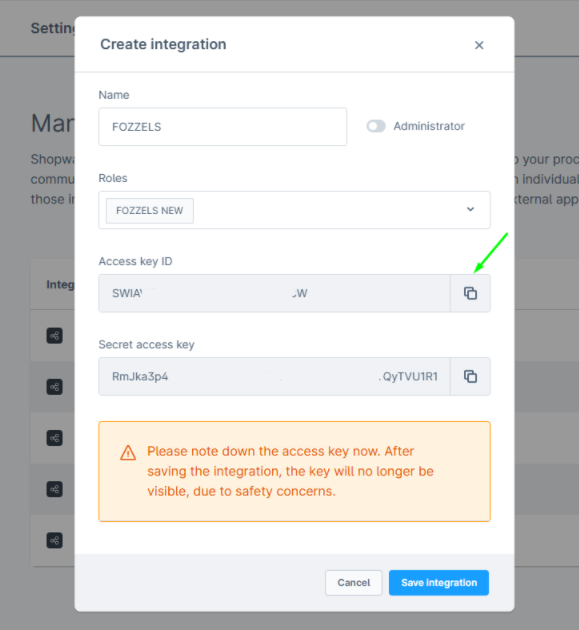
Click the "Add integration" button. The "Create integration" dialog will appear:
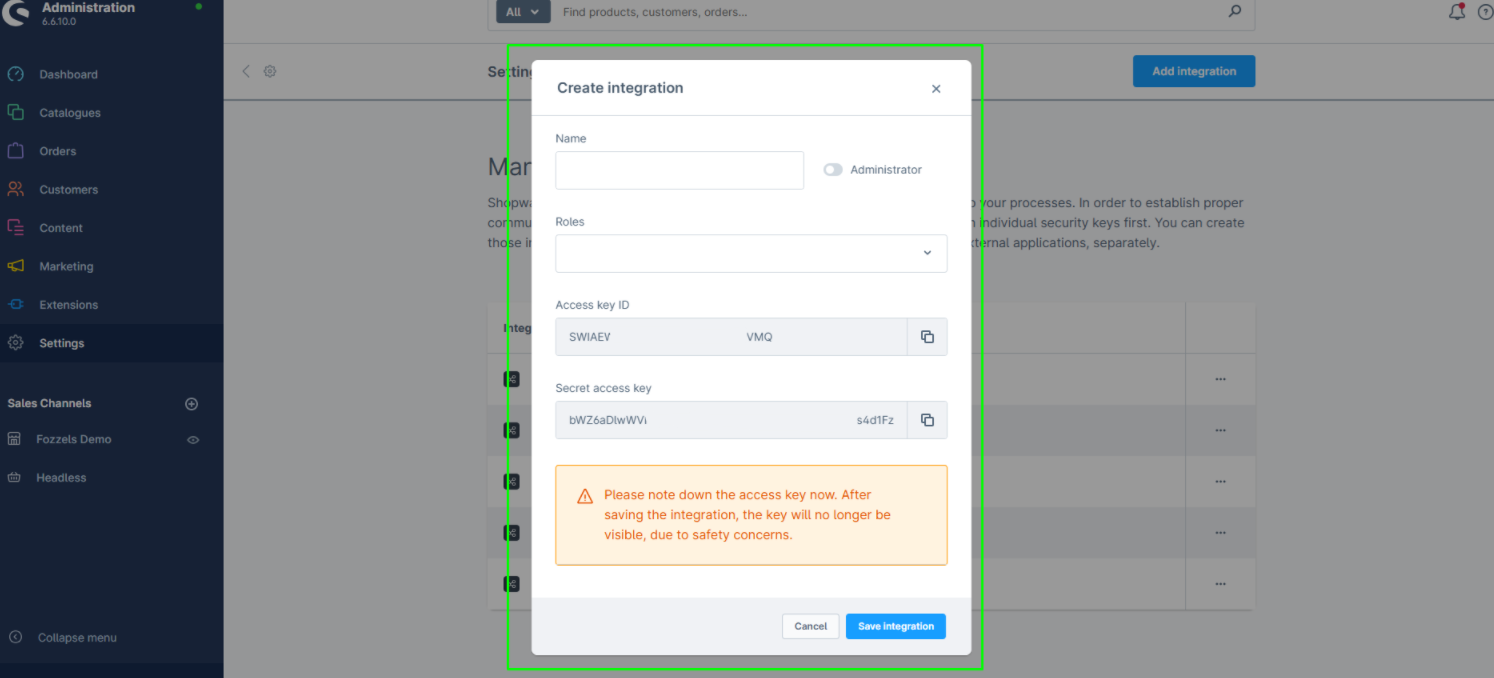
11. Fill in the integration details
Enter a name for the integration. Then open the "Roles" dropdown and select the role you created in previously.
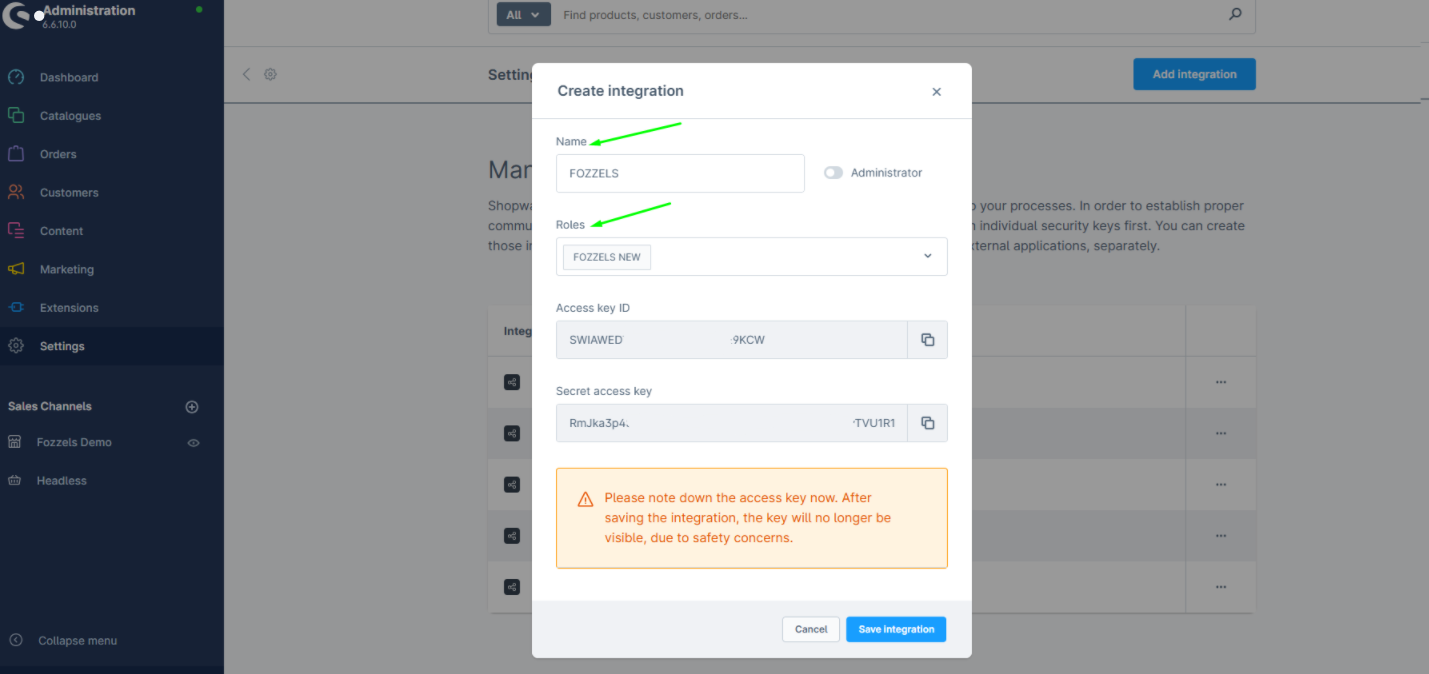
12. Copy the Access Key ID
Click the copy icon next to the Access Key ID to copy it to your clipboard. Paste this key into a text document for safekeeping - you will need it in Part 2.
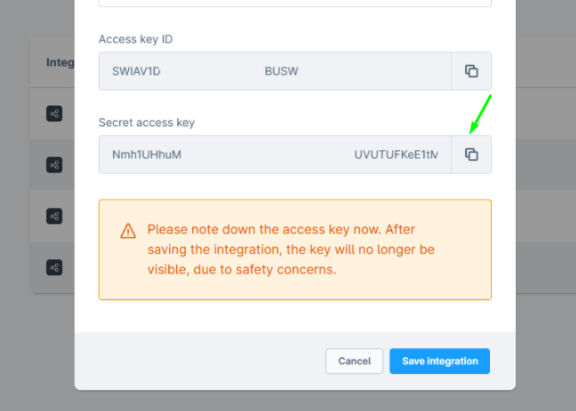
13. Copy the Secret Access Key
Do the same for the Secret access key: click to copy the Secret access key to your clipboard. Then paste this code into some text document so that you can access and copy the code later.
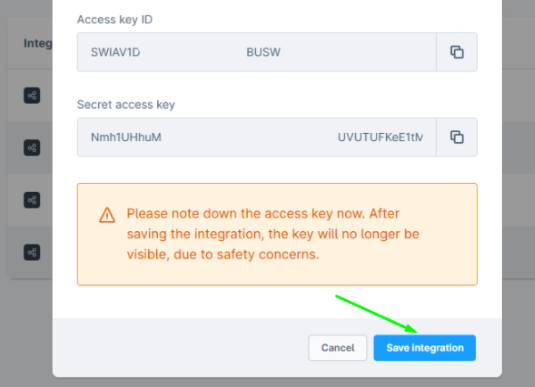
14. Click "Save integration"
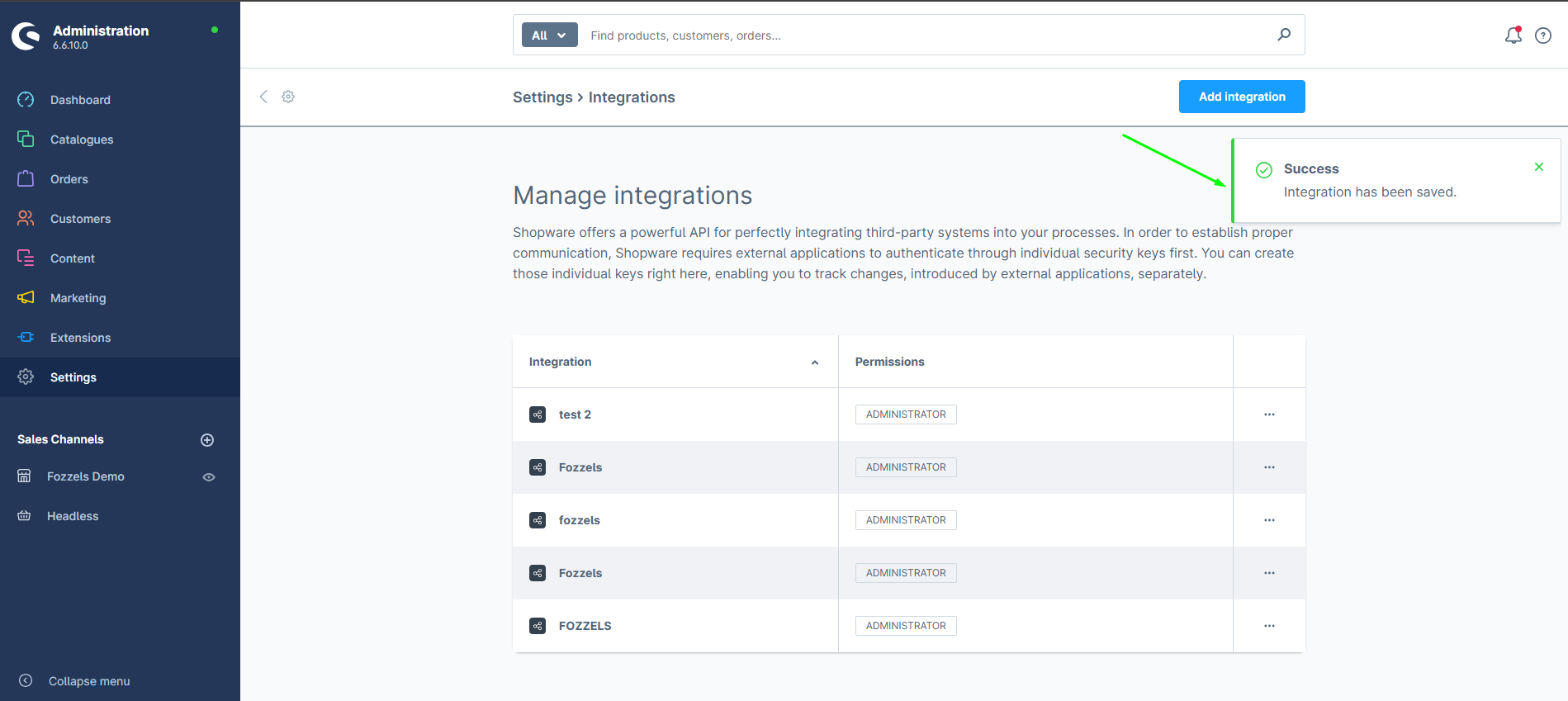
15. Confirm the success message
The integration is now created and active.
Part 2: Connect Fozzels to Shopware 6
Now that you have created the integration in Shopware, you will configure the connection on the Fozzels side using the credentials from Part 1.
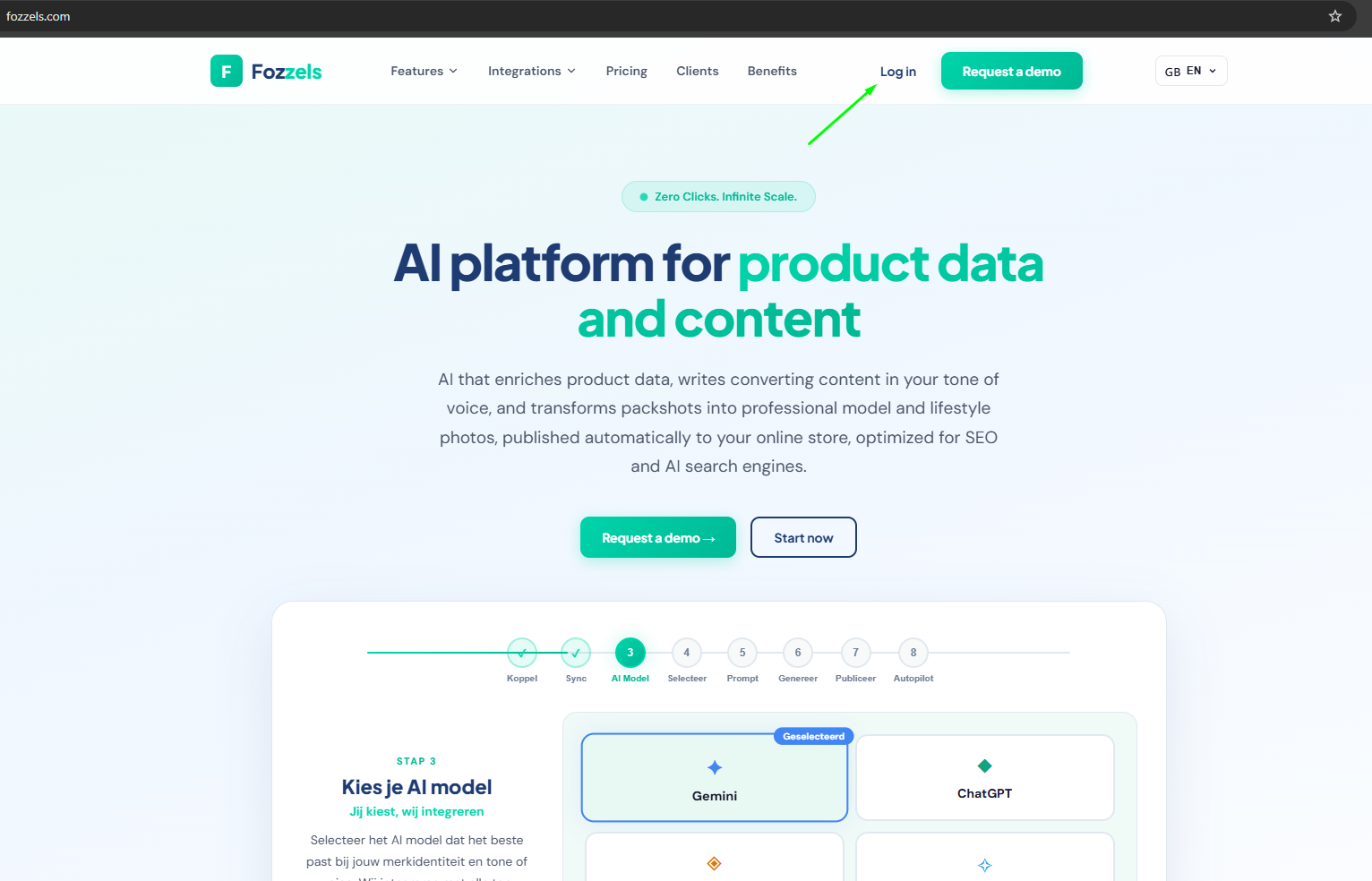
1. Go to Fozzels.com
2. Click "Integrations"
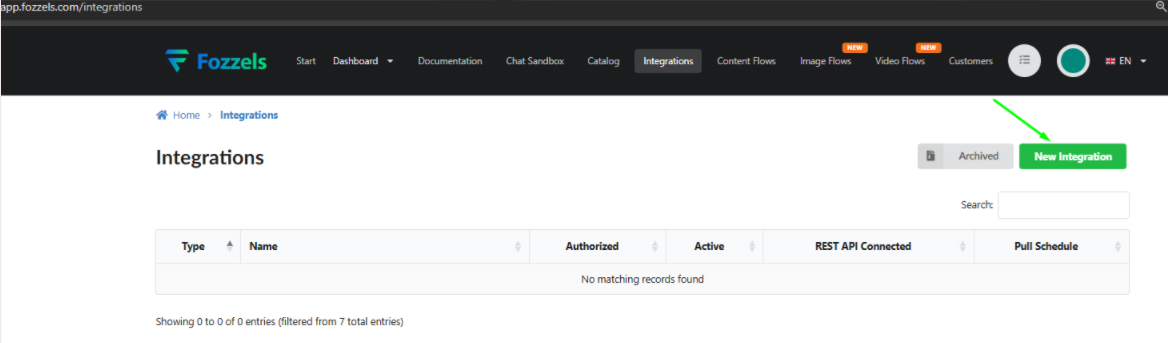
In the Fozzels menu, click on Integrations.

3. Click "Create"
Click the "Create" button to start setting up a new integration.
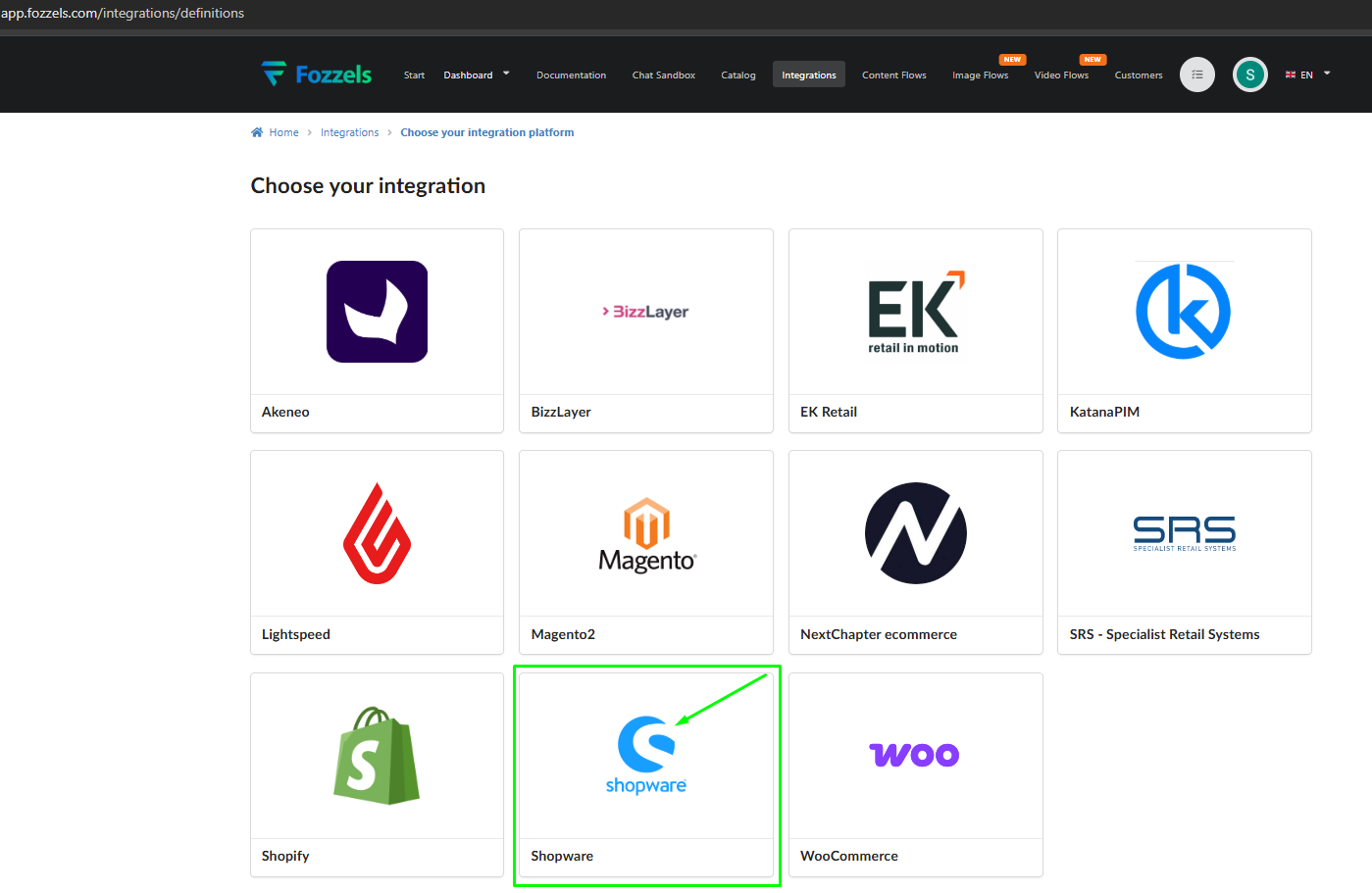
4. Select the Shopware logo
Choose Shopware as the integration type by clicking on the Shopware logo.
5. Fill in the integration details
Fill in the following fields in order:
1. Name — Enter a name for this integration, for example "Shopware 6".
2. URL — Enter your Shopware 6 online store URL (e.g., https://your-store.com).
3. Access Key ID — Paste the Access Key ID that you copied from Shopware in Part 1.
4. Secret Access Key — Paste the Secret Access Key that you copied from Shopware in Part 1.
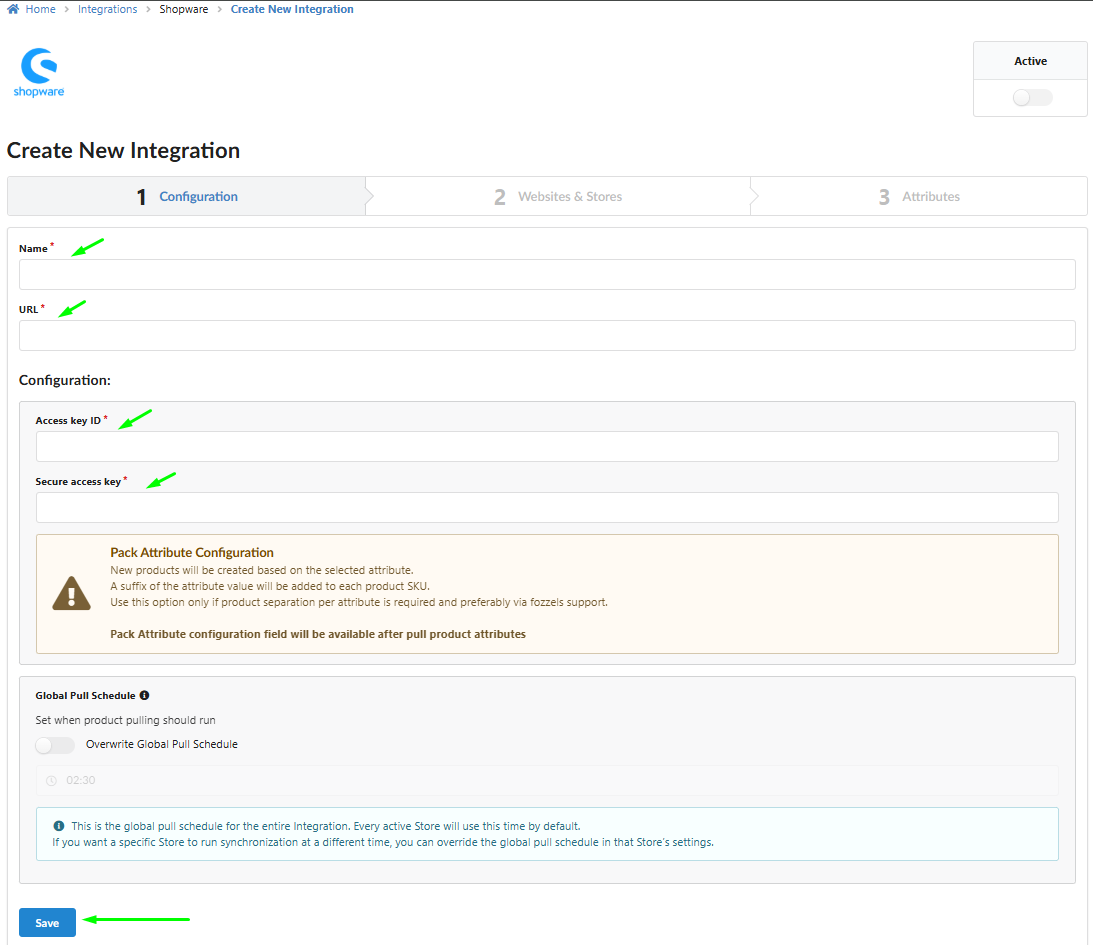
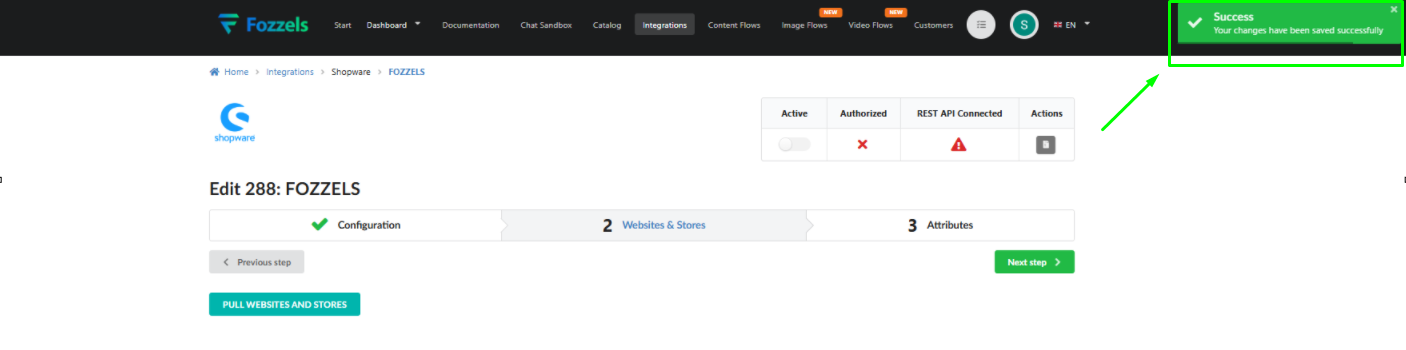
6. When all fields are filled in, click "Save". You should see a "Success" pop-up confirming the connection was saved.
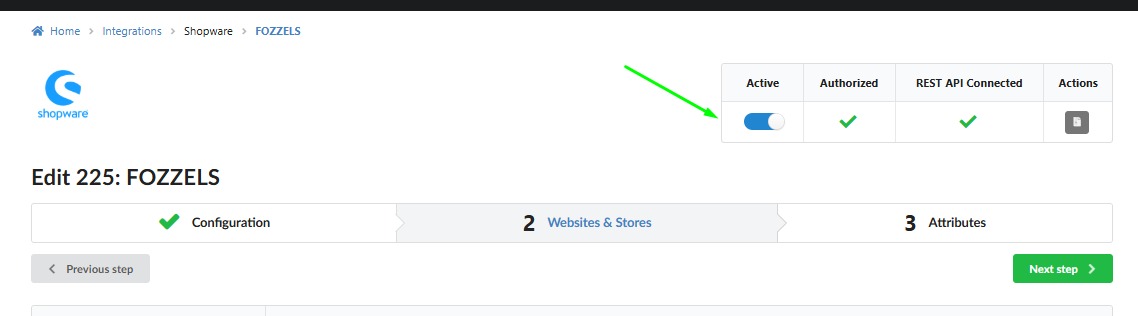
7. Activate the integration
Toggle the "Active" switch to on to activate the integration.
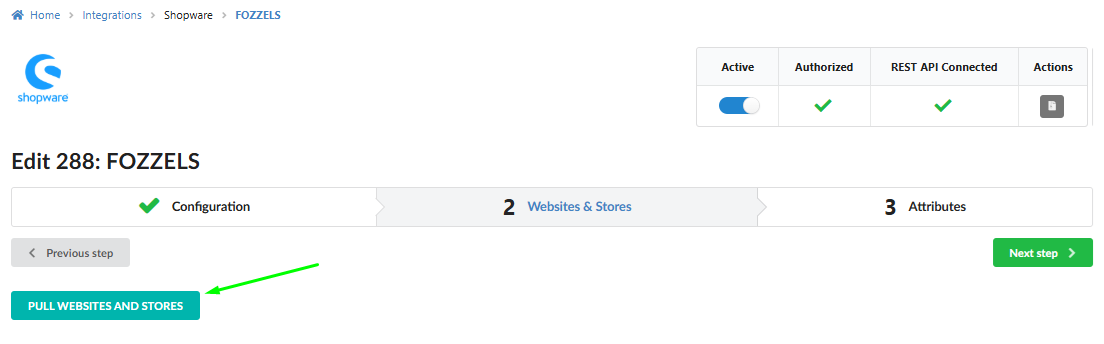
8. Pull Websites and Stores
Click the "Pull Websites and Stores" button. Fozzels will retrieve all your sales channel data from Shopware.
9. Enable your store connection
Toggle the Status switch to on for your store.
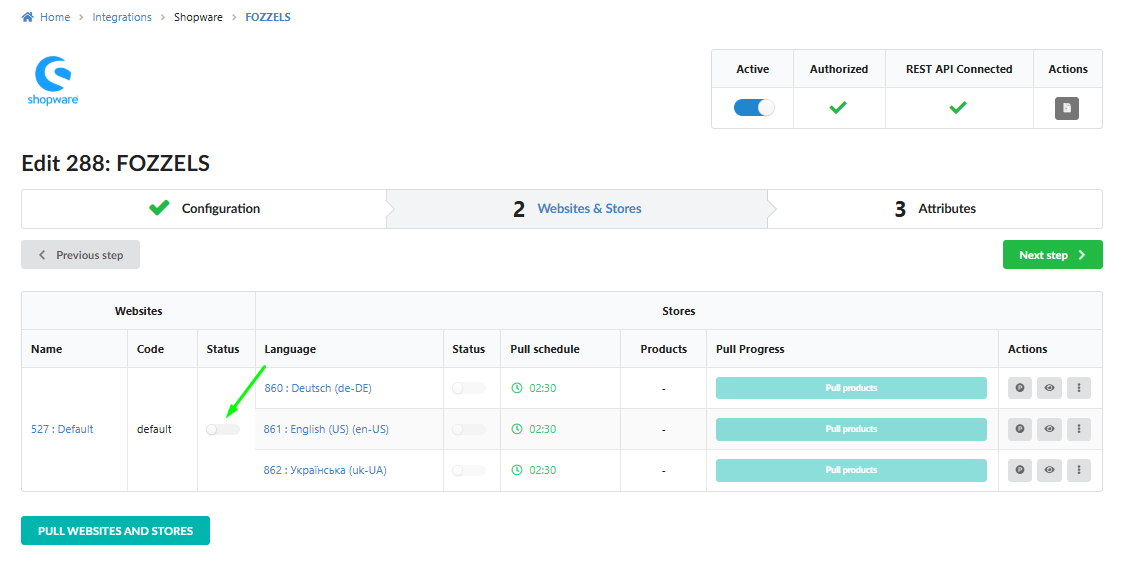
10. Enable store views / sales channels
Enable the available store views or sales channels that you would like to use in Fozzels.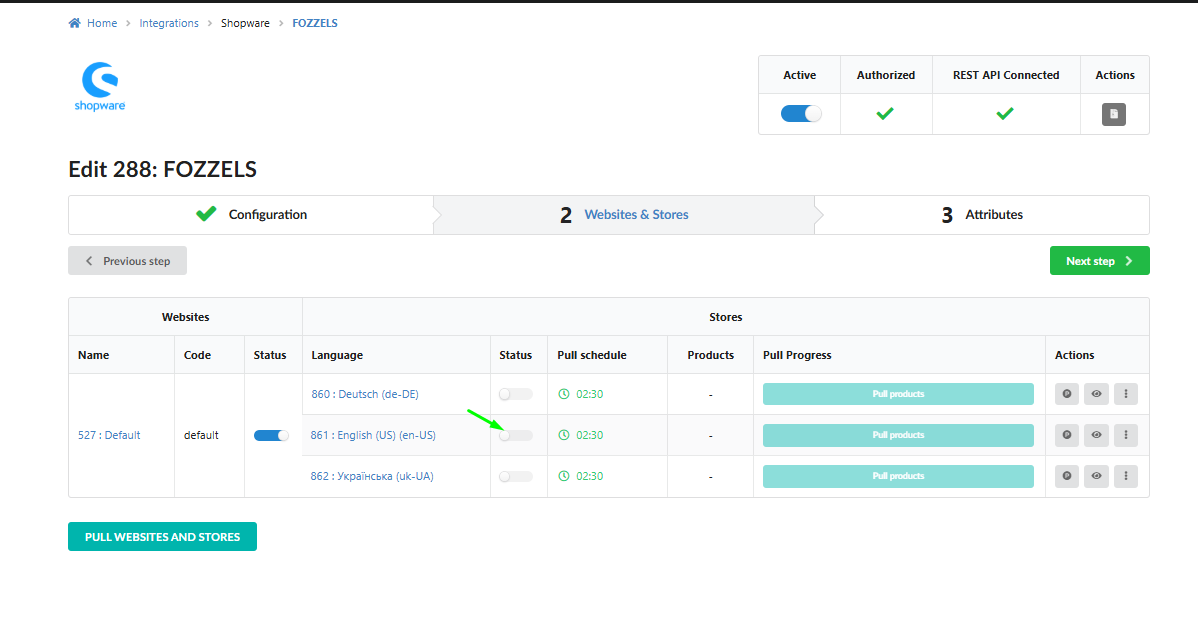
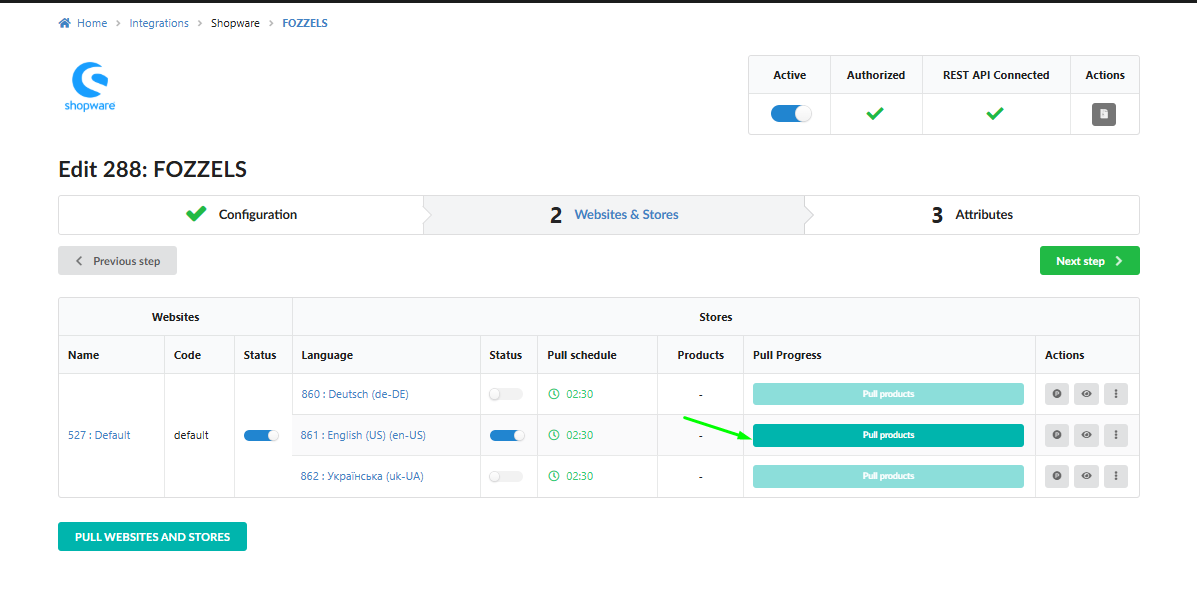
11. Pull Products
Click "Pull Products" to retrieve your product data from Shopware. This may take a while depending on the number of products.
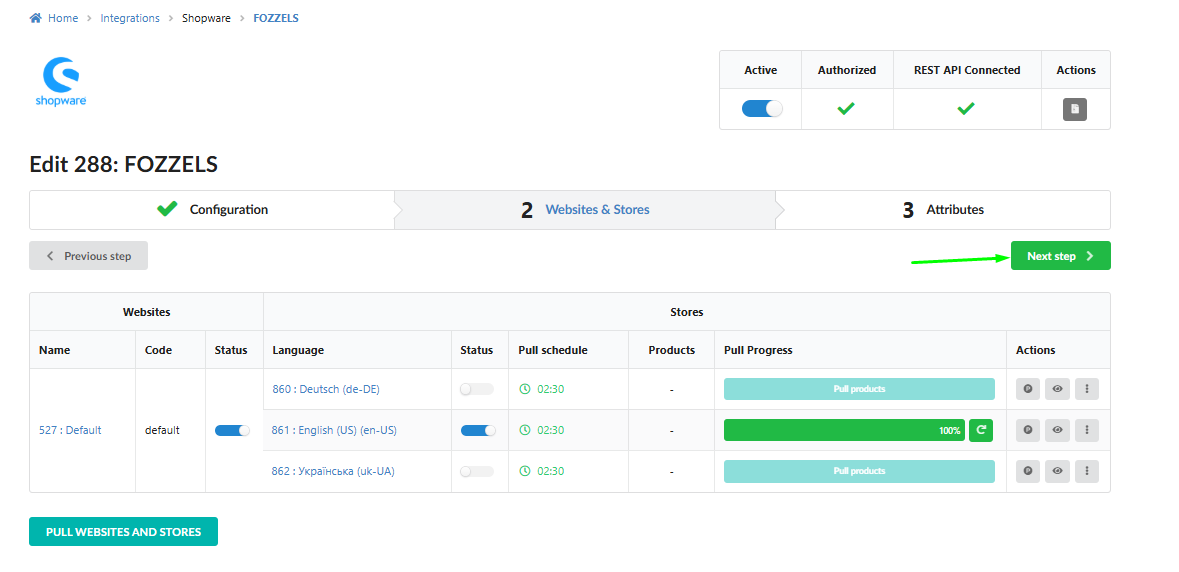
12. Click "Next step"
Proceed to the next step to finalize the setup.
Setup Complete
Congratulations! Your Shopware 6 store is now fully connected to Fozzels. You can use this integration to create product Flows and manage your product content directly from the Fozzels platform.
Getting started
Here are some additional articles that may help you get started with Fozzels:
- Creating a New Content Flow and Initial Settings
- Prompt Creation & Filtering. Drag & Drop Prompt Editor
- When Do New Products Get Generated: The Pull Cycle Explained
- Mass Actions and Operational Control in the Batch Lists / Daily Total Batch List
- Flow Definition and Content Types (Text, Image, Video)
Or reach out to us directly - we are always happy to help!
Was this article helpful?
That’s Great!
Thank you for your feedback
Sorry! We couldn't be helpful
Thank you for your feedback
Feedback sent
We appreciate your effort and will try to fix the article