Since you are already familiar with the basic mechanics of setting up content flows (Product Content Flows) in Fozzels, this instruction focuses exclusively on the specifics of the NextChapter architecture: working with the system attribute product_media_gallery and optimizing token costs during batch processing of media galleries.
Step 1. Configuring write permissions for the media gallery (Mandatory condition)
Unlike standard text fields (for example, product description or name), Alt-texts in NextChapter are located inside the image gallery and are written directly to the product_media_gallery attribute. By default, Fozzels considers this attribute Read-only and uses it as a marker for filtering products by the presence of photos.
To grant the system permission to write and update data in this field:
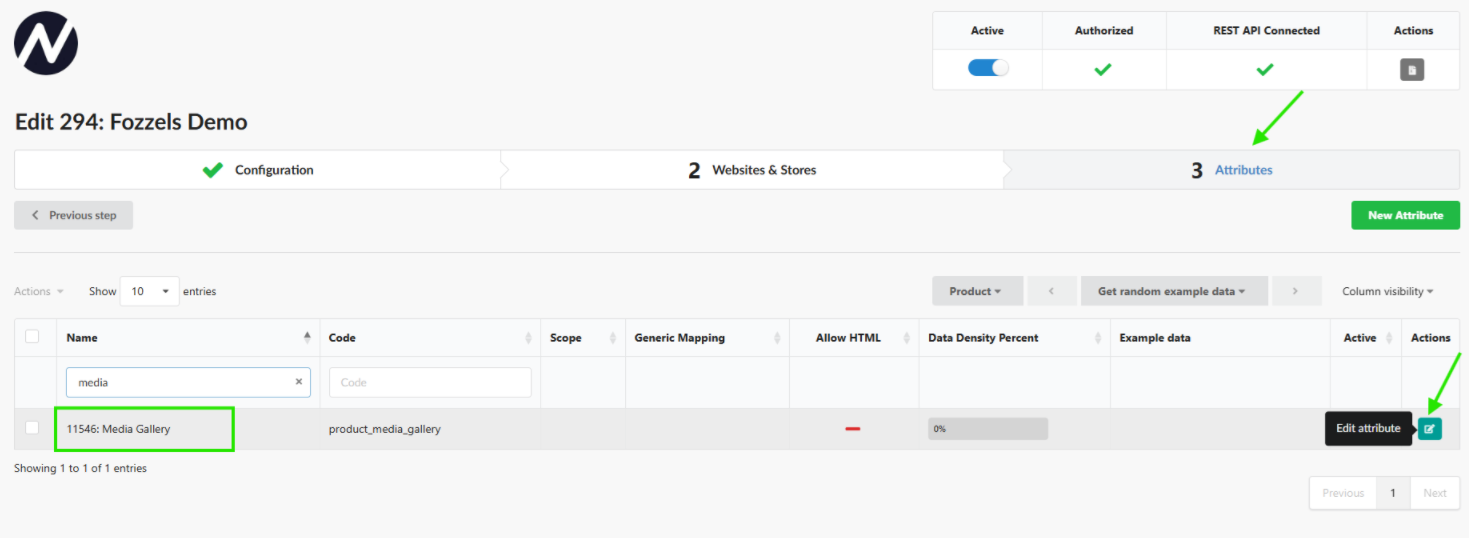
- Go to the main menu: Integrations → select your active NextChapter instance.
- Open Tab 3: Attributes.
- In the search field, enter
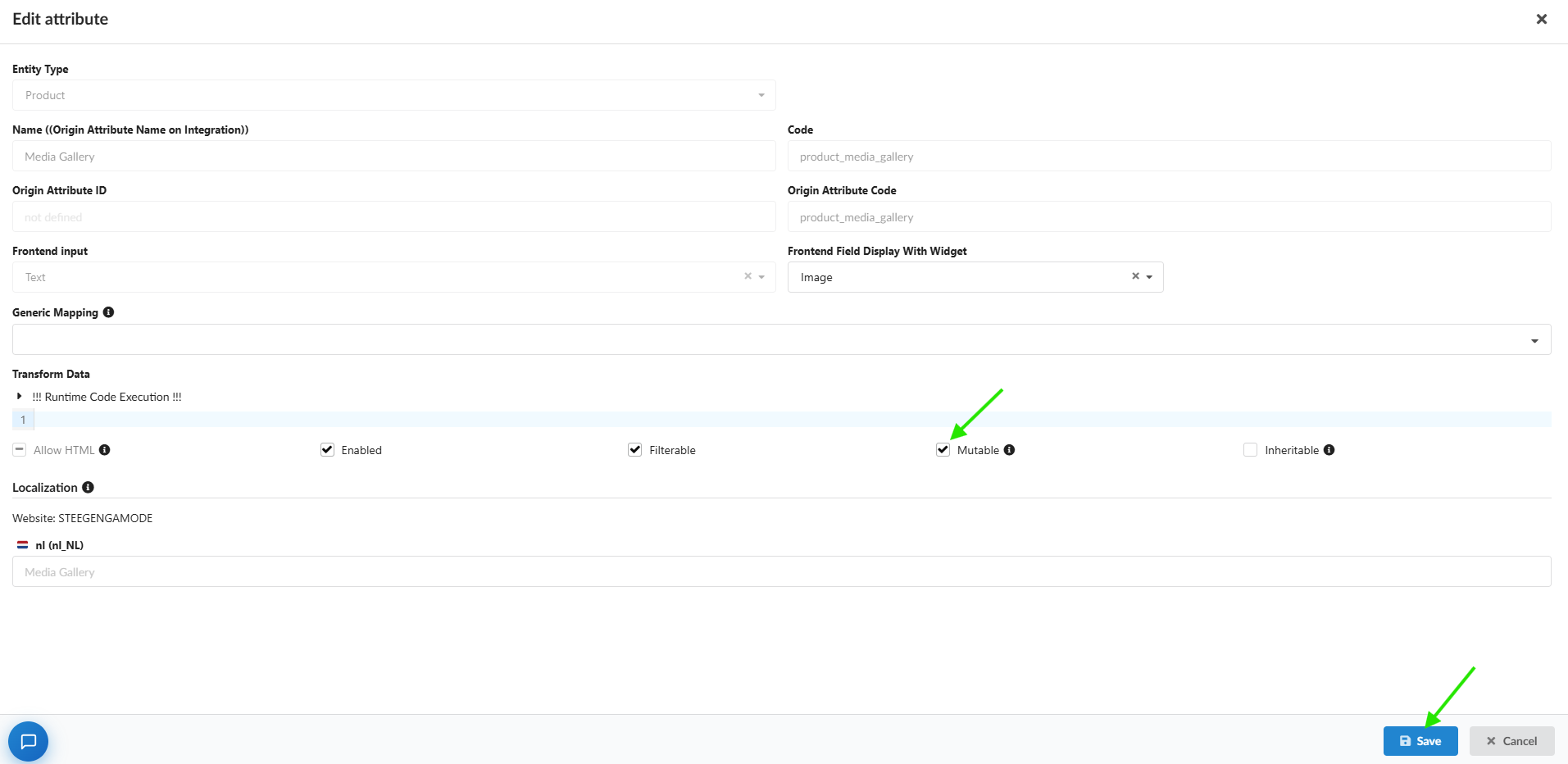
media. Find the row with the codeproduct_media_gallery(Media Gallery) and click the turquoise [Edit attribute] button. - In the modal window, in the Transform Data section, find the Mutable option and check the box ([v] Mutable).
- Click the blue Save button in the bottom right corner.
Step 2. Flow initialization and attribute mapping
Go to the Content Flows section and click the Create Flow button (or select the required products directly in the catalog and click Actions → Create Flow).
In Tab 1: New Flow, configure the environment parameters:
- Store / Integration: Select your NextChapter instance, site settings, and the required Store View from the dropdown list.
- Name: Specify a clear technical name for the flow.
- Entity Type: The value Product will be set automatically.
- Target Attribute: Click on the attribute selection field (
Attribute*), entermediaand selectMedia Gallery. This will allow Fozzels to securely transfer the generated AI strings directly into the NextChapter gallery database schema.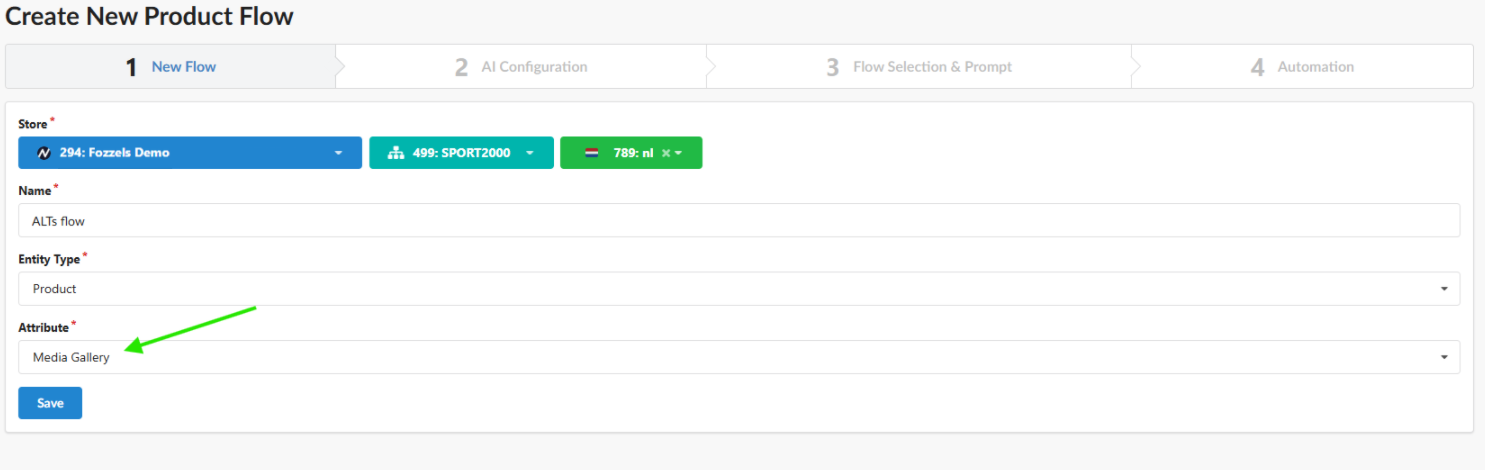
Step 3. Selecting the Vision model and scanning mode (Delta vs. Full Overwrite)
In Tab 2: AI Configuration, select the provider and model (for example, GPT or Gemini versions with Vision support for image analysis), then define the interaction mode with your NextChapter storefront:
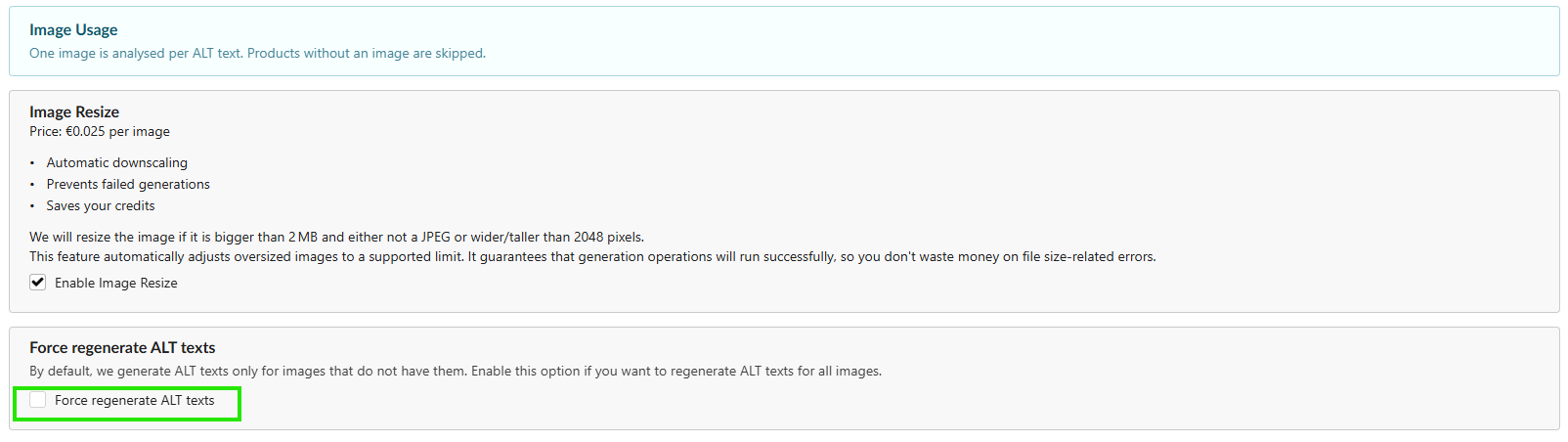
- Delta mode ("Force regenerate ALT texts" checkbox DISABLED): Default scenario. The background runner scans the NextChapter catalog and sends requests to the AI only for those images where the Alt-text is currently empty. This preserves your manual SEO settings and saves API credits.
- Full Overwrite mode ("Force regenerate ALT texts" checkbox ENABLED): Full rewrite scenario. The engine completely ignores the current metadata on the storefront, clears the old Alt-texts in the selected sample, and replaces them with new AI strings.
Technical recommendation: Leave the Enable Image Resize option turned on. If the image file in NextChapter exceeds 2 MB or a resolution of 2048px, Fozzels will automatically reduce it to the standard requirements of Vision models. This will protect your flow from generation errors (Failed generations) and reduce token consumption.
Step 4. Prompt composition (Prompt Engineering)
In Tab 3: Flow Selection & Prompt, instructions for the AI model are formed. Since the process operates in single-file processing mode (1 image = 1 generation), your prompt must combine visual details with the textual context of the product.
- In the Prompt field, write down the basic technical rules (for example, a length limit — the standard is up to 125 characters for screen readers — and a ban on introductory phrases such as "image...").
- Use the Attributes side panel on the right to drag dynamic NextChapter tokens directly into the body of the prompt (for example,
{name},{color},{material},{brand}).
Prompt templates:
Option 1: For e-commerce (Clothing and footwear)
"Write a concise, natural SEO Alt-text for an online store's accessibility tag. Describe the visual details, style, and cut of the product in the photo. Naturally integrate these attributes if they are visible: {color} {name} from {brand}, material: {material}. Text length — up to 125 characters. Avoid keyword overstuffing and do not start with phrases like 'photo...' or 'image...'. Describe only what is actually in the shot."
Option 2: Minimalist (Product detailing)
"Generate a clean, professional Alt-tag for a screen reader. Focus exclusively on the product's design, composition, and clear visual details. Use metadata for accuracy: {brand} {name} in {color} color. The description should be realistic, factual, and up to 120 characters. No marketing phrases and no 'photo...' or 'image...'. Return only the prepared string."
Step 5. Processing limits and batch list structure (Batch List)
In Tab 4: Automation, the field "Amount of products to create content for per day" calculates processing limits based on parent entities (Products), not individual image files.
Since Fozzels analyzes every media item in the product gallery: if you set a limit of 10 products, where each has 5 images, the system will perform 50 separate paid Vision generations.
All generated results will be conveniently grouped in the Batch List by product SKU, allowing you to easily review, edit, or bulk approve new Alt-texts before uploading them to the site.
Was this article helpful?
That’s Great!
Thank you for your feedback
Sorry! We couldn't be helpful
Thank you for your feedback
Feedback sent
We appreciate your effort and will try to fix the article