To ensure a secure connection between Fozzels and WooCommerce, the following steps must be completed to generate the special API keys (Customer Key and Customer Secret) in the WooCommerce account.
Configuration in WooCommerce
Step 1: Log in to WooCommerce
1. Open a browser and log in to your WooCommerce account.
2. Use the administrator login and password.
Step 2: Navigate to API Settings
1. Go to the "Settings" / Advanced / REST API tab in the main WooCommerce menu.
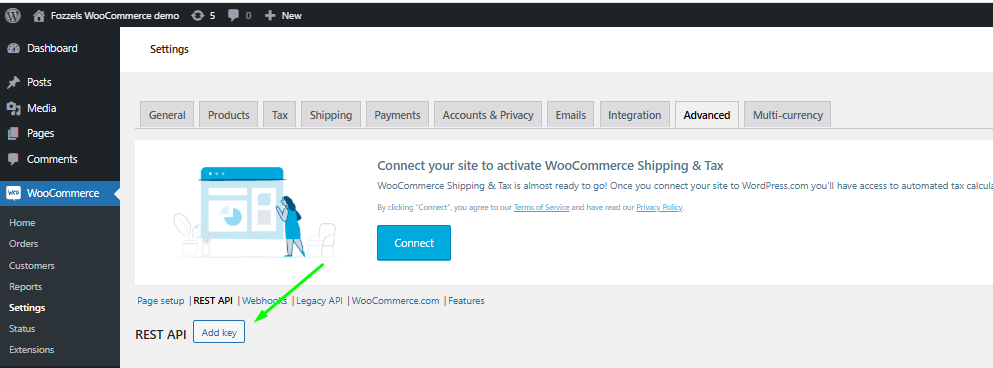
2. Select "Add Keys".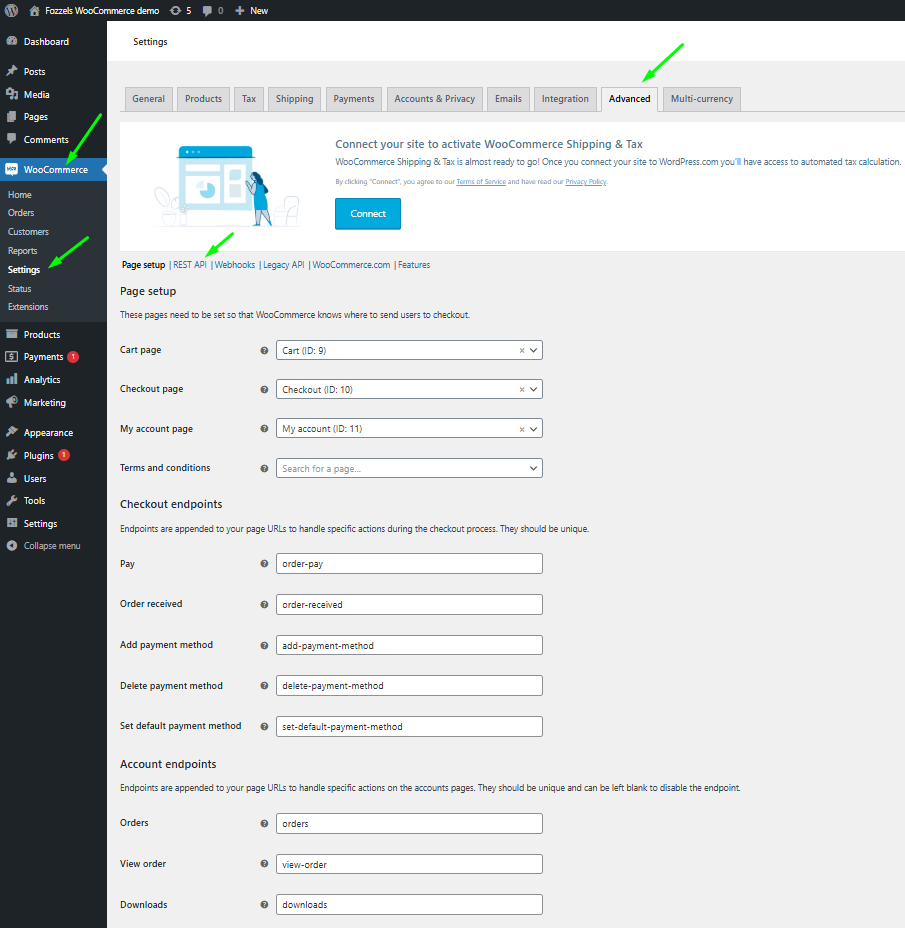
Step 3: Creating a New API Key
1. Add the Description and choose the needed permissions "Read and Write" from the dropdown in the new API Key.
2. Press the "Generate API KEY" button.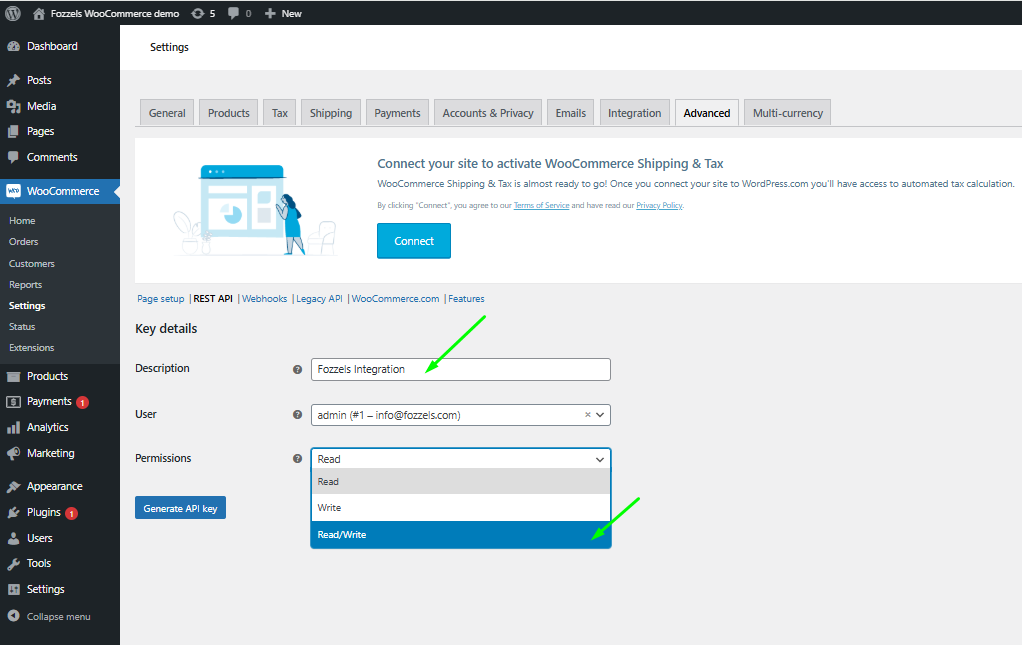
Note: Granting "Write" access allows Fozzels to not only read data but also update data in your WooCommerce store, ensuring two-way synchronization.
If you have done everything correctly, a window with the generated keys for the new integration will open. You will also receive the message: 'API Key generated successfully. Make sure to copy your new keys now, as the secret key will be hidden once you leave this page.' Transfer these keys to the integration settings in Fozzels.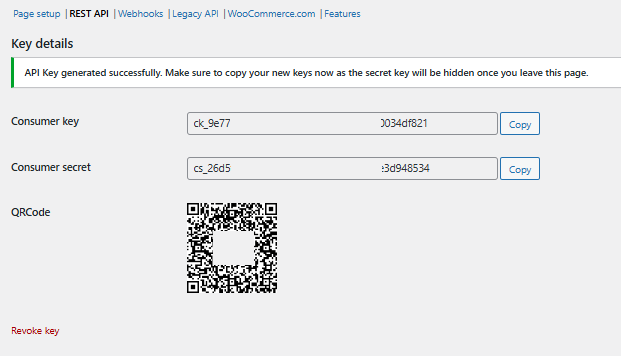
Configuration in Fozzels
Step 4: Starting a New Integration
1. Log in to your Fozzels account.
2. Go to the Integrations page.
3. Click the "New Integration" button.
4. Select "WooCommerce" from the list of available services.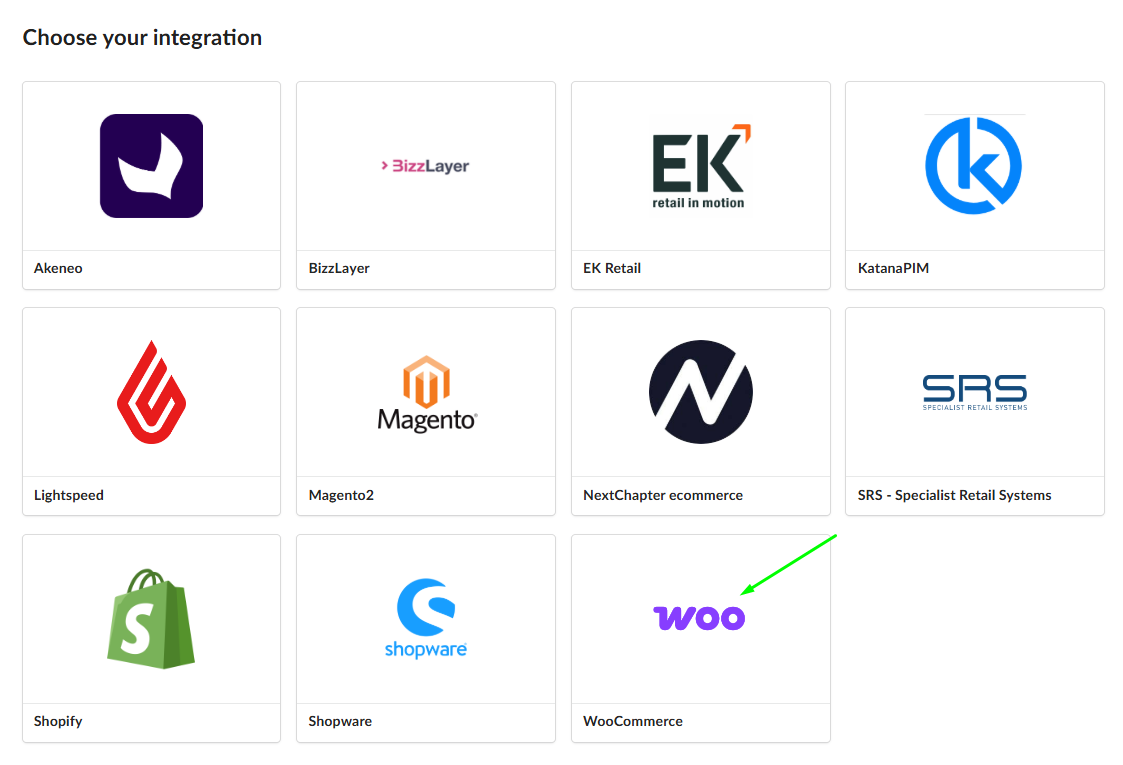
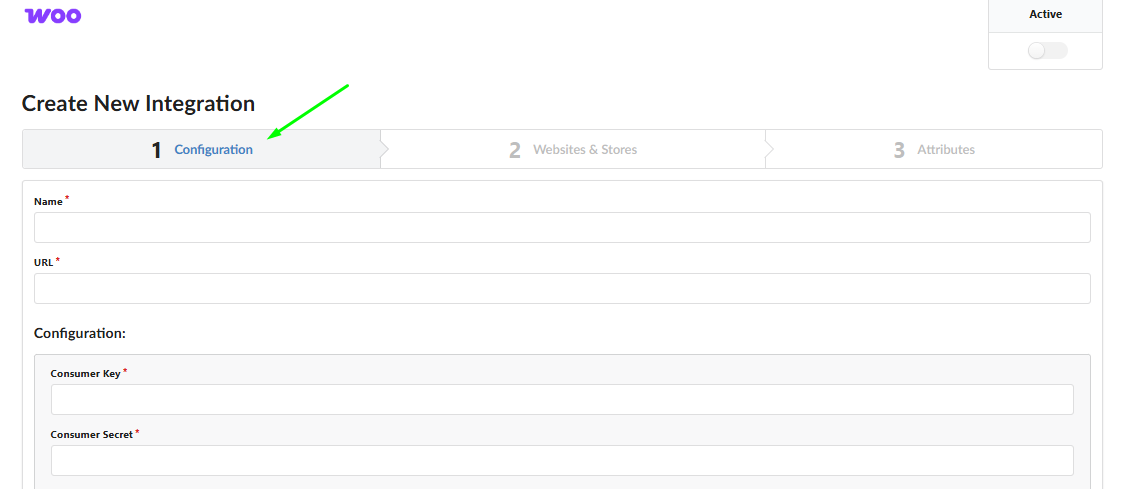
5. Fill in Configuration Fields
Name: Enter a clear name for this integration (e.g., WooCommerce_INT).
URL: Enter the URL of your WooCommerce store
6. Fill in the following fields on the "Create New Integration" page (using the keys copied in Step 3).
Customer Key: Paste the Customer Key copied from WooCommerce.
Customer Secret: Paste the Customer Secret copied from Woocommerce.
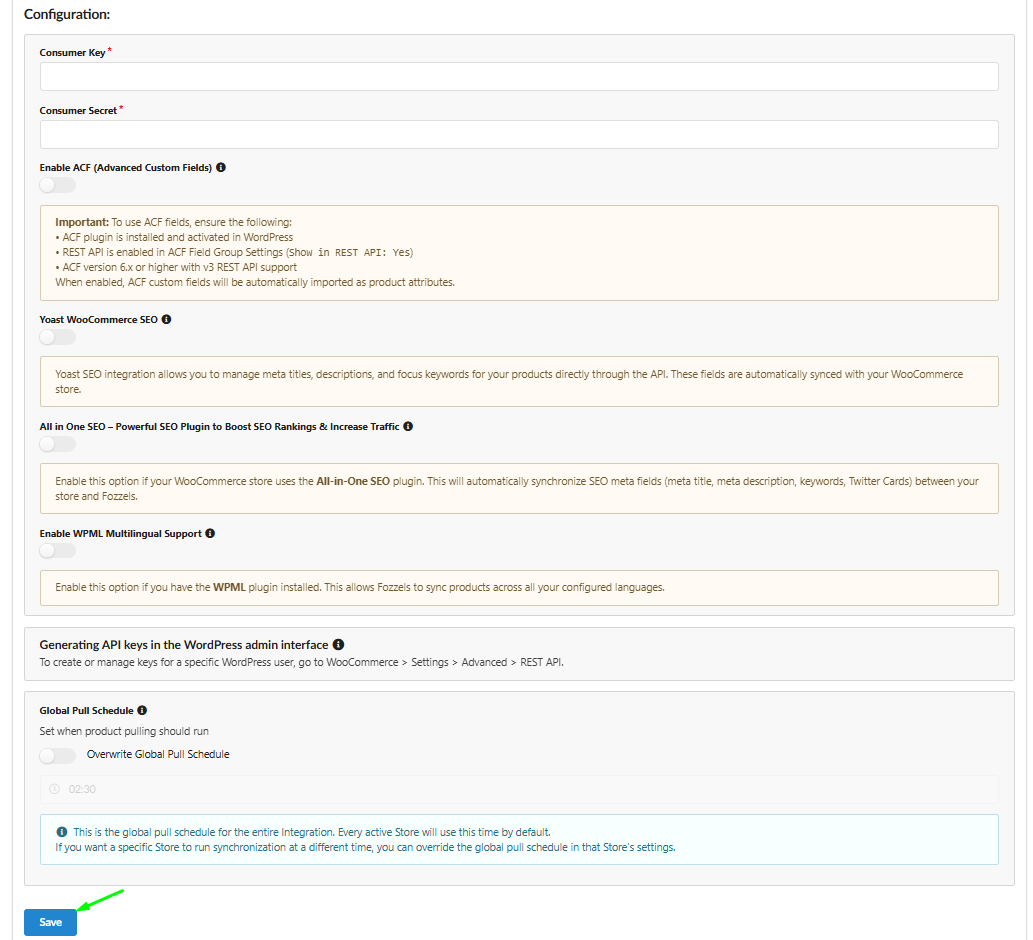
7. If you want Advanced Custom Fields to also be imported into Fozzels, please enable the Enable ACF toggle. Read more about how to properly set up this connection in the Enabling ACF Data Sync: WordPress/WooCommerce Configuration for Fozzels.
8. If you want to synchronize SEO data using the Yoast SEO plugin, please enable the Yoast WooCommerce SEO toggle. This allows Fozzels to import and update meta titles, meta descriptions, and focus keywords directly via the WooCommerce API. Read more about how to set up this integration in Yoast SEO.
9. If your store uses the All-in-One SEO plugin, please enable the All-in-One SEO toggle. This will automatically synchronize SEO-related fields such as meta titles, descriptions, keywords, and social media data between WooCommerce and Fozzels. Read more about how to configure this integration.
10. If you want to import custom meta data fields from WooCommerce, please fill in the WooCommerce Meta Data Sync Fields field. Enter the meta key prefixes or exact meta field names you want to sync. Only matching fields will be imported as product attributes in Fozzels. For example, enter my_plugin to sync all keys starting with this prefix, or _custom_field for a specific field. Read more about this feature.
11. If you want to enable multilingual synchronization, please enable the WPML Multilingual Support toggle. This allows Fozzels to sync product data across all configured languages when using the WPML plugin. Read more about how to configure this setup.
Step 5: Activate and Save the Integration
1. Activate the integration by switching ON the "Active" toggle in the top right corner.
2. Click the "Save" button to save the changes.
After successful saving, you will proceed to the next configuration steps in Fozzels ("Websites & Stores" and "Attributes"), where you can set up product and attribute synchronization.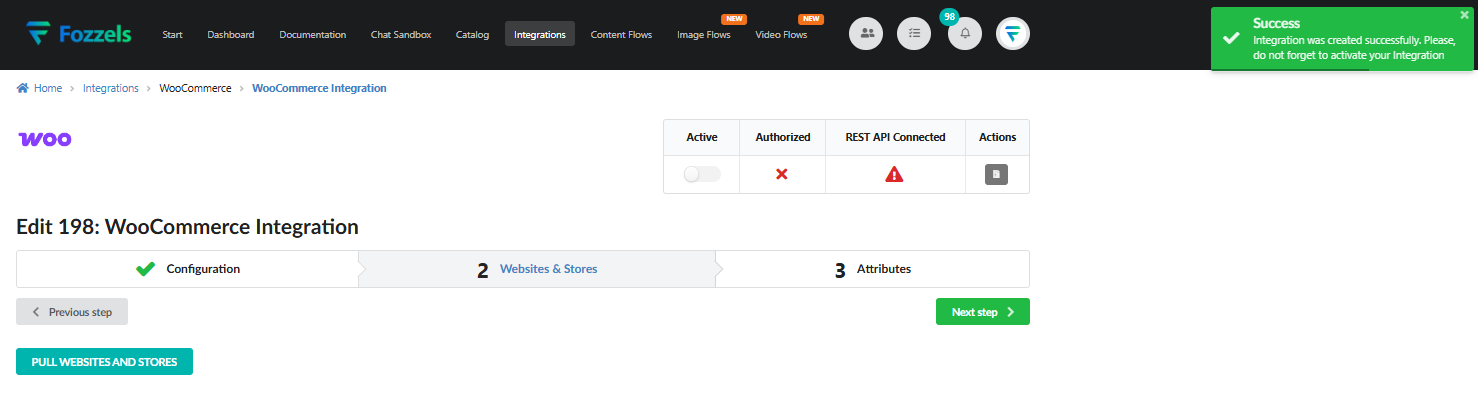
Step 6: Websites & Stores Setup
1. Click the "Pull Websites and Stores" button. This will retrieve and display all associated websites and stores from your WooCommerce account.
2. Activate the required websites and stores by switching the corresponding Status toggles to ON.
3. Click the "Pull products" button for each necessary store. This action initiates the initial load of product data into Fozzels. Read more about pulling products here.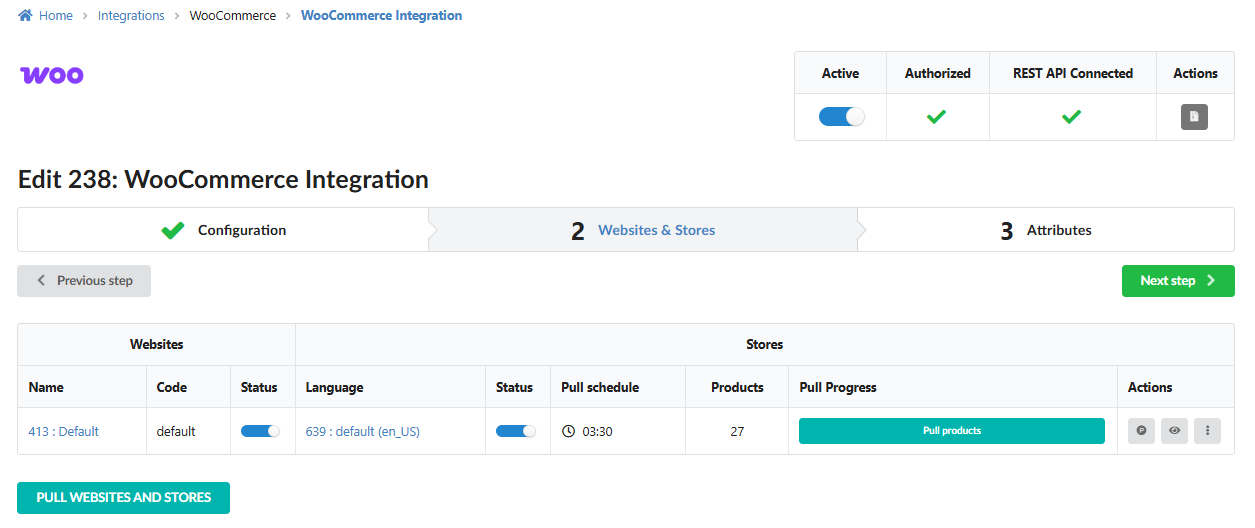
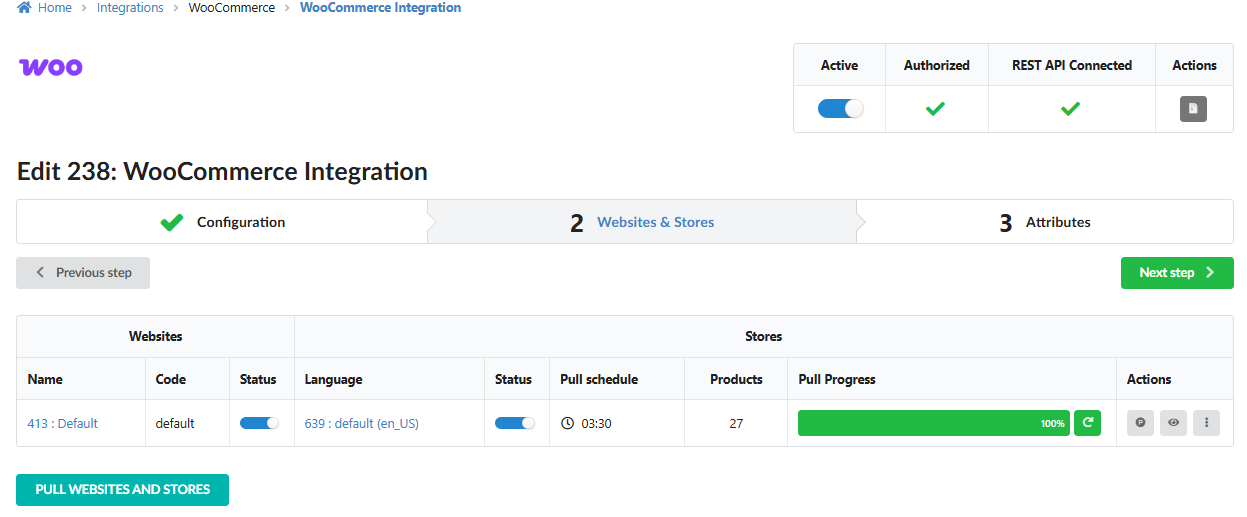 Once the product loading process is complete, Fozzels is ready for work!
Now you can proceed to the "Attributes" tab to configure them. Read more about managing attributes here.
Was this article helpful?
That’s Great!
Thank you for your feedback
Sorry! We couldn't be helpful
Thank you for your feedback
Feedback sent
We appreciate your effort and will try to fix the article