We understand that delegating access to integrations can be confusing. If you are looking for a secure and efficient way to grant colleagues (marketers, content managers) permission to work with your data, this guide is exactly what you need!
This document explains how we use the Customer and Reseller roles to manage access within your team.
Important Note on Roles: Assigning the Reseller role is not an action you can perform yourself. To obtain this role, you must contact Fozzels administrators with the appropriate request.
1. Roles: The Key to Your Management
Customer: Resource Owner
This is your primary account, housing all your configured integrations, created Flows, and catalog data.
You have the right to revoke Reseller access ('Revoke') at any moment.
Reseller: Delegated Manager
This role is ideal for your managing colleagues as it provides access to the 'Customers' tab for connection management.
2. How to Establish a Connection
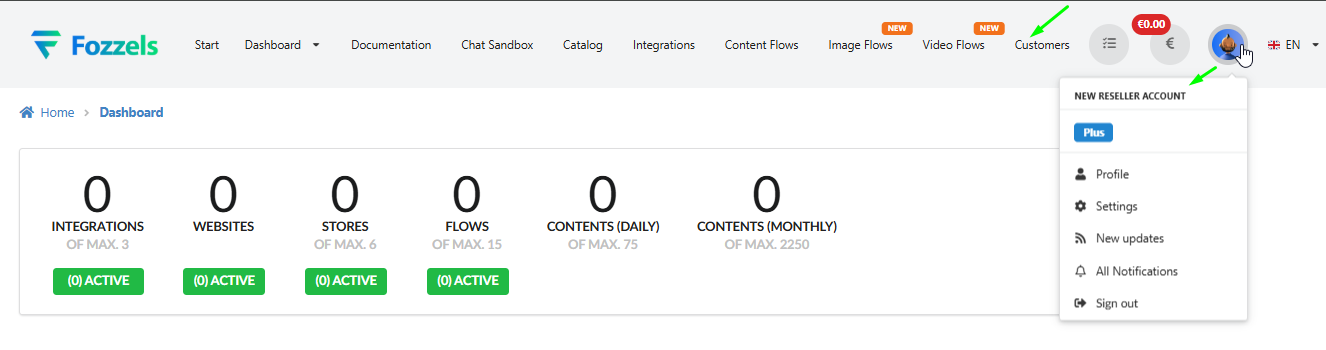
The connection between accounts is established via an invitation, which is always initiated by the Reseller through the 'Customers' tab.
Scenario A: "My account is already set up; how do I add a colleague?"
(Account with integrations exists -> Reseller is needed for access)
Role and Account Preparation: Your colleague creates an account and obtains the Reseller role (by contacting Fozzels administrators).
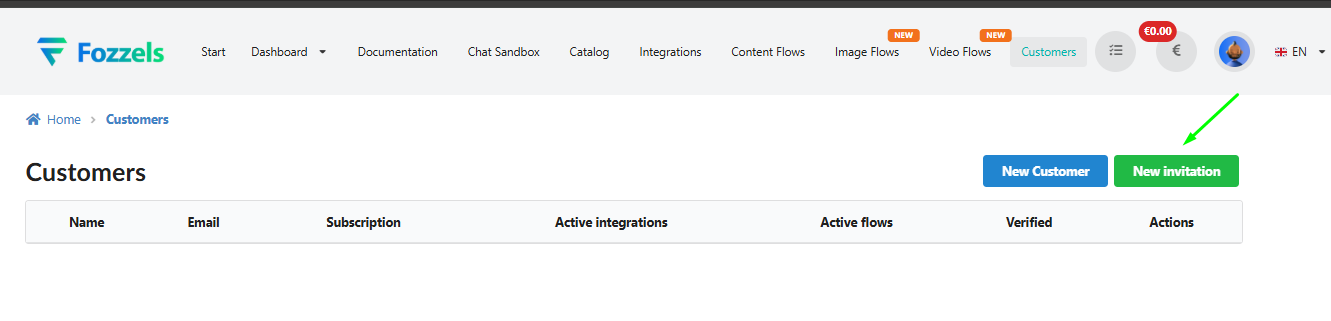
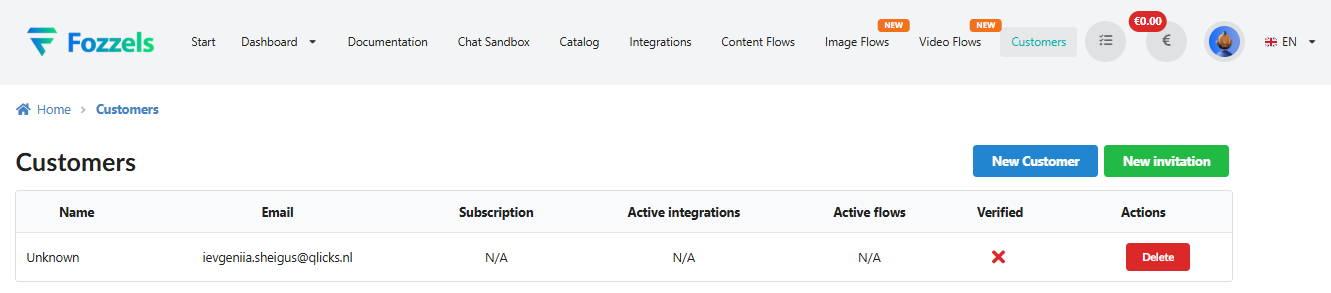
Invitation Tool Selection (Reseller Action): The Reseller navigates to the 'Customers' tab and selects "New invitation".
Invitation Initiation (Reseller Action):
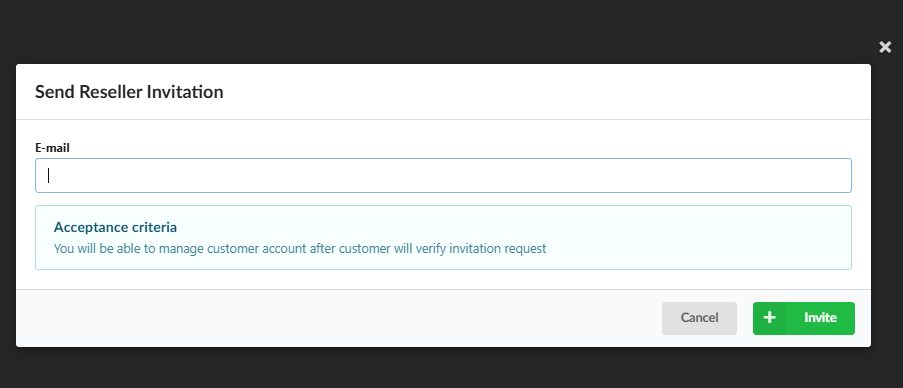
The Reseller enters your Customer account's Email into the "Send Reseller Invitation" pop-up and clicks 'Invite'.
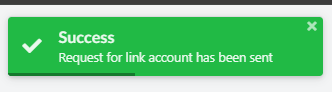
Result: The Reseller sees the "Success" notification. In the 'Customers' table, the record for your account appears as pending (Verified: ❌). The Reseller also receives an email confirming the request has been sent.
Finalization and Activation (Customer Actions):
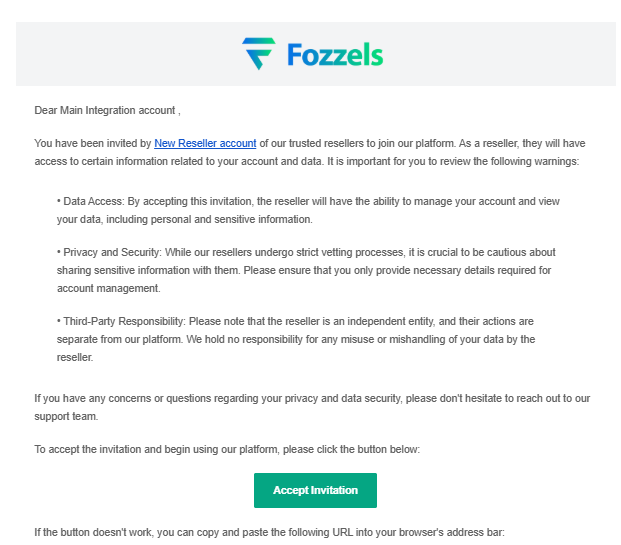
You (the Customer) receive an email with an access warning and click "Accept Invitation".
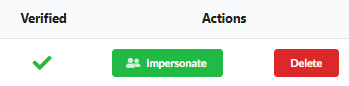
Result: The Customer Control icon appears in your header. The Reseller refreshes the page, sees ✅ Verified, and the "Impersonate" button.

(Reseller is created first -> A new Customer account for integration is created next)
Team Account (Reseller): A team member obtains the Reseller role.
Customer Creation (Reseller Action):
The Reseller selects "New Customer" on the 'Customers' tab.
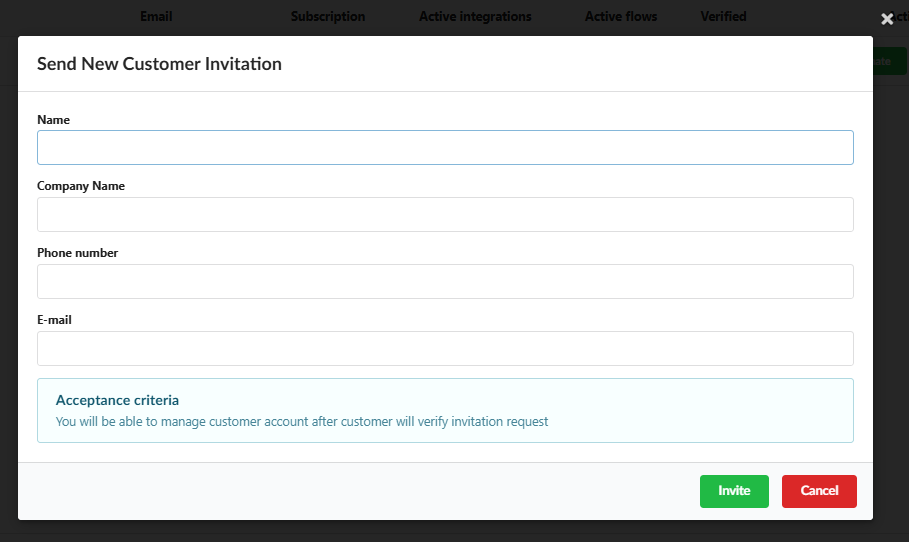
In the "Send New Customer Invitation" pop-up, the Reseller fills in the data (Name, Company Name, E-mail) and clicks 'Invite'.
Result: A new record appears in the 'Customers' table with a "Pending invitation" label.

Customer Account Activation (New User Action):
The new user receives the email "Join Our New Fozzels Platform Today!".
The user clicks "Join Now", is redirected to Fozzels, sets a password, and must finalize their account setup.
Start of Work: Once the new user completes the setup, their account becomes available to the Reseller. The Reseller will see the new Customer data, along with the "Impersonate" and "Delete" buttons.
3. Key Tool: Impersonate (Full Access and Management)
Activation: Clicking "Impersonate" redirects the Reseller into the Customer account.
Visual Indicator: The system header turns black (or changes appearance) when the Reseller is operating in access mode.
Exit: The Reseller can return to their own account via the 'Leave impersonation' link.
4. Important Section: Responsibility and Control
Delegation of Responsibility: By accepting the invitation, you delegate full operational responsibility for all actions performed in that account. The Reseller can modify or delete critical data and integrations.
Your Control (Revoke): You can always revoke Reseller access. Click the Customer Control icon in the header and select the red 'Revoke' button.
Connection Termination (Delete): The Reseller can also terminate the connection using the 'Delete' button.
Critical Situations: In unforeseen circumstances related to access or security, do not delay — immediately contact Fozzels administrators for urgent intervention.
Was this article helpful?
That’s Great!
Thank you for your feedback
Sorry! We couldn't be helpful
Thank you for your feedback
Feedback sent
We appreciate your effort and will try to fix the article