Image Flow is a professional tool designed for the mass generation and synchronization of product images using AI. By configuring a flow once, you establish an autonomous system that processes thousands of products, including new items added to your store in the future through dynamic condition-based filtering.
Important: We strongly recommend not activating the flow (keeping the "Active flow" toggle OFF) until you have completely finished all configurations and tested your settings.
1. Creating a New Image Flow (Tab 1)
This tab handles the basic identity and connection of your automation. There are two primary ways to initiate a new flow:
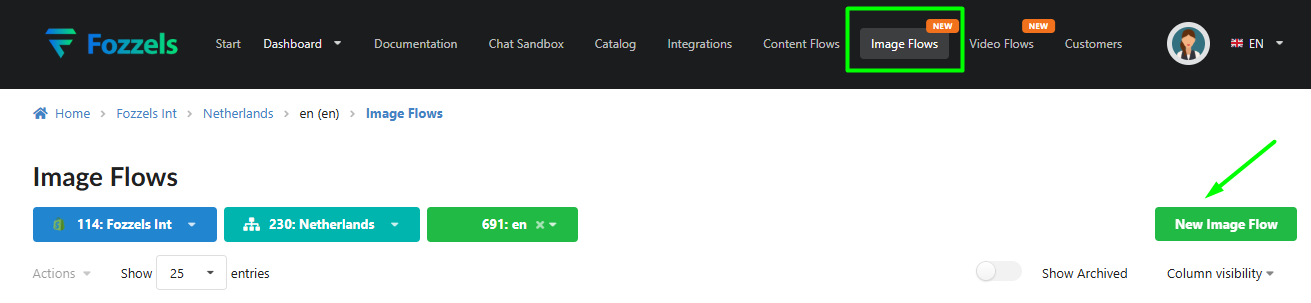
Option A: Via the Image Flows Menu - Navigate to the Image Flows section in the top navigation bar and click the New Image Flow button. Select your Integration, Website, and Store sequentially from the dropdown menus.
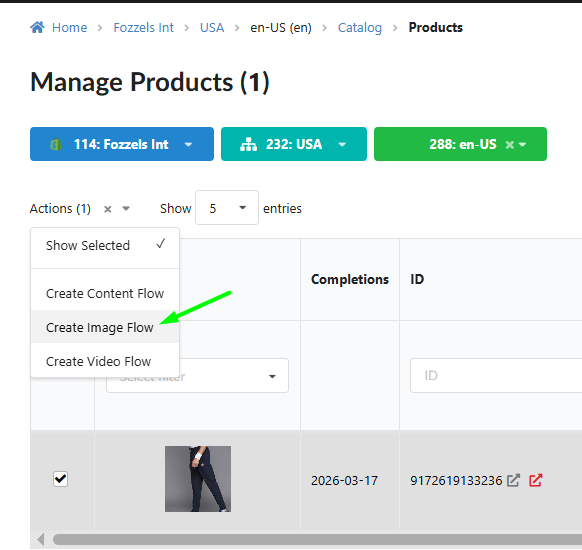
Option B: From the Product Catalog - In the Catalog → Products section, filter the products you wish to process, select them, and click Actions → Create Image Flow. This method is faster as it automatically pre-fills your store and product selection context.
Essential Steps:
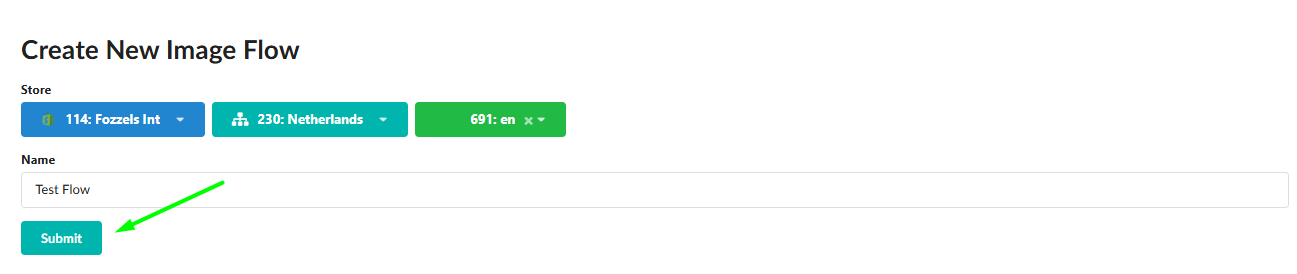
Name your Flow: Give your flow a clear, descriptive name (e.g., "Summer Dresses 2026 - Gemini Pro").
Save your progress: Any changes made to the flow name or store selection must be confirmed by clicking the Submit button at the bottom of the page.
2. AI Configuration (Tab 2)
On this tab, you define the "intelligence" and the visual output of your generation. Settings vary significantly depending on the provider you choose.
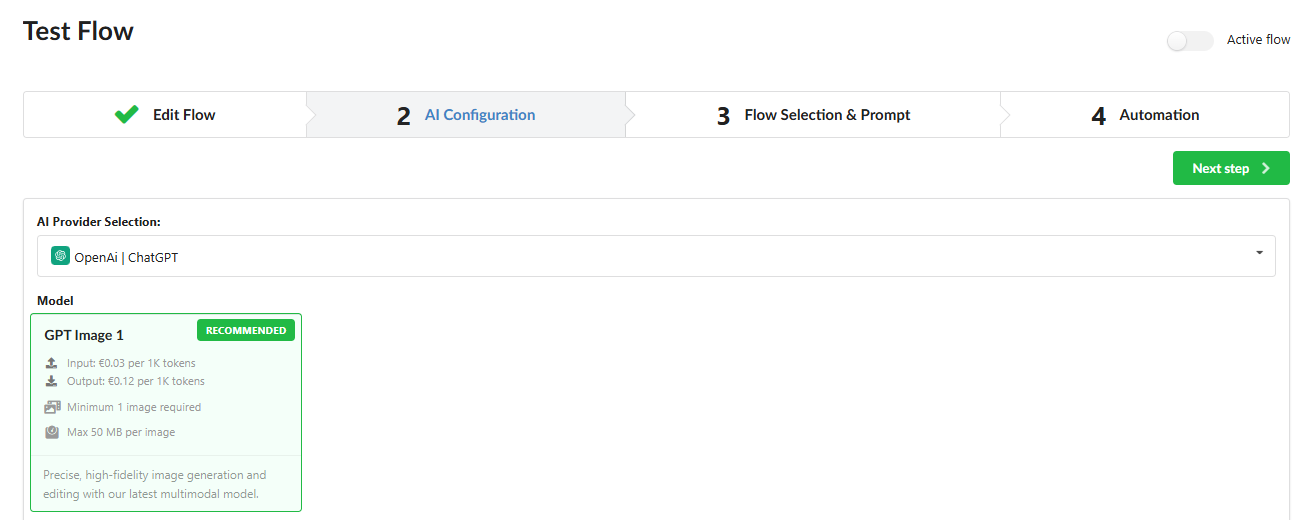
OpenAI | ChatGPT
When selecting the GPT Image 1 model, you have access to the following parameters:
Quality: Select your preferred generation quality from the dropdown menu (Auto, High, Medium, or Low).
Image Size: Choose the desired format from the dropdown (Auto, Square, Landscape, or Portrait). Note: An interactive grid for GPT is coming soon.
Image Count: You can generate between 1 and 4 variations for each product per single execution, providing multiple options for manual review.
Technical Limits: The maximum input file size for GPT is 50 MB.



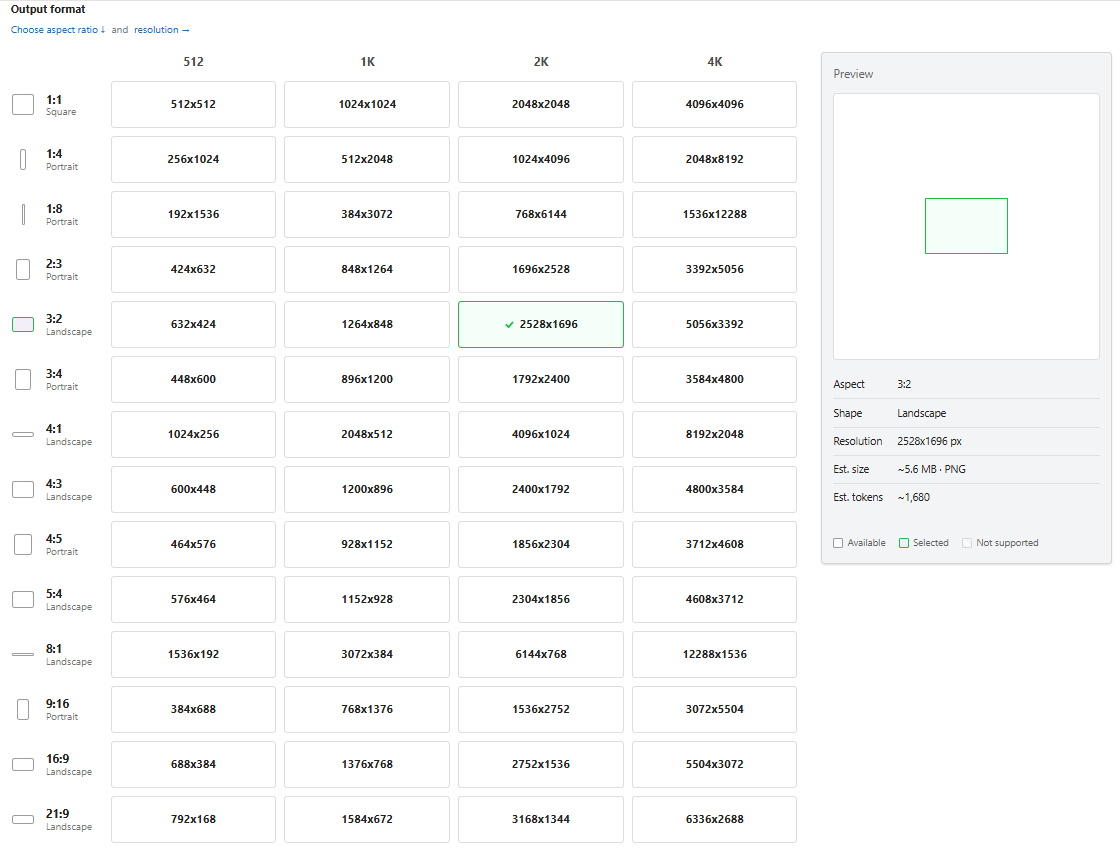
Gemini models utilize an interactive Output format grid for precise control over your results.
Available Models: Choose between Gemini 2.5 Flash (Nano Banana), Gemini 3 Pro (Nano Banana Pro), and Gemini 3.1 Flash (Nano Banana 2).
Image Count: For all Gemini models, this value is fixed at 1 (the field is disabled) as they generate one optimized image per request.
Technical Limits: The maximum input file size is 7–10 MB.
Virtual Try-On: A specialized model for fashion.
Note: For this model, the output grid is disabled as the system automatically uses a fixed, optimized format to ensure realistic garment fitting.
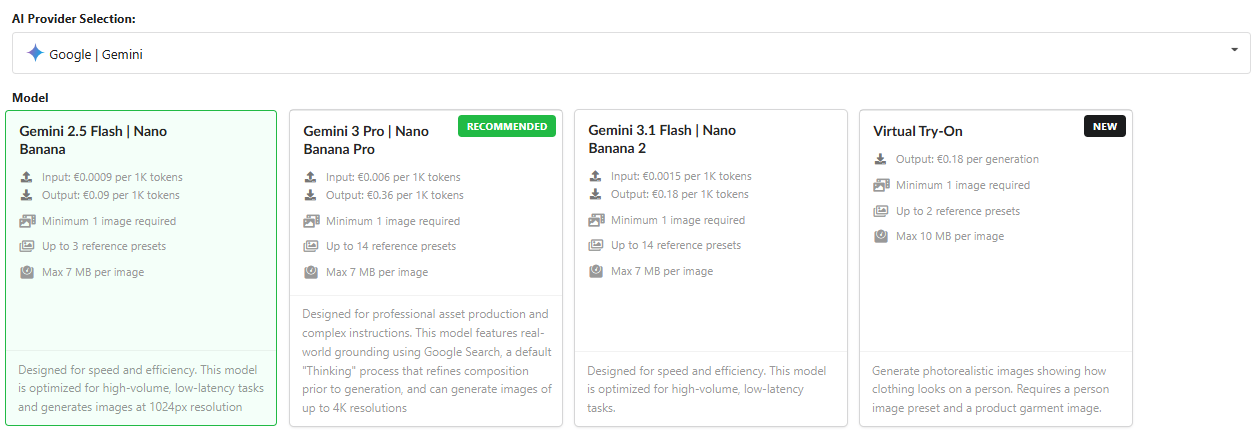
To learn more about AI models and their specific technical capabilities, please read more here [link to be added].
How to Use the Output Format Grid (Gemini Only)
The grid allows you to define the exact "shape" and quality of your generated images:
Select Aspect Ratio: In the left column, choose a ratio (e.g., 1:1 Square for product cards, 3:4 Portrait for fashion, or 16:9 Landscape for banners).
Select Resolution (Quality): Choose a column based on the model's capability (1K, 2K, or 4K). Click the specific resolution cell (e.g., 1024x1024).
Visual Confirmation: A green checkmark appears in the selected cell. Check the Preview panel on the right to see the frame shape, exact pixel dimensions, and the Est. tokens (estimated cost) for the generation.
Compatibility: Cells marked as "Not supported" are unavailable for the selected model.
⚠️ Reminder: Ensure you click the Save button after selecting your model and output settings to store these preferences. Your flow will not apply these changes unless they are saved.
3. Flow Selection & Prompt (Tab 3)

This tab is the heart of your content creation. The first and most critical step is configuring your Presets.
Section: Select Presets
Presets are visual reference images that act as instructions for the AI. They establish the overall style, lighting, and context for every product processed within this flow.
The Golden Rule: Universality Since a single set of presets is used for an entire group of products (e.g., hundreds of dresses or all footwear), your selections must be UNIVERSAL.
Example: If you add a Product preset showing a specific blue SKU, the AI might mistakenly attempt to add blue details to every other item in the flow. Only choose references that are appropriate for the entire category of products you are processing.

1. Limits and Capacity
At the top of the block, you will see a counter (e.g., 8/13).
Maximum Capacity: This depends on your chosen AI model (e.g., up to 14 for Gemini Pro and Gemini 3.1 Flash).
Composition: One slot is always reserved for the main image of the product being processed; the remaining slots are for your universal presets.
2. Preset Types & Library Search
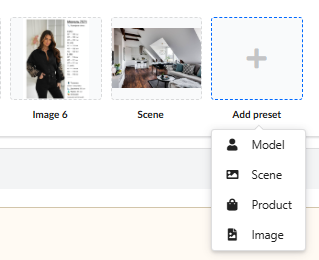
Click the "Add preset" button to choose a type. Use the Filter System to quickly find what you need:
Model: Defines the pose and appearance of the person wearing your products. Filter the library by gender, age, or ethnicity to find a look that represents your brand.
Scene: Determines the environment (e.g., Studio, Street, Interior). Use category filters to find a background that complements your entire product range.
Product (Additional Angles): Helps the AI understand complex items (e.g., the texture of a fabric or the sole of a shoe).
Search: Use the catalog filter (which works exactly like the main Catalog section) to search by Title, SKU, or Category.
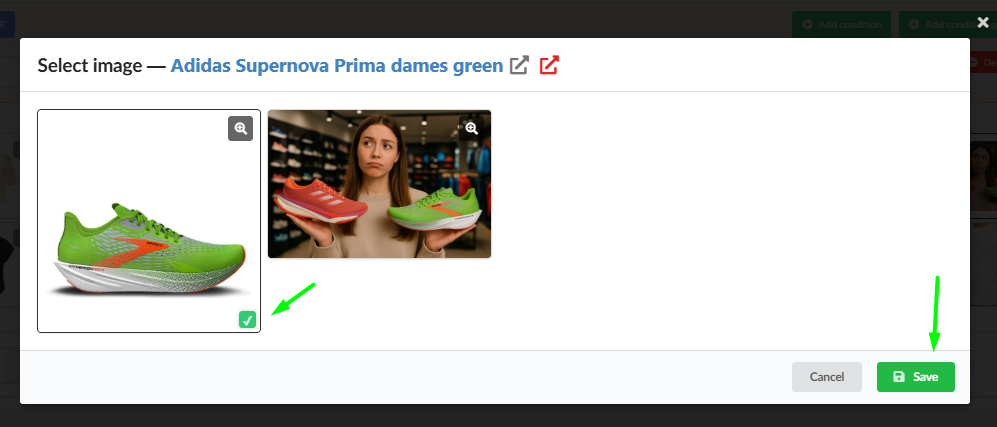
Image Selection: Once you find a representative product, you can select any of its images (e.g., a back view or a close-up). Simply mark the desired image with a green checkmark and save.
Image: Used for textures, logos, or specific branding elements.
3. Uploading Your Own Assets (+ Add)
If you upload your own image (for Model, Scene, or Image types) via the + Add button, you must assign Filter Values to that file.
By tagging your upload (e.g., specifying the scene type or model gender), the system indexes the file. This allows you to instantly find and reuse your custom assets in future flows through your private library.
4. Deleting and Finalizing
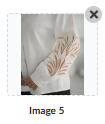
To remove a reference, click the trash icon on the preset card.
Important: After adding or removing presets, you MUST click the Save button at the bottom of the page. The AI assistant will not recognize the updated reference set until the changes are saved.
Section: Filter & Select Products
This section allows you to precisely define the list of items for which the AI will generate new imagery.
❗ Important: By default, when a new flow is created, ALL products from your store are included. The product count shown in the header (Filter & Select Products - XX) is dynamic and will update in real-time as you adjust your settings.
1. Product Cards & Image Selection
The block displays a grid of your product cards.
"Stack of Images" Icon: An icon in the top-right corner of a card indicates that the product has more than one image.
Choosing the Base Image: Click on a product card to open the gallery pop-up. Select the most suitable photo to serve as the "Base Image" for generation (this is the reserved slot sent to the AI alongside your presets).
By default, the system uses the first image from your catalog.
To change it, simply select a different photo and click Save in the pop-up.
2. Requirements: Products with Images
Products that do not have any images in your database are automatically excluded from this block. AI generation through flows requires a visual base to function correctly.
3. Using Filters (Conditions)
To select a specific group of products (e.g., only "Dresses" from a specific brand), use the filter block. The logic functions identically to the main Catalog section. Only products meeting these criteria will remain in the flow.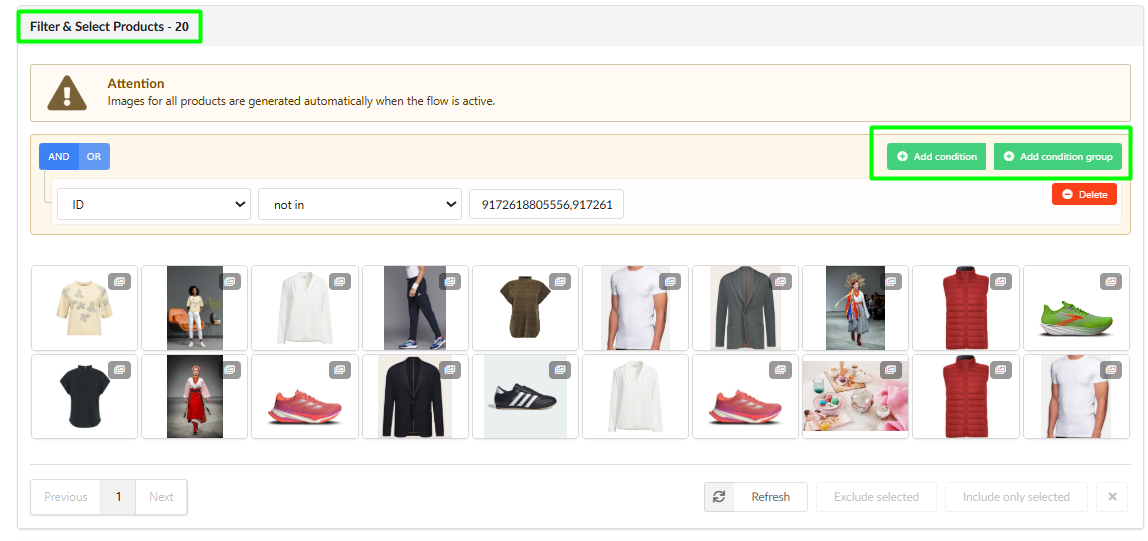
4. Manual Set Management
You can further refine your list after applying filters using the following controls:
✅ Exclude selected: Check the boxes on specific products you wish to remove from the current set and click this button.
✅ Include only selected: Check specific products you want to keep; all others will be removed from the flow.
Refresh Button: If you make a mistake during manual selection, click Refresh. This resets the set back to the state defined by your filters, undoing any manual "Exclude" or "Include" actions.

5. Dynamic Catalog Synchronization
Image Flows follow the same rules as Content Flows:
The product set is refreshed after every daily synchronization pool.
This means if you add a new product to your store that matches the filters set in your flow, it will automatically be added to the generation queue the following day.
⚠️ Reminder: Always double-check the final product count before saving your flow to ensure you haven't accidentally targeted your entire store instead of a specific category.
Section: Prompt Editor
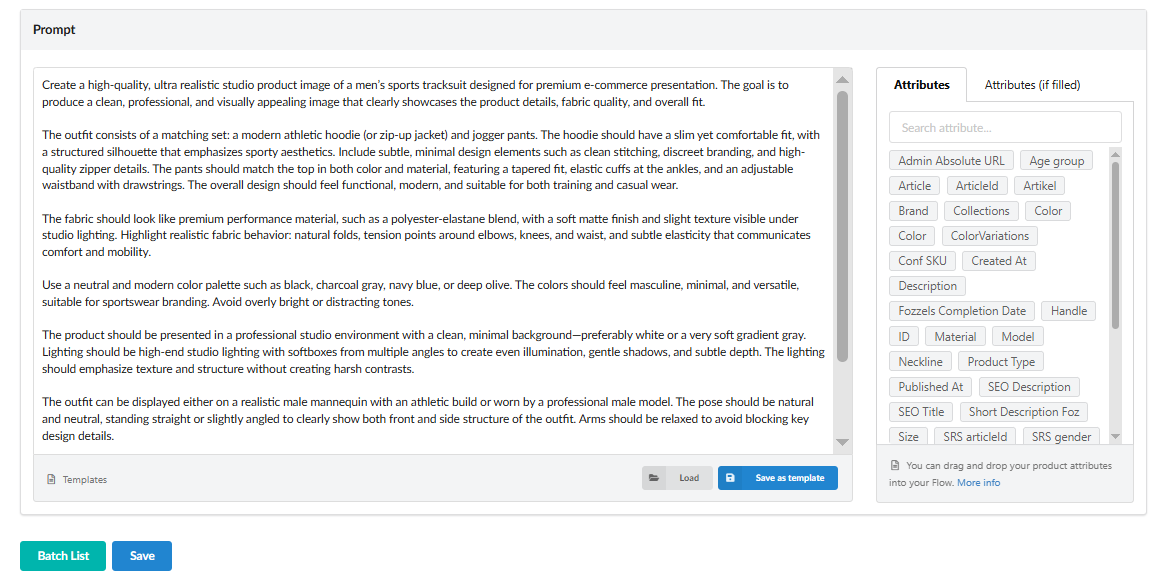
The Prompt is the final set of instructions you send to the AI. In Image Flow, the prompt editor utilizes the same advanced logic as Content Flow, enabling the creation of high-quality visual descriptions at scale.
1. The Principle of Universality
Because this prompt will be applied to every single item within your flow, it must be MAXIMALLY UNIVERSAL.
Avoid manually describing specific colors or textures (e.g., do not write "a red silk dress").
Instead, leverage Dynamic Attributes to ensure the AI accurately identifies the unique characteristics of each specific product.
2. Using Dynamic Attributes (Drag & Drop)
To the right of the editor, you will find a list of available Attributes (e.g., Color, Material, Brand, Product Type).
How it works: Simply drag an attribute from the list and drop it directly into your text.
Detailed Guide: You can read more about the mechanics and capabilities of the drag-and-drop editor here ....
Result: When the flow runs, the system automatically replaces the tag (e.g.,
{{Color}}) with the actual value from each specific product card. This ensures that a blue dress is generated as blue, and a leather jacket is rendered with a realistic leather texture.
3. Templates & Reusability
To accelerate your workflow, use the Templates feature located at the bottom of the editor:
Save as template: Once you have crafted a perfect prompt that performs well for a specific category, save it for future use.
Load: Quickly import existing templates into new flows to maintain visual consistency across your entire store.
4. Attributes (if filled)
Switch to the Attributes (if filled) tab to see exactly which data is currently available for your selected product set. This helps prevent the use of empty tags that might lead to inconsistent AI results.
Pro Tip: A high-quality universal prompt should describe the environment, lighting, and mood defined by your presets, while leaving the specific product details to the dynamic attributes.
⚠️ Final Step for Tab 3: After finalizing your prompt click the Save button. This action links your presets, product selection, and prompt instructions into a single functional automation.
4. Automation (Tab 4)
The Automation tab serves as the "Control Tower" for your flow. This is where you define the pace of content creation, manage publishing policies, and officially launch the generation process.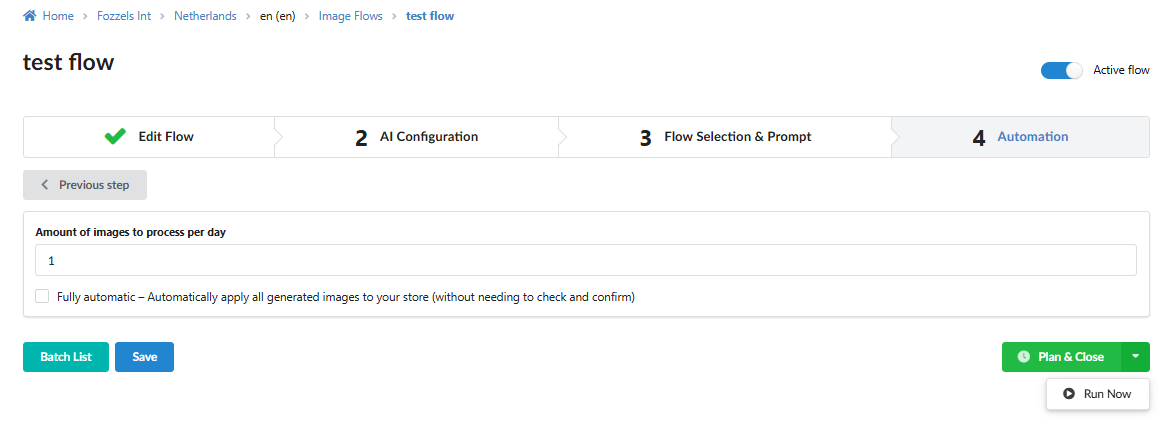
1. Daily Processing Limits
Amount of images to process per day: This field determines exactly how many products from your selected set will be processed by the AI every 24 hours.
Purpose: This allows you to manage your token consumption and ensures a steady, manageable rollout of new visual content for your store.
2. Automation & Sync Policy
Manual Confirmation Strategy: To maintain high quality and allow for human oversight, fully automated synchronization to your store is currently disabled.
Workflow: While the generation of images is automatic based on your schedule, the actual syncing (uploading) of these images to your storefront (Shopify, Magento, etc.) only occurs after you review and approve them in the Batch List.
3. Activating and Managing the Flow
Active Flow Toggle: Located in the top-right corner, this switch enables or disables the entire automation logic for this flow.
The Save Rule: Any change to the Active flow status - whether you are turning it on for the first time or deactivating an old flow - MUST be confirmed by clicking the Save button. If you do not save, the toggle will revert, and your changes will not take effect.
4. Execution Triggers
Once the flow is active, you have two ways to initiate generation:
Plan & Close:
This button schedules the flow to run automatically.
Timing: Generation will not start instantly; it will initiate only after the next daily product pool synchronization (the system-wide update of your store's catalog).
Run Now:
This button appears as an additional option once the flow is activated.
Timing: Clicking Run Now bypasses the daily pool wait and starts the generation immediately for the current day's limit.
Note: A manual run counts as your daily quota. The following scheduled run will occur the next day after the standard pool sync.
5. Generation Logic & Efficiency
Single Generation Principle: To prevent duplicate costs and redundant data, the AI generates a new image for a specific product only once per flow.
If an image has already been successfully generated for a product within this flow, the system will skip it in future cycles.
Regenerations: If you are unhappy with a specific result, you can manually trigger a "Regeneration" from the Batch List section.
6. Batch List & Deactivation
Batch List: Click this button to access your production log. Here, you can monitor the status of your "batches," view AI results, and perform the final sync to your store.
Deactivation: If the flow is no longer relevant or you need to pause production, toggle the Active flow switch to "OFF" and click Save. This immediately stops the scheduling of any further generations.
Final Reminder: Always ensure your Daily Limit is set correctly before clicking Save. Once the flow is active, the system will begin queuing products for processing according to your settings.
Here is the complete guide for the Batch List section in English, incorporating all technical details regarding synchronization logic and the user interface.
Batch List
The Batch List is your hub for quality control and moderation. Every flow execution (whether automatic or manual via the Run Now button) creates a new batch entry in the list on the left.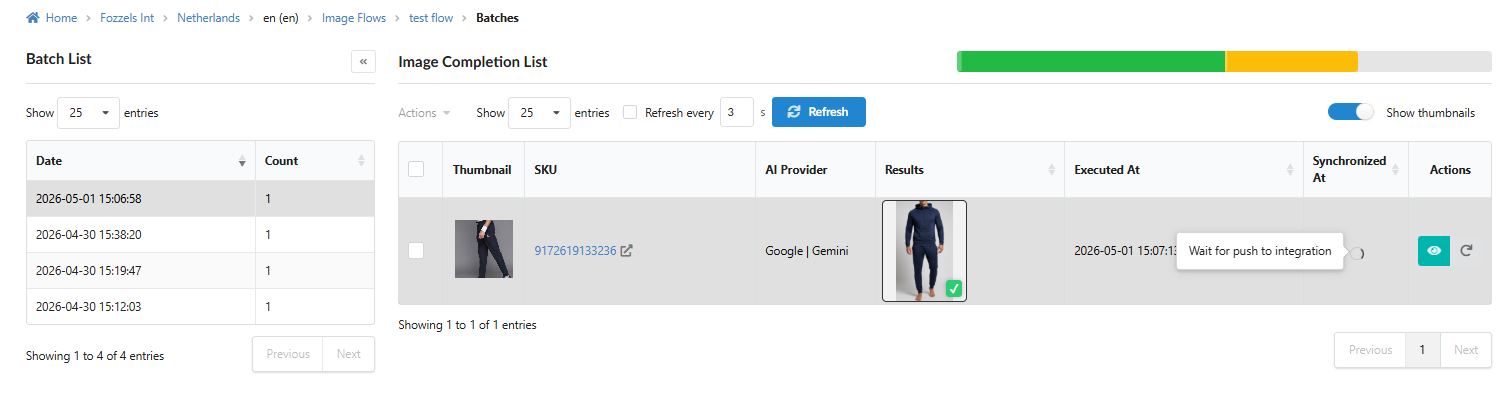
1. Navigation and Monitoring
Batch Sidebar: The left panel displays all executions organized by date and the number of products processed (
Count).Progress Bar: A color-coded scale at the top right provides a visual status of the batch: green for completed, yellow for in-progress, and gray for pending.
Auto-Refresh: You can enable the
Refresh every X sfunction to automatically update the page while the AI is processing.
2. Working with Results (Image Completion List)
The main table on the right displays the outcomes for each specific product:
Thumbnail: The original product photo used as the base.
SKU: The product identifier with a direct link to its page in your store's admin panel.
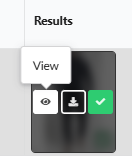
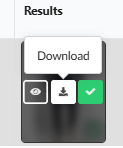
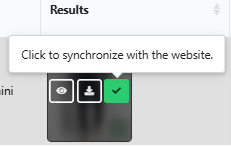
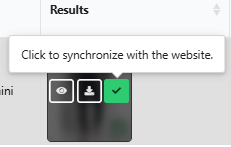
Results: The generated image. Hovering over the photo reveals quick-action buttons:
View (Eye icon): Opens the detailed inspection window.
Download (Arrow icon): Saves the file directly to your device.
Sync (Checkmark icon): Instantly sends this specific photo to your website.
3. Inspection and Analysis (Completion View)
Clicking View opens a window for final verification:
Left Panel: Displays the final high-quality result.
Right Panel: Contains a column of all input data. The first image is always the original product photo, followed by a scrollable feed of all used presets (model references, backgrounds, etc.).
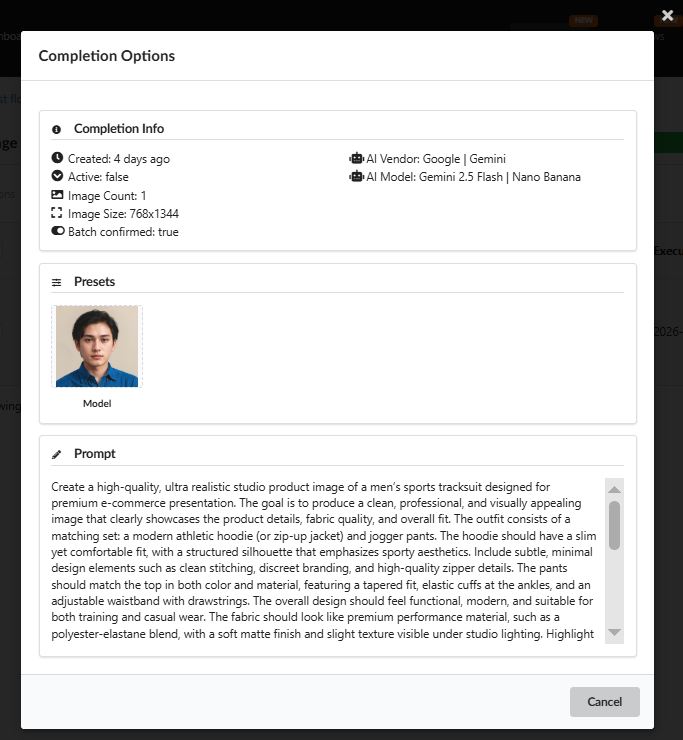
Completion Options: The teal "eye" icon in the
Actionscolumn opens a pop-up with technical metadata: the specific AI model, resolution, and the full final prompt with dynamic attributes already filled in.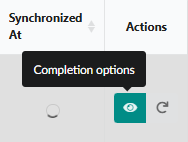
4. Adjustments and Regeneration
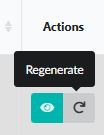
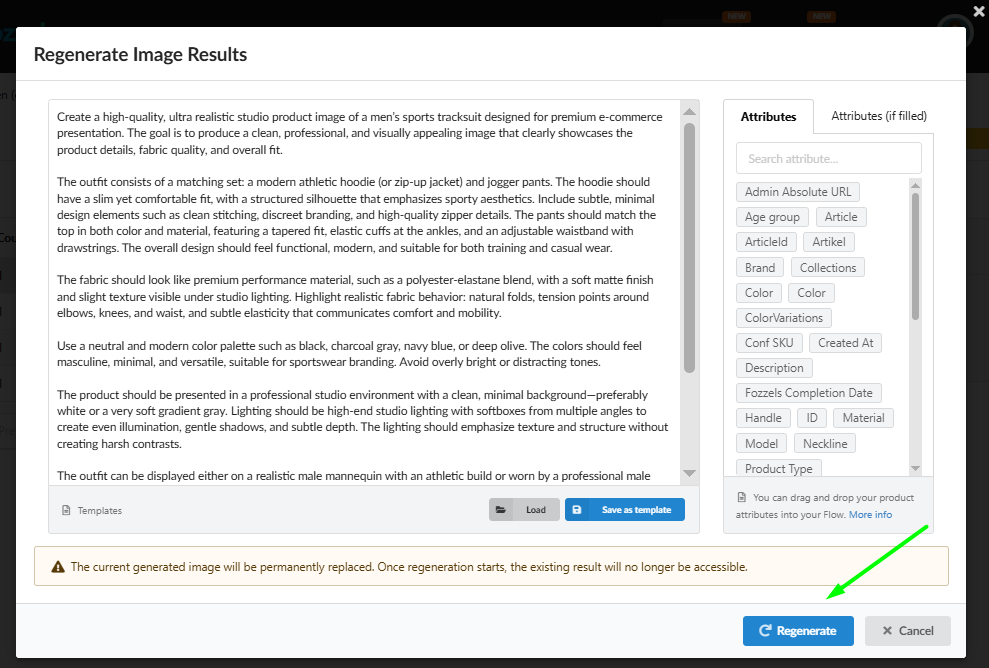
If you are not satisfied with a result, use the Regenerate icon (circular arrow):
Editing: You can modify the prompt text or add new attributes via Drag & Drop specifically for that SKU.
No Limits: You can regenerate an image as many times as necessary until you achieve the desired result.
⚠️ Important: A new generation permanently deletes the previous version of the image.
5. Store Synchronization
Since full automation is currently disabled to ensure quality, you decide when to publish content:
Individually: Click the checkmark button directly on the image in the
Resultscolumn.Status: Until published, the
Synchronized Atcolumn will display the statusWait for result confirmation.⚠️ Warning: Synchronization is irreversible - it cannot be canceled once initiated.
Good Luck and Happy Creating!
Congratulations! You are now fully equipped to master Fozzels Image Flow. This is your space to transform ideas into high-quality visual content in just a few clicks.
Watch the detailed instructions in the video
Was this article helpful?
That’s Great!
Thank you for your feedback
Sorry! We couldn't be helpful
Thank you for your feedback
Feedback sent
We appreciate your effort and will try to fix the article