Image Flow for Magento is a specialized, enterprise-grade automation tool designed for mass AI image generation, automated metadata mapping, and direct synchronization with your Magento catalog. By configuring this flow, you establish an autonomous pipeline that monitors your Magento store, processes thousands of products, and dynamically updates your website based on advanced filter criteria.
Important: We strongly recommend not activating the flow (keeping the "Active flow" toggle OFF) until you have completely finished all configurations inside Fozzels and tested your settings.
1. Creating a New Magento Image Flow (Tab 1)
This tab handles the primary connection and identity of your Magento automation sequence.
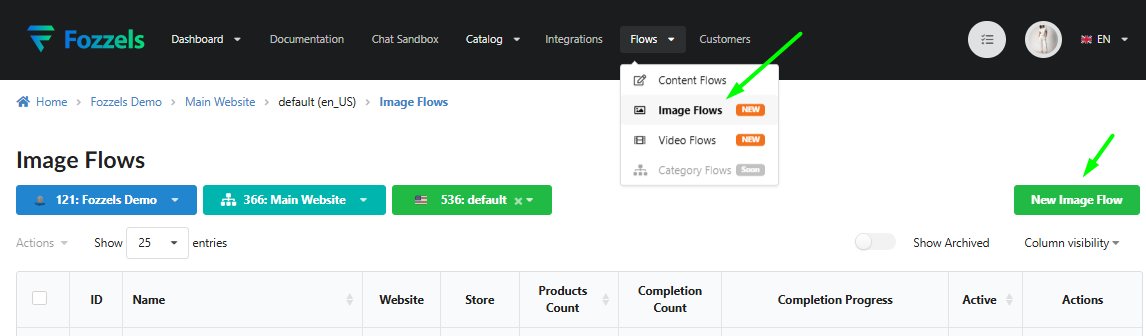
Option A: Via the Image Flows Menu — Navigate to Image Flows in the top navigation bar, click New Image Flow, and sequentially select your Magento Integration, Website, and Store View from the dropdown menus.
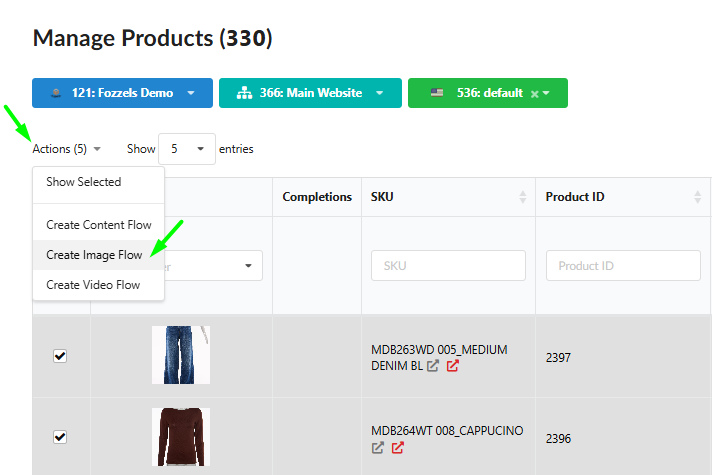
Option B: From the Product Catalog — Go to Catalog → Products, filter the specific Magento SKUs you wish to process, select them, and click Actions → Create Image Flow. This pre-fills your Magento store view and product context automatically.
Essential Steps:
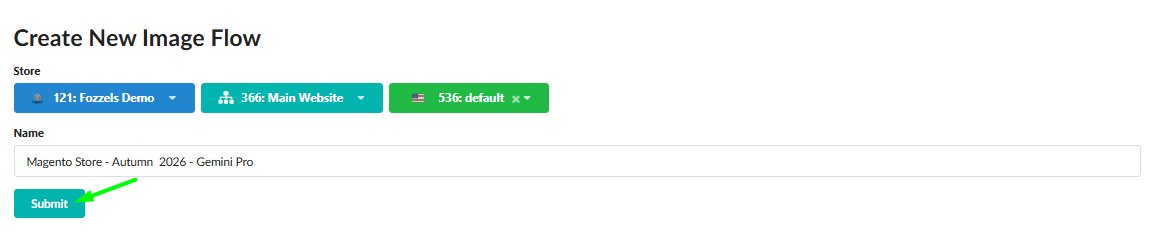
Name your Flow: Give your flow a clear, descriptive name (e.g., "Magento Store -Autumn 2026 - Gemini Pro").
Confirm Selection: Confirm your Magento store parameters by clicking the Submit button at the bottom of the page.
2. AI Configuration & Media Grid (Tab 2)
On this tab, you define the core AI model engine and the exact visual layout characteristics required for your Magento theme templates.
AI Provider & Model Selection
Select your processing network and specific model from the interactive cards on the screen: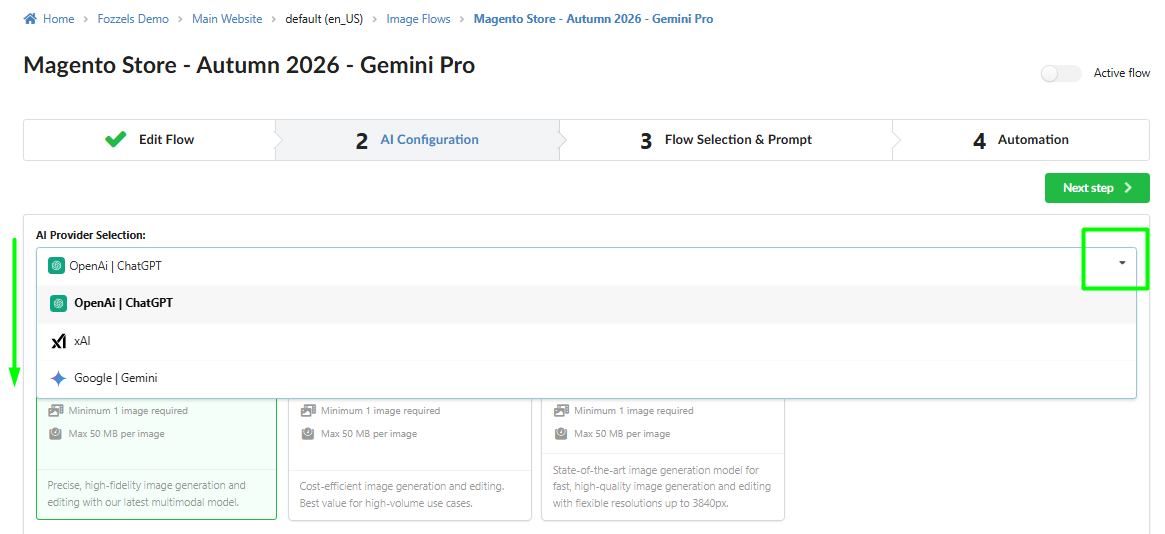
Google | Gemini:
Gemini 2.5 Flash | Nano Banana: A fast and efficient model optimized for high-volume, low-latency tasks. Supports up to 3 reference presets.
Gemini 3 Pro | Nano Banana Pro: Designed for professional asset production and complex instructions. Features a default "Thinking" process that refines composition and supports up to 14 reference presets.
Gemini 3.1 Flash | Nano Banana 2: An updated, highly efficient model balanced for high-volume asset creation. Supports up to 14 reference presets.
Virtual Try-On
NEW: A specialized model for generating photorealistic images showing how clothing looks on a person (requires a person image preset and a product garment image).
OpenAI | ChatGPT:
GPT Image 1: A precise, high-fidelity image generation model utilizing the latest multimodal frameworks.
GPT Image 1 Mini
NEW: A highly cost-efficient image generation and editing engine—offering the best value for high-volume use cases.GPT Image 2
NEW: A state-of-the-art generation model built for fast, high-quality rendering with flexible resolutions up to 3840px.
xAI:
Grok Imagine Image: The standard image generation model from xAI, delivering high-quality images from text prompts. Supports up to 5 reference presets.
Grok Imagine Image Pro
PRO: Premium xAI architecture delivering superior image quality with enhanced detail and texture accuracy. Supports up to 5 reference presets.
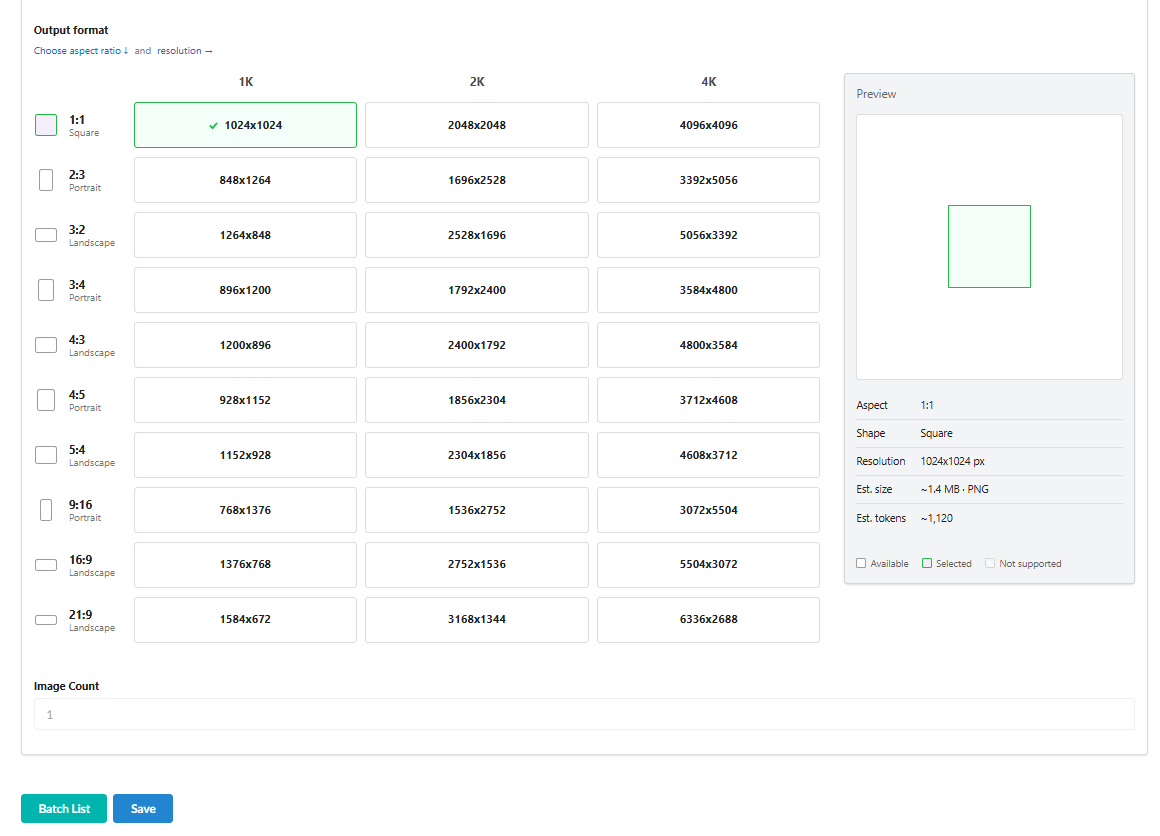
The Interactive Output Format Grid
Magento themes rely heavily on precise image dimensions to prevent layout shifting on your frontend. Use the grid to lock down exact pixel specifications:
Select Aspect Ratio: In the left column, pick your layout geometry (e.g., standard 1:1 Square for category grids, or 3:4 Portrait for Product Detail Pages (PDP)).
Select Resolution & Scale: Click directly on a grid cell mapping to your desired pixel tier under the 512, 1K, 2K, or 4K columns (e.g., 512x512 up to 4096x4096 to provide a deep hover-zoom experience on your storefront).
The Preview Panel: The interactive right panel dynamically renders a visual crop frame, the target file format, and calculates the Est. size (file weight) and Est. tokens (generation cost) per image request.
3. Magento Catalog Filtering & Prompting (Tab 3)
This section acts as the creative brain of your Magento flow, allowing you to filter products dynamically and inject native attributes into your prompts.
Section A: Select Presets
The Universality Rule: Since a single set of presets applies to an entire Magento product cluster, choose neutral assets. Avoid references with distinct brand markers or unique details that could accidentally bleed across different brands in your Magento inventory.
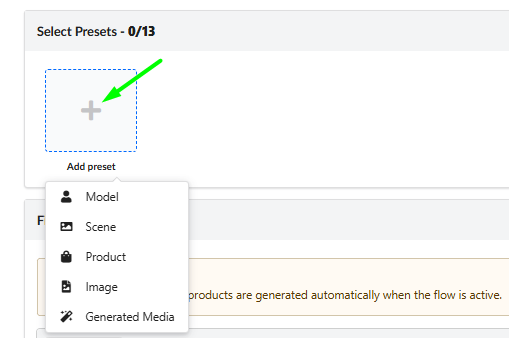
Capacity Counter: Track your preset allocation slots via the top counter. Models like Gemini Pro allow up to 14 reference slots, allowing you to establish extreme multi-angle and lighting consistency.
Adding References: Click the large [+] Add preset box to open the native dropdown menu and select your reference type:
Model: Choose a fashion model asset from the integrated Fozzels library to set poses and human styling.
Scene: Select a background style or environment template.
Product: Inject an additional reference photo of your product to give the AI more angles or details.
Image: Upload any custom image or reference file directly from your computer layout.
Generated Media: Choose an image that has already been successfully rendered in Fozzels to maintain consistency.
Section B: Advanced Magento Rule Builder (Filter & Select Products)
Logical Operators: Combine multiple criteria parameters through
ANDorORlogical paths.Targeted SKU Lookups: Use conditions like
SKUin[Value, Value]to map your flow directly onto explicit, comma-separated Magento attribute rows. The interactive preview below updates instantly to display matched items.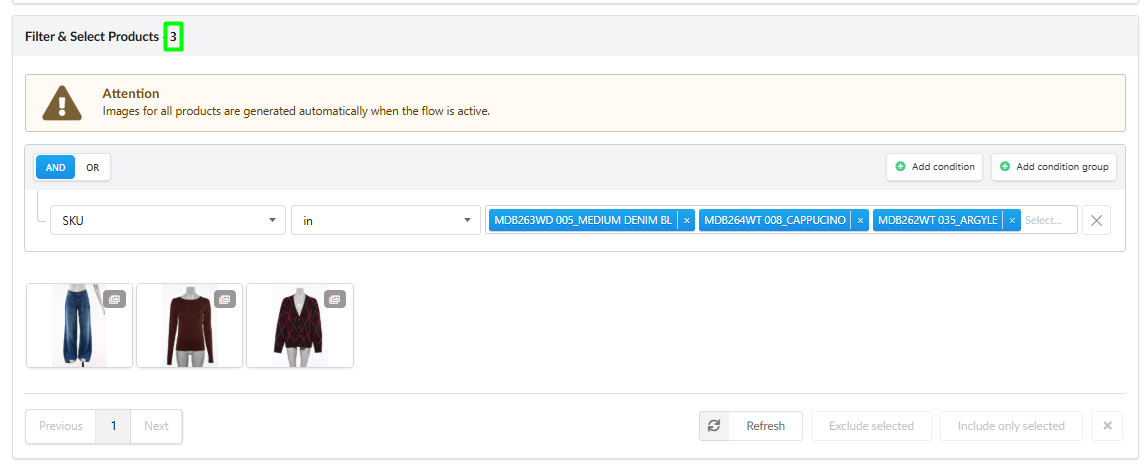
Section C: Dynamic Attribute Prompts
Magento Attribute Injection: Write your design instructions inside the main terminal window, then leverage the Attributes panel on the right side. You can click or drag-and-drop native Magento data fields (such as
Categoria,Color, orMaterial) straight into your text. Fozzels will dynamically replace these placeholders with unique values for every individual product processed in the batch.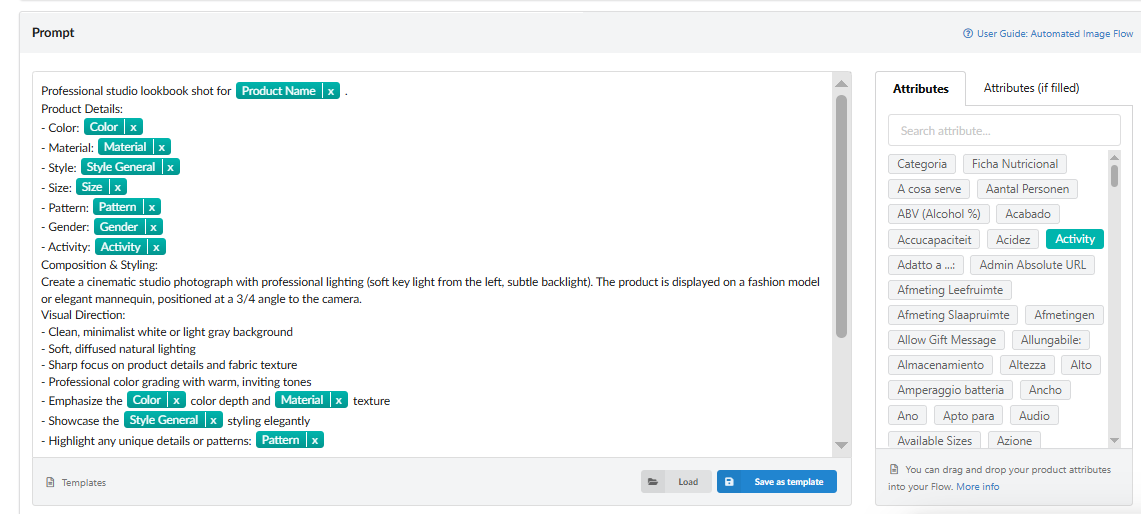
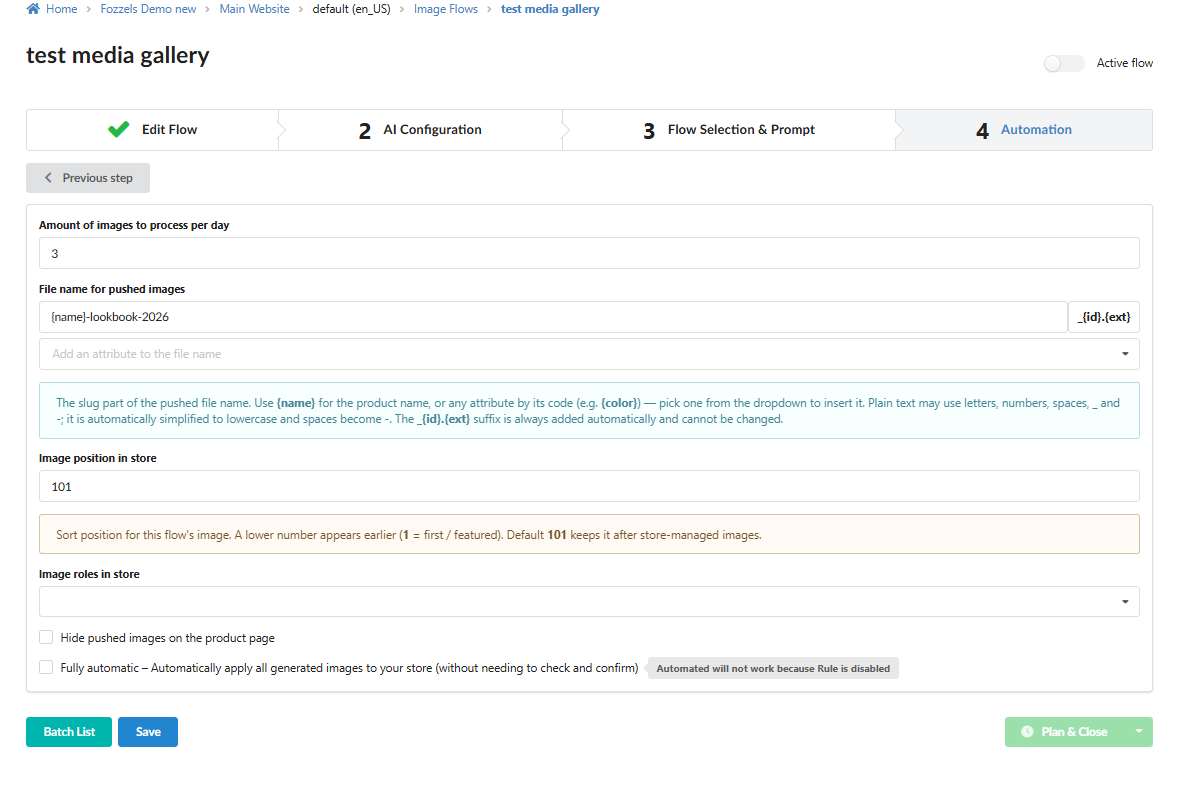
4. Magento Automation & Image Naming Configurations (Tab 4)
This tab controls how your media assets are initially queued for processing and structured for injection into the Magento database architecture, ensuring proper default data-mapping and SEO optimization.
Amount of images to process per day: Set threshold caps to throttle generation flows over long-term background operations.
File name for pushed images (SEO Naming): Maximize your Magento store’s SEO health by designing programmatic file names. Use standard text or insert dynamic attribute slugs from the dropdown menu (such as
{name}for the product name or specific code parameters like{color}). Spaces are automatically simplified to clean hyphens (-). The_{id}.{ext}suffix is appended by the system automatically to guarantee database file uniqueness and prevent overwriting existing assets on your Magento server.Image position in store: Enter the default global priority weight number (default is
101). Lower numbers show up earlier in your Magento layout (1= first / featured). A default weight of101safely inserts your AI outputs right behind your native, store-managed catalog images.Image roles in store: Map assets directly onto native Magento media roles used by your active theme template. Click the field to assign default fallback structural roles like
Base(main product image),Small,Thumbnail, orSwatch.Hide pushed images on the product page: Toggle this checkmark on to safely sync graphics to your Magento media folder for back-end technical functions (like checkout cart icons or secondary custom sliders) without displaying them inside your main frontend consumer gallery carousel.
Fully automatic [Coming Soon]: This feature is currently under development. Once active, enabling this checkmark will allow you to completely bypass human validation, publishing images directly to your live Magento store views the second they finish rendering.
5. Flow Activation & Execution
Once you have completed all mapping fields on Tab 4, your automated pipeline is ready to deploy. Use the following steps to initialize the generation engine:
Activate the Flow (Active flow Toggle): Move the master Active flow toggle switch located in the upper-right corner of the page to the ON position. This officially transitions your automation from a draft state into an operational routine.
Launch Generation (Plan & Close / Run Now):
Click the green split-button in the bottom-right corner of the screen.
Select Run Now from the dropdown options. The system will lock in your final configuration layout, close the builder workspace, and immediately trigger the background engine to process your Magento product data batch.
Monitor Progress: To view the rendering status in real time or jump straight into the moderation queue, click the turquoise [Batch List] button in the bottom-left corner. This instantly routes you to your chronological processing logs.
6. Working with the Batch List & Reviews
If the Fully automatic option is disabled, all assets are routed directly to your Batch List for review and manual deployment.
Navigating the Batches Index
Click the Batch List button to load your execution logs. Select your session chronologically in the left table, and use the main Image Completion List panel to monitor product processing row-by-row alongside their original Magento SKUs.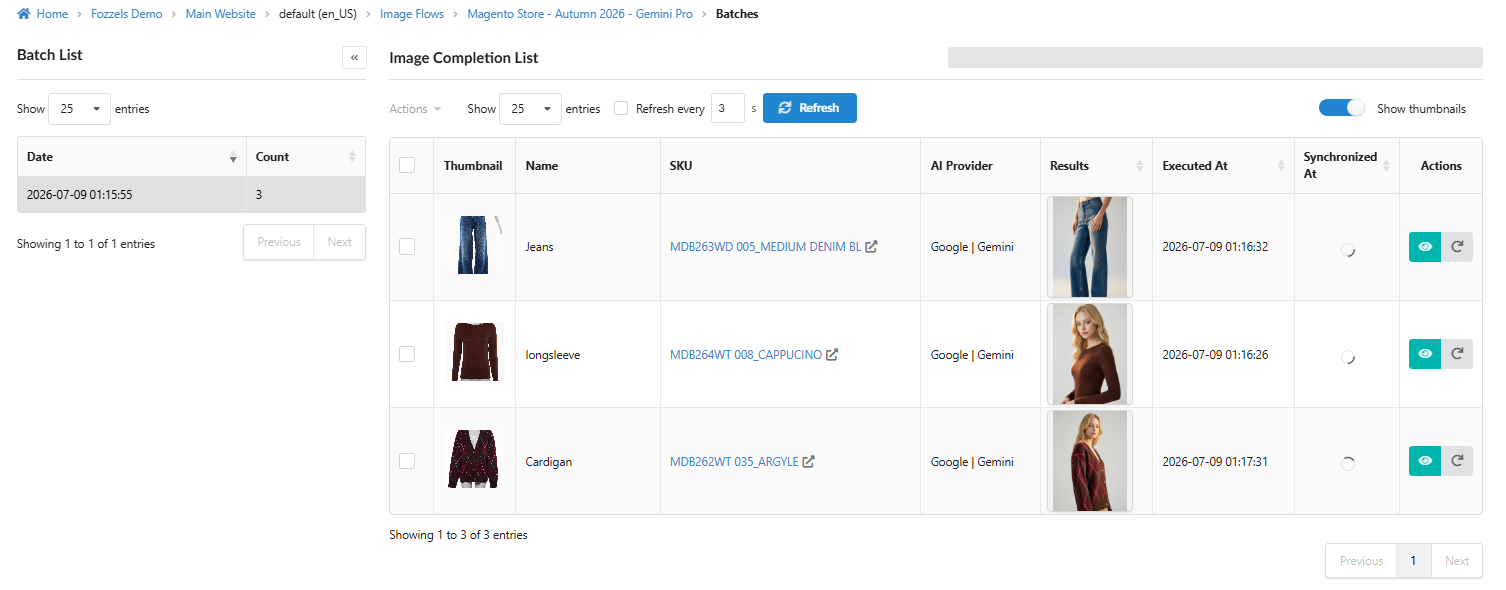
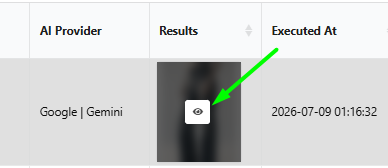
The Consolidated Review Interface ("Swipe-and-Sync")
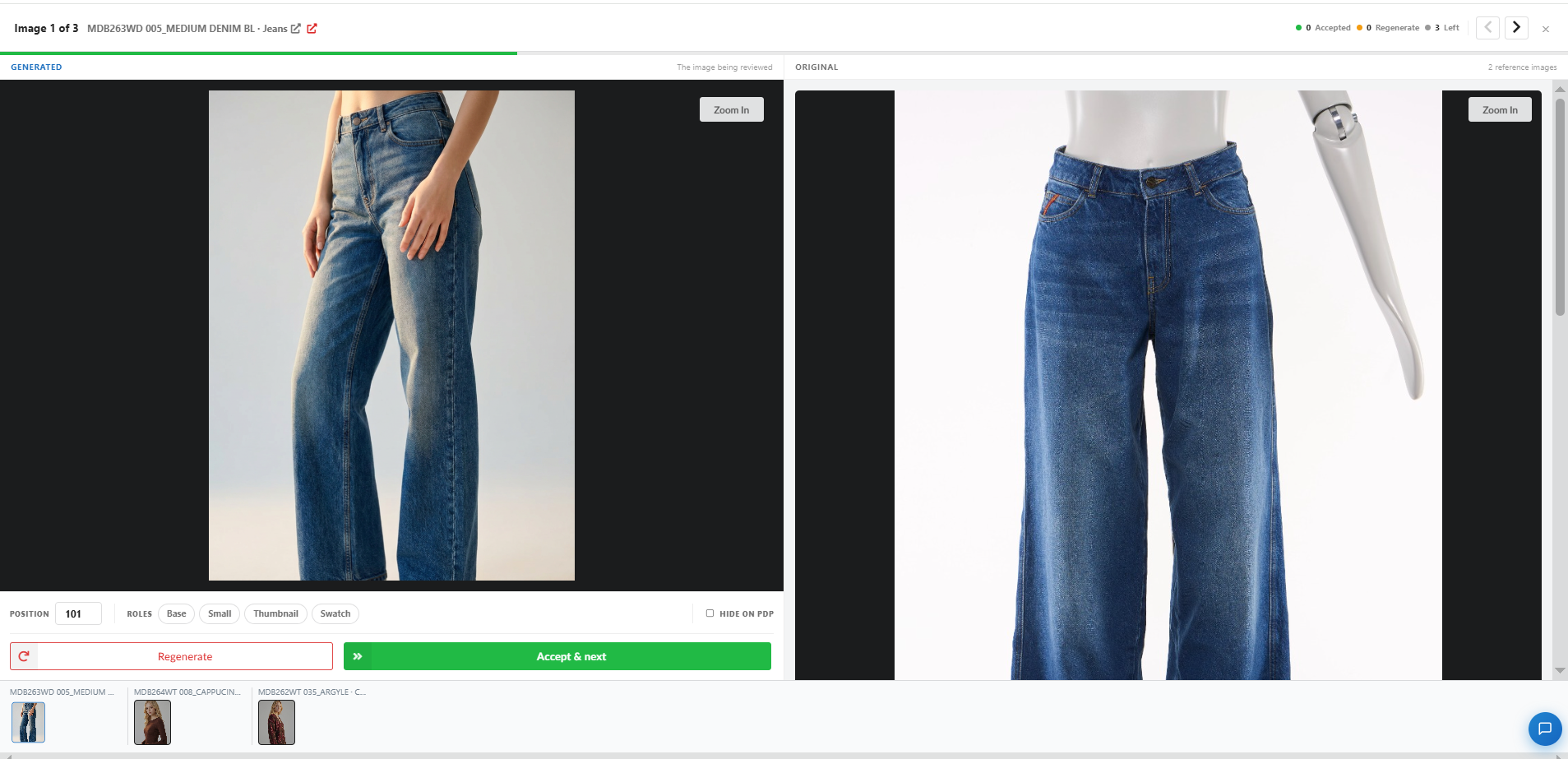
Clicking the Eye icon launches our streamlined, side-by-side overlay designed to let you speed-audit batches and override global parameters on an individual, item-by-item level:
Side-by-Side Review: The Generated Panel (Left) displays the new AI option; the Original Panel (Right) displays your Magento store's reference file. Use [Zoom In] on either side for micro-inspections.
Magento Metadata Override Console: Located directly beneath the image cards, this allows you to fine-tune specific storefront settings for the selected product before pushing it live:
POSITION: Manually change the gallery order text box (e.g., lower from
101if you want this specific render to be the main thumbnail).ROLES: Click the interactive toggle badges (
Base,Small,Thumbnail,Swatch) to dynamically assign or remove native Magento presentation values for this specific file.HIDE ON PDP: Check this box to hide only this individual asset from the product detail page carousel.
The Control Loop:
Regenerate: Triggers an immediate, unrestricted rerun for an alternative visual variation if the layout needs a redesign.
Accept & next: Approves the version, locks in your customized Magento metadata overrides, and instantly swipes open the next image in your batch queue.
6. Bulk Actions & Local ZIP Exports
Fozzels provides total data portability over your visual inventory. You can push batches directly to Magento, or export folders locally.
Executing Mass Actions:
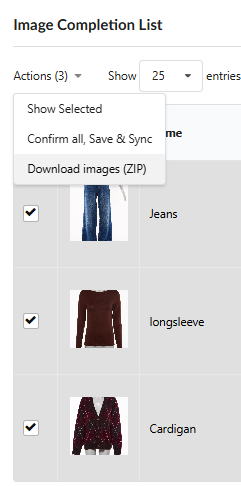
Check the selection boxes on the left side of rows inside your Image Completion List table.
Open the Actions dropdown menu located directly above the data grid headers and choose your routine:
Show Selected: Filters your working screen to isolate only your marked Magento product rows.
Download images (ZIP): Triggers the background compilation of all marked high-resolution, AI-generated assets into a single compressed package.
Where to Find Your Downloaded Archives
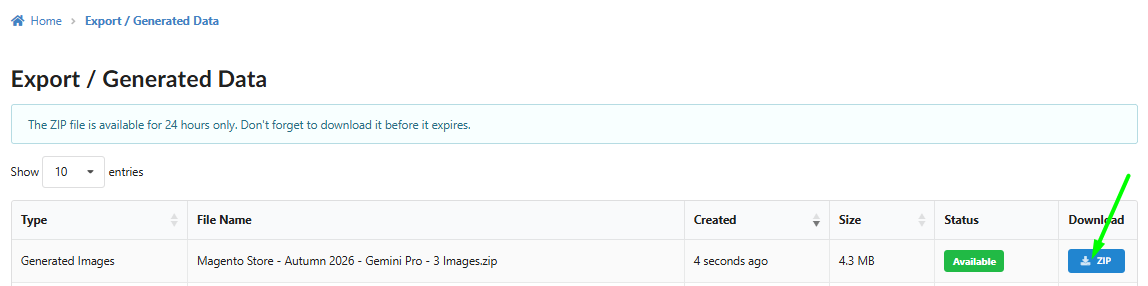
Because processing large batches of high-resolution images can take a few moments, archives are generated in the background. To download your completed files:
Click on the Dashboard dropdown menu in the top-right corner of the main header navigation bar.
Select Export / Generated Data from the list.
Once the status badge turns green (Available), click the blue [ZIP] button in the Download column to save the archive straight to your computer.
⚠️ Important Note: Generated ZIP files are kept on the server and available for 24 hours only. Don't forget to download your assets before the link expires!
7. SEO Optimization: Generating Alt Texts for New Images
In addition to visual assets, Fozzels can automatically generate relevant, SEO-optimized Alt texts (alternative descriptions) for every new AI image pushed to your Magento store. This significantly improves your catalog's ranking factors in Google Image Search results.
To learn how to configure automated generation and metadata mapping for Alt tags, read more here: User Guide: Automated Alt Texts and SEO for Magento.
Was this article helpful?
That’s Great!
Thank you for your feedback
Sorry! We couldn't be helpful
Thank you for your feedback
Feedback sent
We appreciate your effort and will try to fix the article