This guide explains how to establish a two-way connection between your Akeneo PIM and Fozzels. The integration requires creating two separate connections in Akeneo - one to allow Fozzels to send data into Akeneo, and one to allow Akeneo to export data to Fozzels. After both connections are created, you link them to your Fozzels account using the generated credentials.
Prerequisites
- An active Akeneo account with administrator access
- An active Fozzels account
- Access to the Connection settings area in Akeneo
Part 1: Akeneo Setup (Creating Connections)
Step 1: Log In and Navigate to Connection Settings
- Open a browser and log in to your Akeneo dashboard using your administrator credentials.
- In the left-hand sidebar, navigate to Connect → Connection settings.
Step 2: Create the "Data Source" Connection (Fozzels IN)
This connection allows Fozzels to send data into Akeneo.
- Click the Create button in the top-right corner.
- Fill in the following fields:
- Label:
Fozzels IN - Code:
fozzels_in - Flow Type: select
Data source
- Label:
- Click Save.
- Scroll down to the Permissions section. In the Role dropdown, select
Administrator. - Click Save again.
- Keep this page open — you will need the Client ID, Secret, Username, and Password displayed on screen.
Tip: Copy each credential into a temporary text file so you don't lose them when navigating away.
Step 3: Create the "Data Destination" Connection (Fozzels OUT)
This connection allows Akeneo to export data to Fozzels.
- Go back to Connect → Connection settings and click Create.
- Fill in the following fields:
- Label:
Fozzels OUT - Code:
fozzels_out - Flow Type: select
Data destination
- Label:
- Click Save.
- Under Permissions, set the Role to
Administrator. - Click Save.
- Copy the Client ID, Secret, Username, and Password for this connection.
Important: Each connection generates its own unique set of credentials. Make sure you copy and label both sets separately — you will need to paste each into the correct field in Fozzels.
Part 2: Fozzels Activation
Step 4: Start a New Integration
- Log in to your Fozzels account.
- Navigate to the Integrations tab.
- Click Create New Integration.
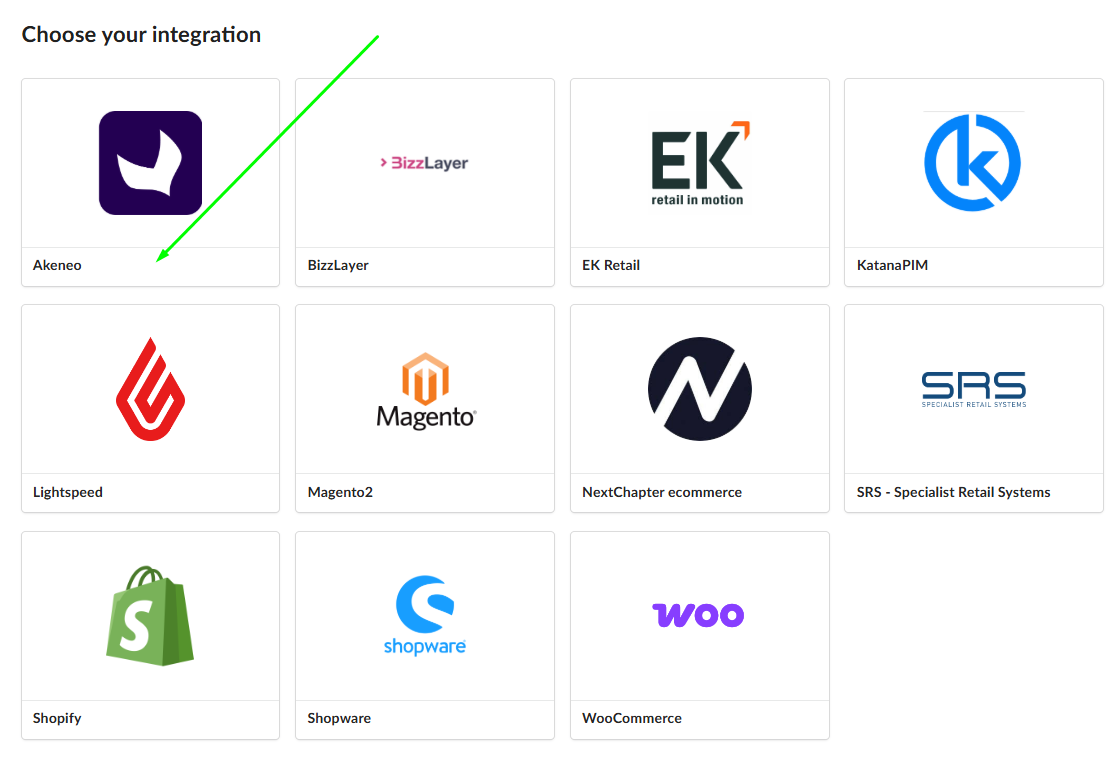
- Select Akeneo.
Step 5: Fill In Configuration Fields
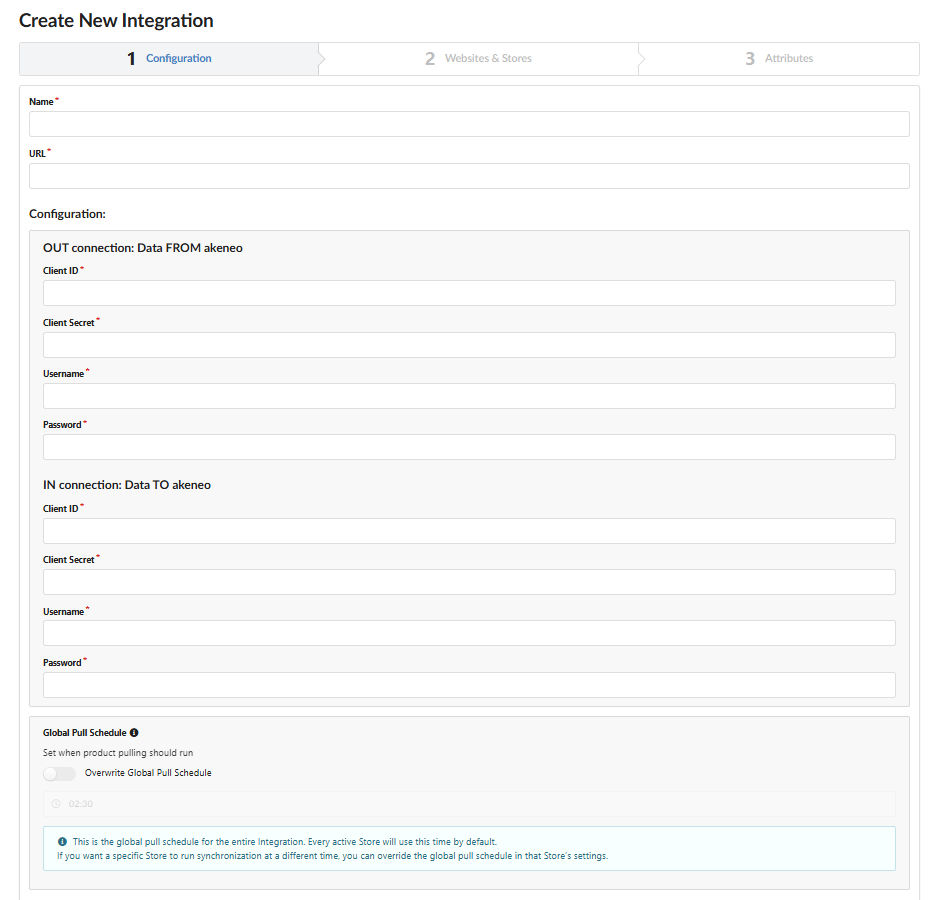
On the integration setup page, fill in the following fields:
- Name: enter a descriptive name for this integration (e.g.
Akeneo Connection) - Your website's URL
- OUT connection (Data FROM Akeneo): paste the credentials from the Fozzels OUT connection you created in Step 3
- IN connection (Data TO Akeneo): paste the credentials from the Fozzels IN connection you created in Step 2
Step 6: Save the Integration
- Click the Save button at the bottom of the page.
Your Fozzels account is now connected to Akeneo. Data can flow in both directions based on the connections you configured.
If you run into any issues during setup, reach out to our support team - we're happy to help.
Was this article helpful?
That’s Great!
Thank you for your feedback
Sorry! We couldn't be helpful
Thank you for your feedback
Feedback sent
We appreciate your effort and will try to fix the article