Creating a Content Flow for categories is virtually identical to working with products - the interface is familiar, convenient, and intuitive. Below is a step-by-step guide on how to set up and launch content generation for your categories.
Step-by-Step Guide
Step 1. Navigate to Categories
In the side menu under MAIN/CATALOG, select Categories.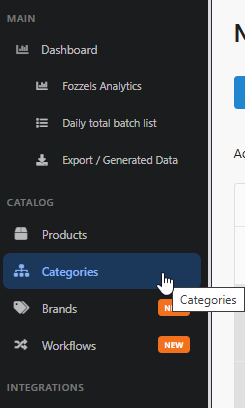
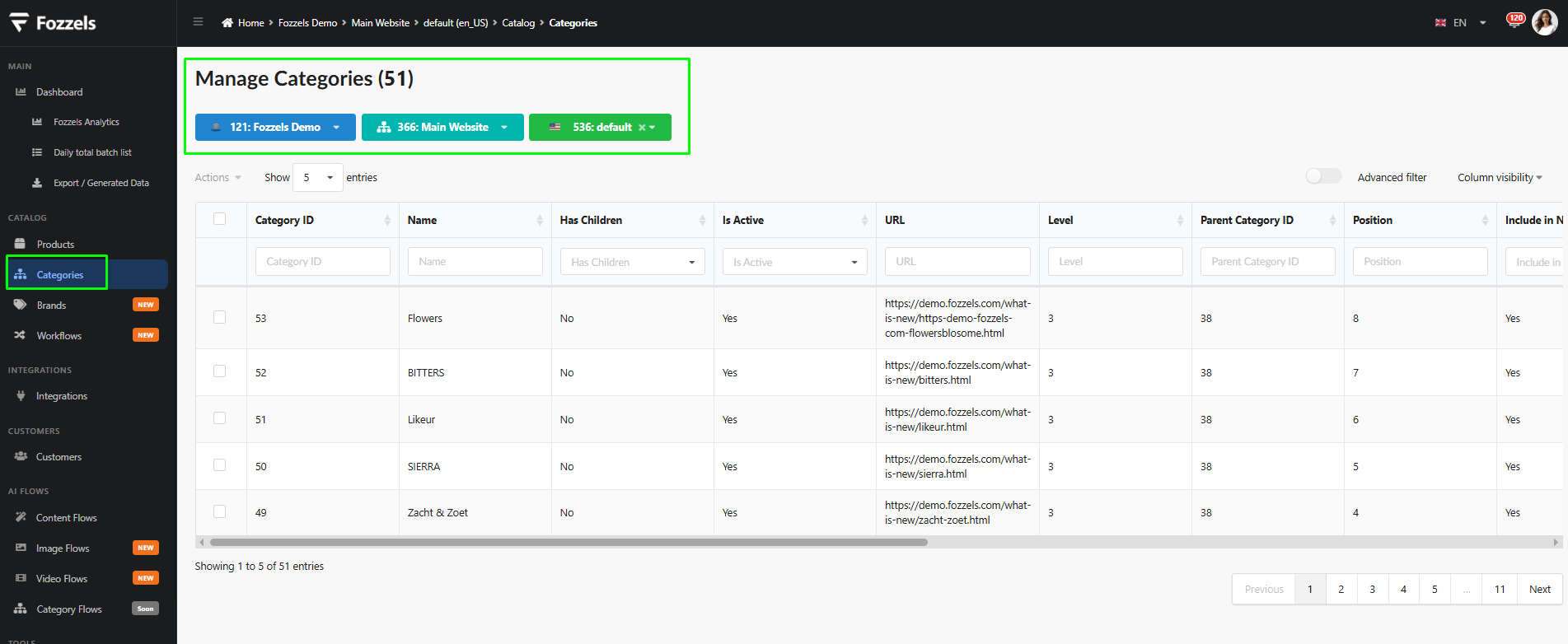
Step 2. Select the Store View
At the top of the page, use the store switcher filters to ensure you have selected the correct store view.
Step 3. Select Categories
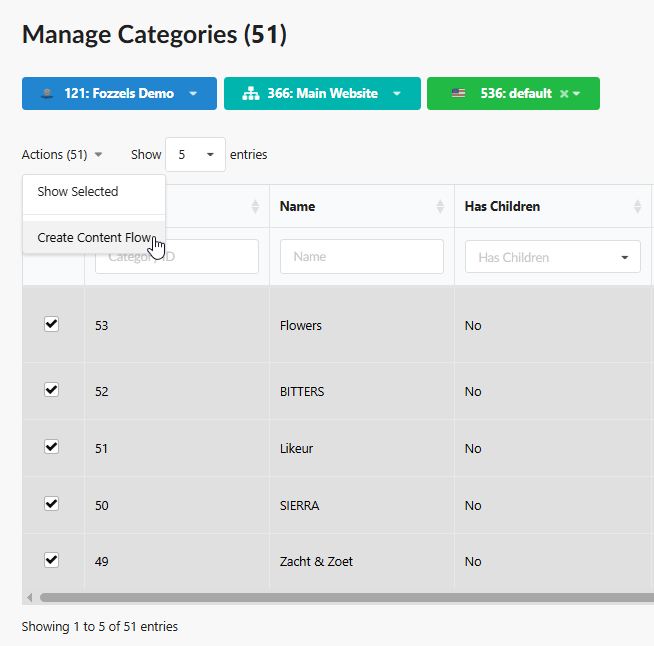
Choose the categories you want to generate content for:
Manually: Check the boxes next to the desired categories in the list.
Via Mass Action: Select Create Content Flow from the
Actionsdropdown menu above the table.
Note: The selection interface is identical to the product workflow, making the process quick and easy.
Step 4. Create the Flow & Configure Main Settings
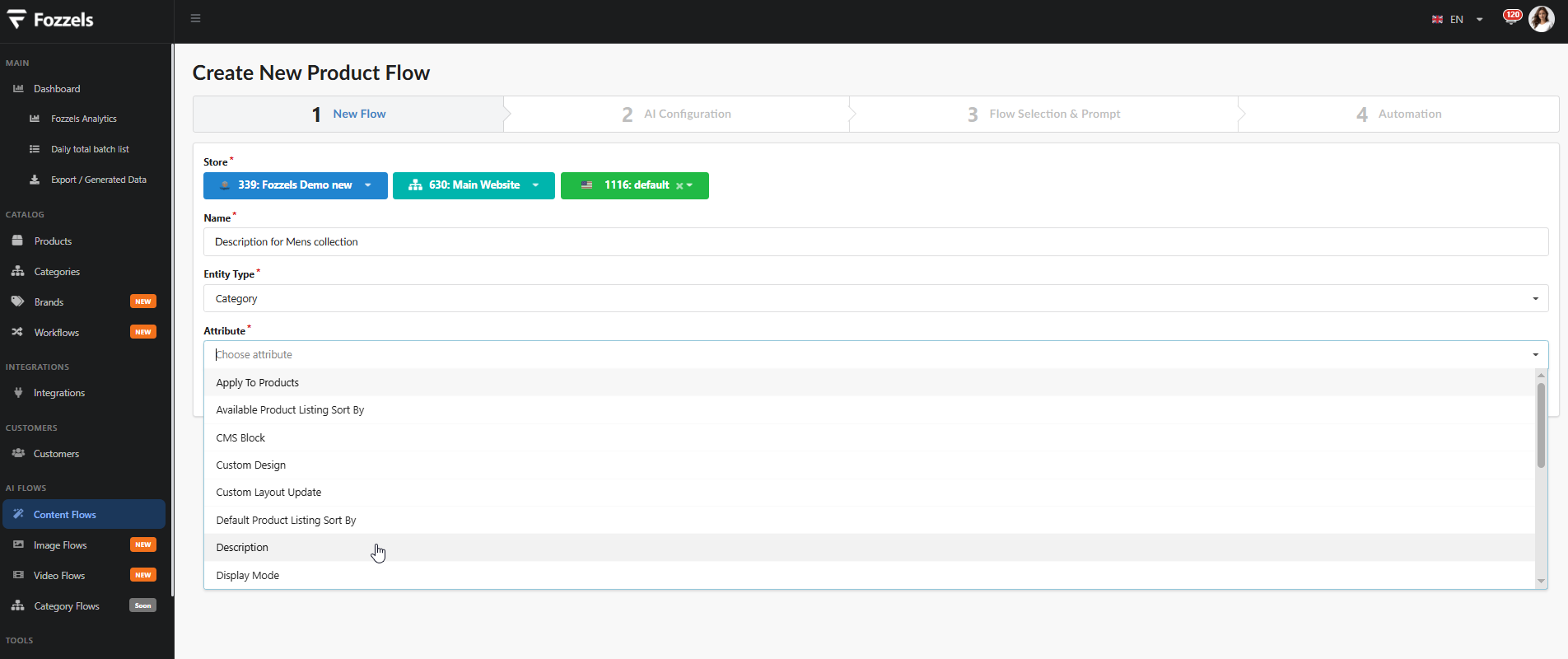
Enter a clear Name for the flow (e.g., Description for Mens collection).
The Entity Type field will already be pre-selected as
Category.
Step 5. Choose the Target Attribute
Select the category attribute you want to generate content for (e.g., Description) from the Attribute dropdown, then save your selection.
What if the required attribute is missing from the list?
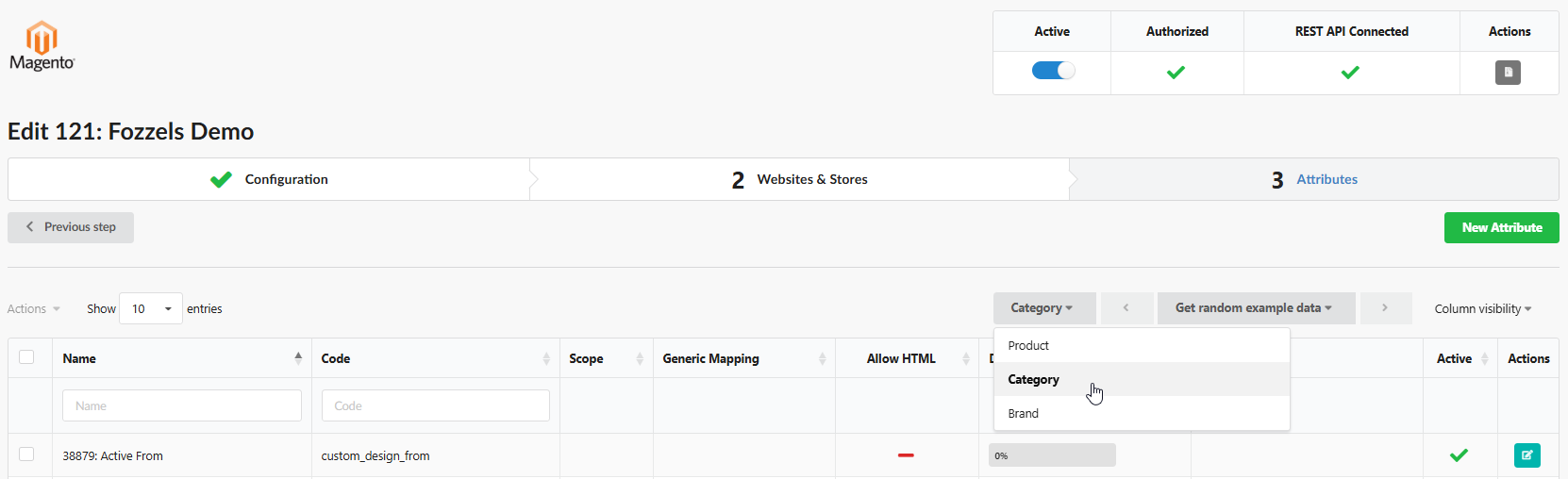
Go to Integrations (left menu) $\rightarrow$ Attributes tab.
Select Entity Type $\rightarrow$
Category.Find the required attribute in the list.
Check the Mutable property: if it is disabled, turn it on to allow content updates for this attribute.

Step 6. AI Configuration, Prompt & Launch
Choose your preferred AI model.
Apply additional filters if needed.
Enter your Prompt.
Add automatization settings.
Activate your flow.
Save the flow.
Click Run Now to launch the generation.
Additional Information
All accompanying features and mechanics work exactly the same as product flows:
Daily Total Batch List: Your category generation results will also be displayed in the general daily report.
Batch Lists and general generation rules.
Automation and data export/import.
Formatting, stop-words / suspicious expressions.
Allowed HTML tags and overlapping mechanics.
Happy generating!
Was this article helpful?
That’s Great!
Thank you for your feedback
Sorry! We couldn't be helpful
Thank you for your feedback
Feedback sent
We appreciate your effort and will try to fix the article