Welcome to Fozzels! To unlock the full potential of our AI without limits, you need to activate a subscription. Here is your step-by-step guide.
1. Choose Your Plan
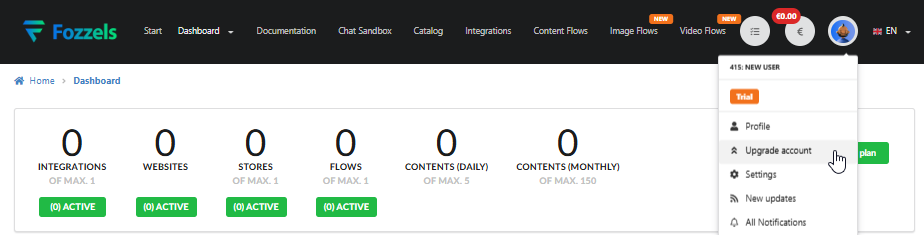
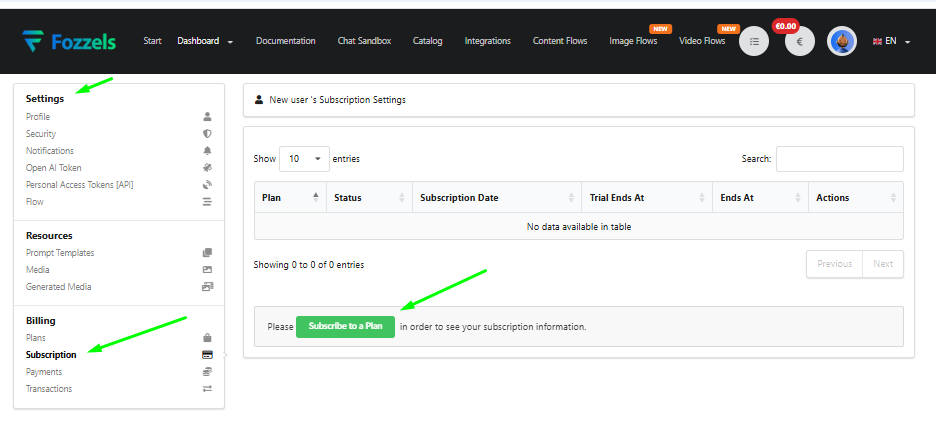
Click your Avatar (top right) -> Upgrade account (or go to Settings -> Billing -> Plans).
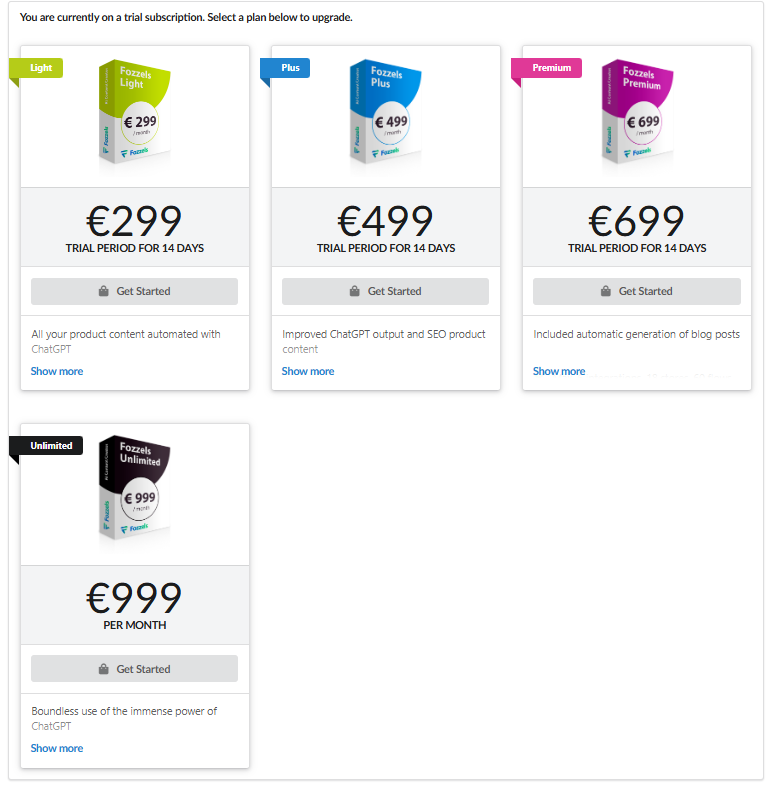
Select your preferred tier (e.g., Unlimited) and click Get Started.
2. Stripe Checkout (Personal vs. Business)
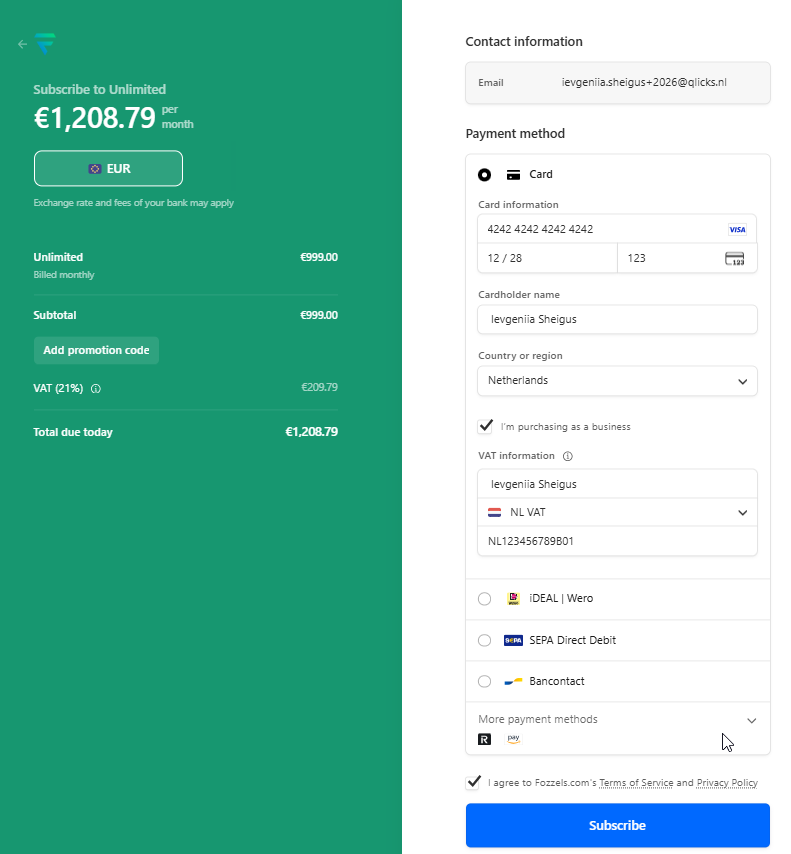
You will be redirected to the secure Stripe Checkout page.
As an Individual: Enter your card details, email, and billing address.
As a Business (B2B):
Check the box "I'm purchasing as a business".
Enter your Business name (legal entity name).
Select your tax country and enter your VAT number (e.g.,
NL123456789B01for the Netherlands). This ensures you receive a valid invoice and applies the Reverse Charge rule (0% VAT) for eligible EU businesses.Finally, check the Terms of Service agreement box and click Subscribe.
3. Verifying Status & Transactions
Once the payment is processed, you will see a "You have successfully subscribed" confirmation.
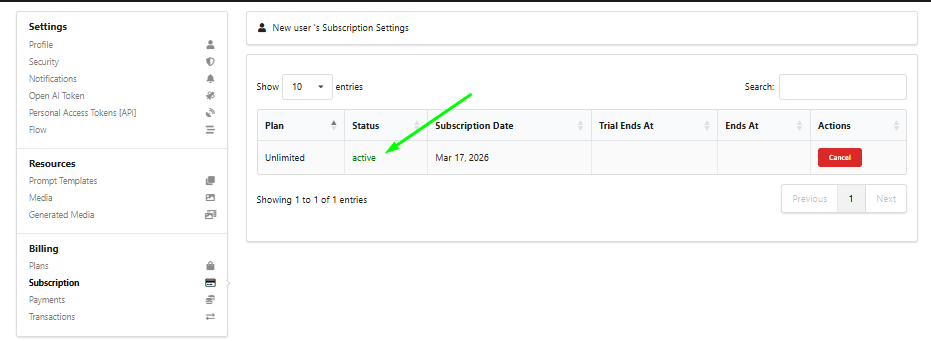
Status: Go to Settings -> Billing -> Subscription. Your plan should now show a green active label.
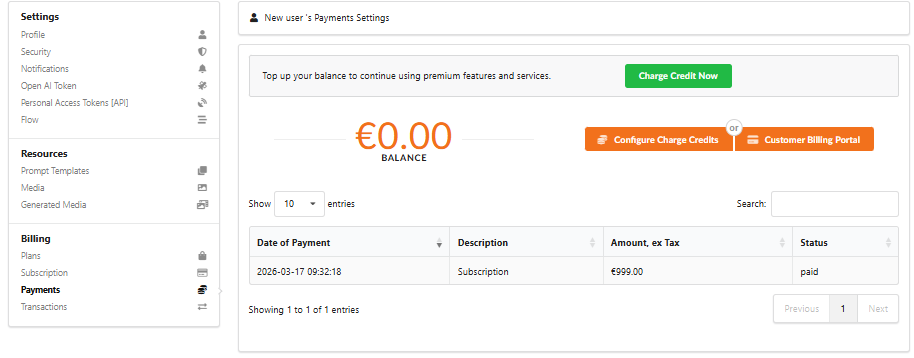
Payments: Your transaction will appear in the Payments tab with a paid status. You can track all your invoices here.
4. Setting Up Automatic Payments (Recommended)
To ensure your service remains uninterrupted next month, set your card as the primary method:
In the Payments tab, click the orange Customer Billing Portal button.
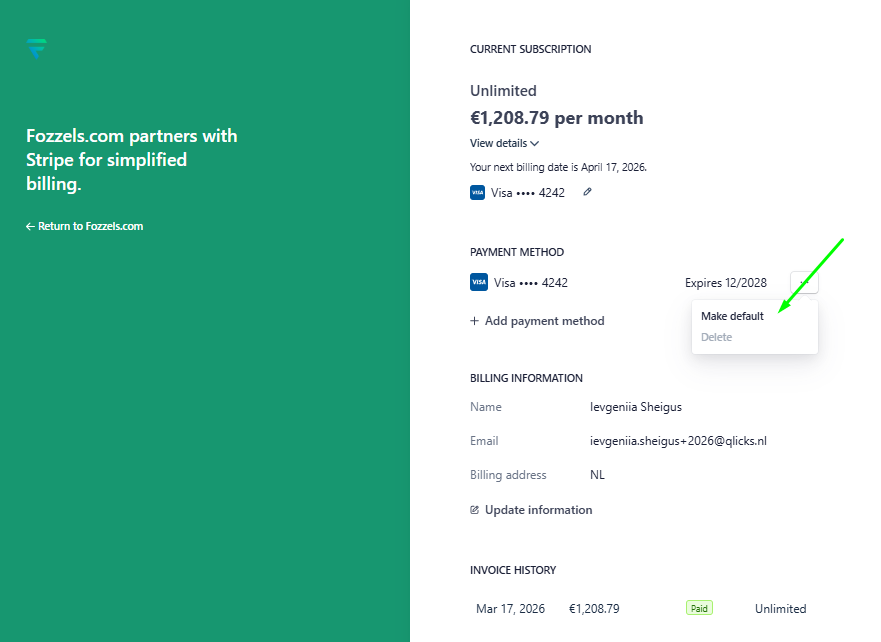
In the Stripe interface, find your card, click the menu (
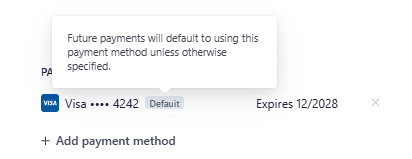
...), and select Make default.A gray Default label will appear next to the card. Future payments will now be charged automatically.

5. Topping Up Your Balance (Credits)
If you need extra resources beyond your plan's limits:
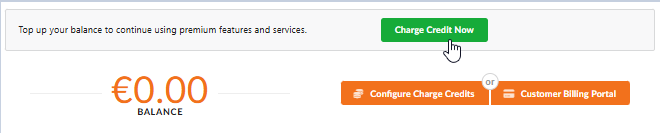
Click the green Charge Credit Now button in the Payments section.
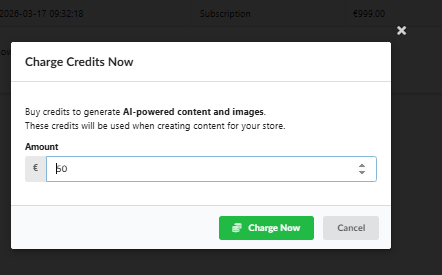
Enter the amount (e.g., €50) in the pop-up.
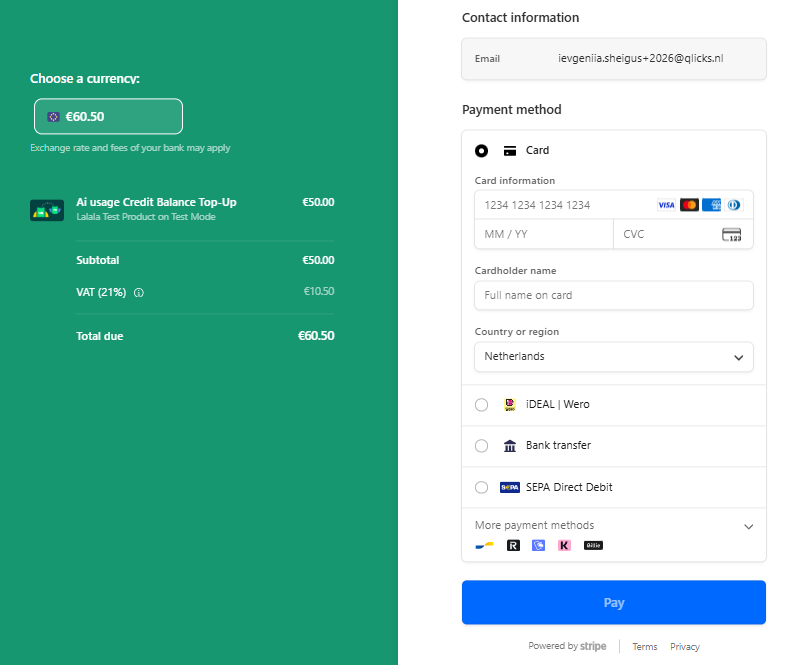
You will be redirected to Stripe to confirm.
Put your data into the inputs and hit Pay.
After payment, your Balance will update immediately, and a Topup entry will appear in your transaction history.

6. You're Ready!
You are now fully set up to scale your content production.
For continuous generation, we highly recommend setting up Auto-recharge. Learn how to do it here:
1.4.1 How to Set Up Auto Top-Up and Add or Change Your Default Payment Method (card) in Fozzels
Have questions? Contact our support channel (support@fozzels.com) we’re here to help!"
Was this article helpful?
That’s Great!
Thank you for your feedback
Sorry! We couldn't be helpful
Thank you for your feedback
Feedback sent
We appreciate your effort and will try to fix the article